Image Stack Group
The Xpro Image Stack Group widget for Elementor is a powerful creative tool that showcases multiple images and icons in an innovative, layered layout. It allows you to create visually engaging compositions that enhance storytelling through overlap effects, interactive tooltips, and dynamic hover animations. Whether you are displaying a professional team showcase, social media handles, or a creative portfolio, this widget provides a seamless way to elevate your site’s visual appeal without writing any code.
How to Install Image Stack Group Widget
Our Image Stack Group widget is the perfect companion for creating modern, layered designs. It offers far more than a simple gallery, providing four distinct layout styles—Overlap, Grid, Inline, and Circle—to fit any design requirement.
Requirements
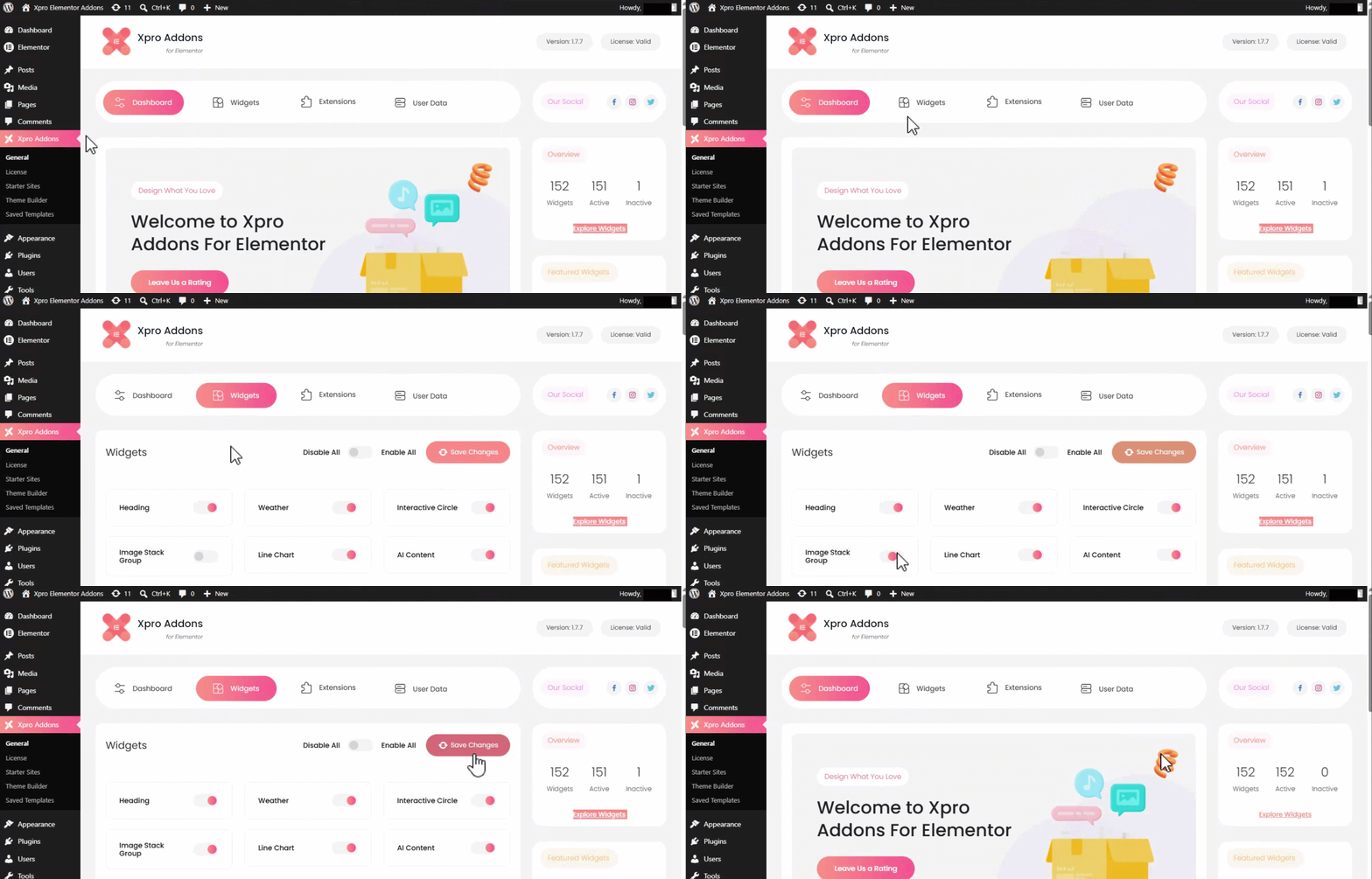
You need to install and activate the free plugin by Xpro Elementor Addons. If you already have the plugin installed, ensure the Image Stack Group widget is enabled in the Xpro Addons dashboard so you can find it in the Elementor editor.
- Step 1
Click on the Xpro Addons option available on the WordPress Dashboard Menu.
- Step 2
From the Xpro Addons Dashboard, click on the Widgets Tab, find the Image Stack Group widget, and toggle the button ON to enable it.
How To Use Xpro Image Stack Group Widget
You can create stunning layered visuals for your website in just a few clicks. First, we will explain the core settings, and then explore the styling options to make your image stack truly unique.
- Step 1
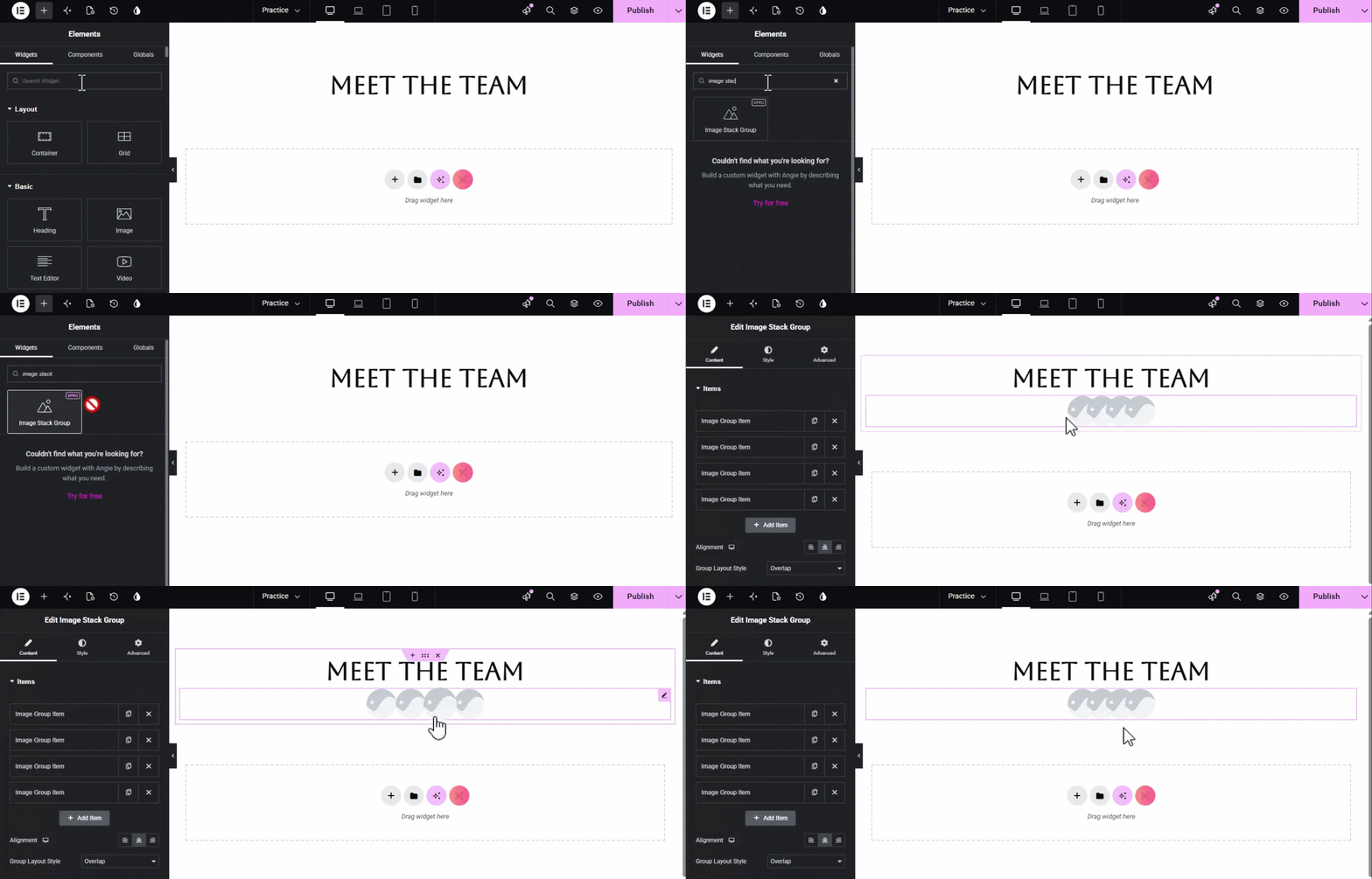
Click on the Xpro Addons section available in the Elementor Editor.
- Step 2
Select the Image Stack Group widget from the list and drag and drop it onto your desired page location.
Configuring Content and Layouts
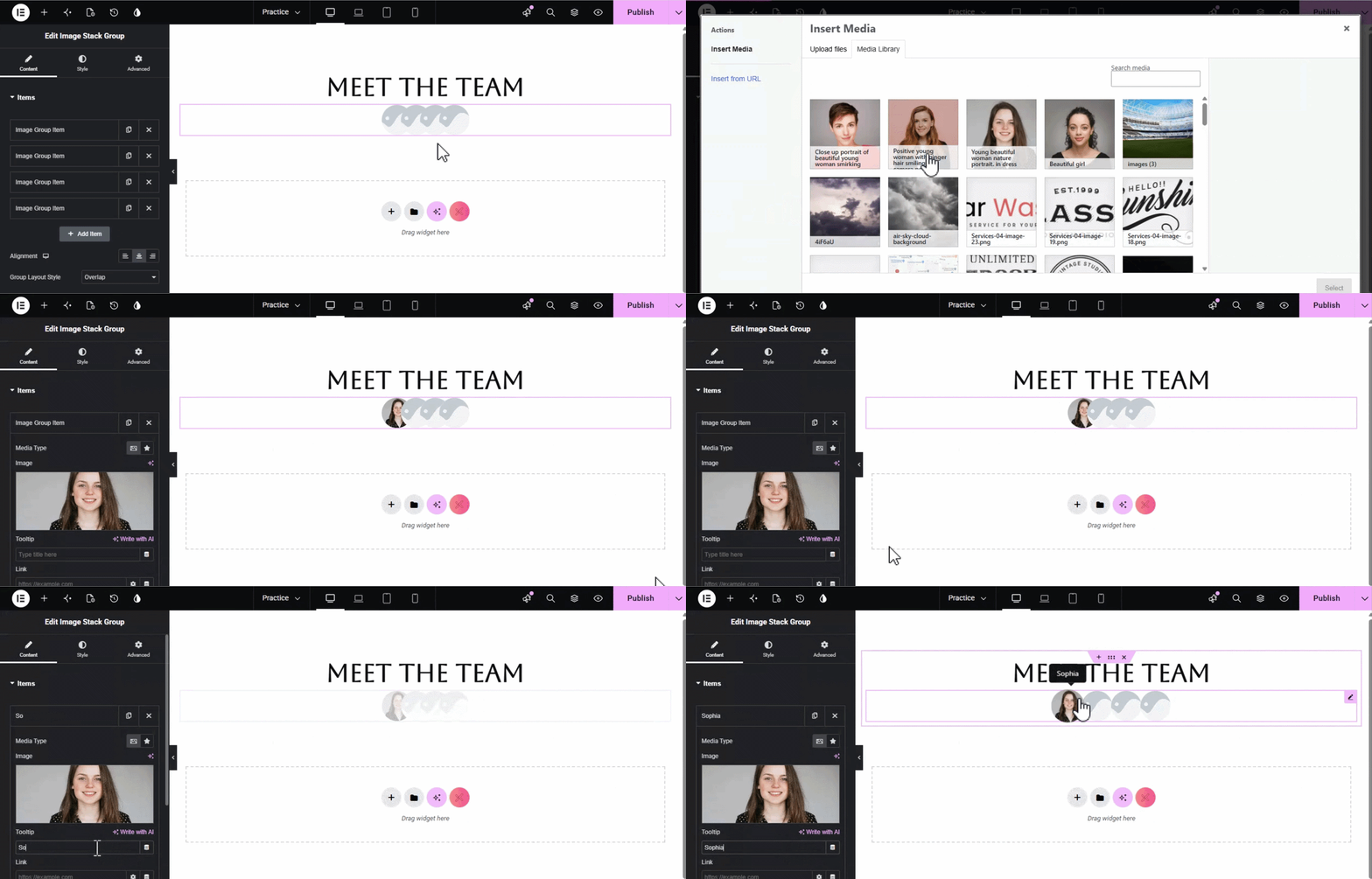
The Content section allows you to manage the individual media items and the overall arrangement of the group.
- Add Items: Use the repeater field to add as many images or icons as you need. For each item, you can select the Media Type (Image or Icon), upload your file, and add a custom Link.
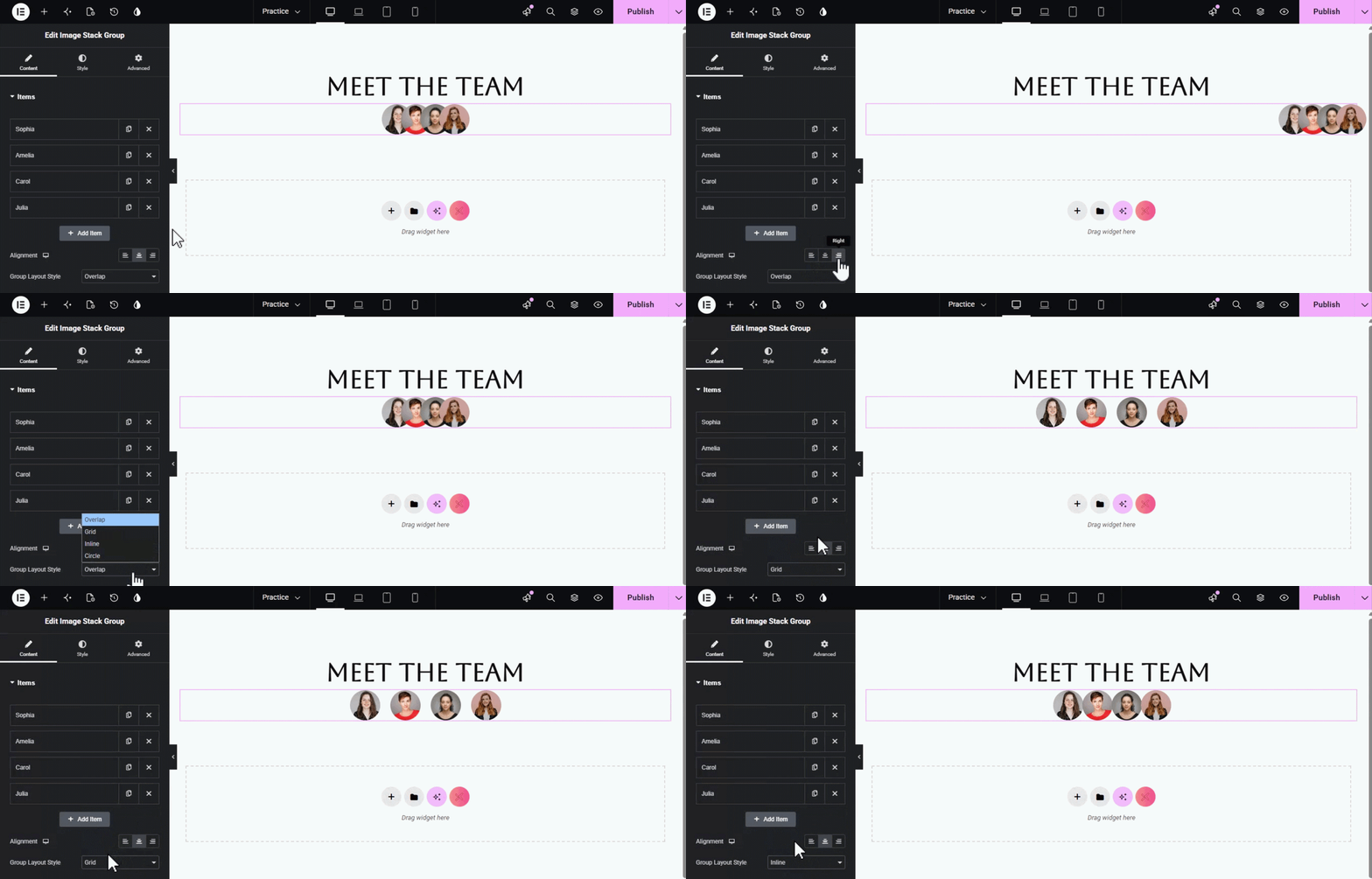
- Group Layout Styles: Choose how your items interact from the dropdown menu, like Overlap, Grid, Inline, Circle.
- Alignment: Set the entire group to be left, center, or right-aligned to match your page layout.
How to Style Xpro Image Stack Group
The Style section gives you full creative freedom to customize the appearance of your images, icons, and tooltips.
Image and Icon Styling
You can control the finer details of your media items to ensure they match your brand:
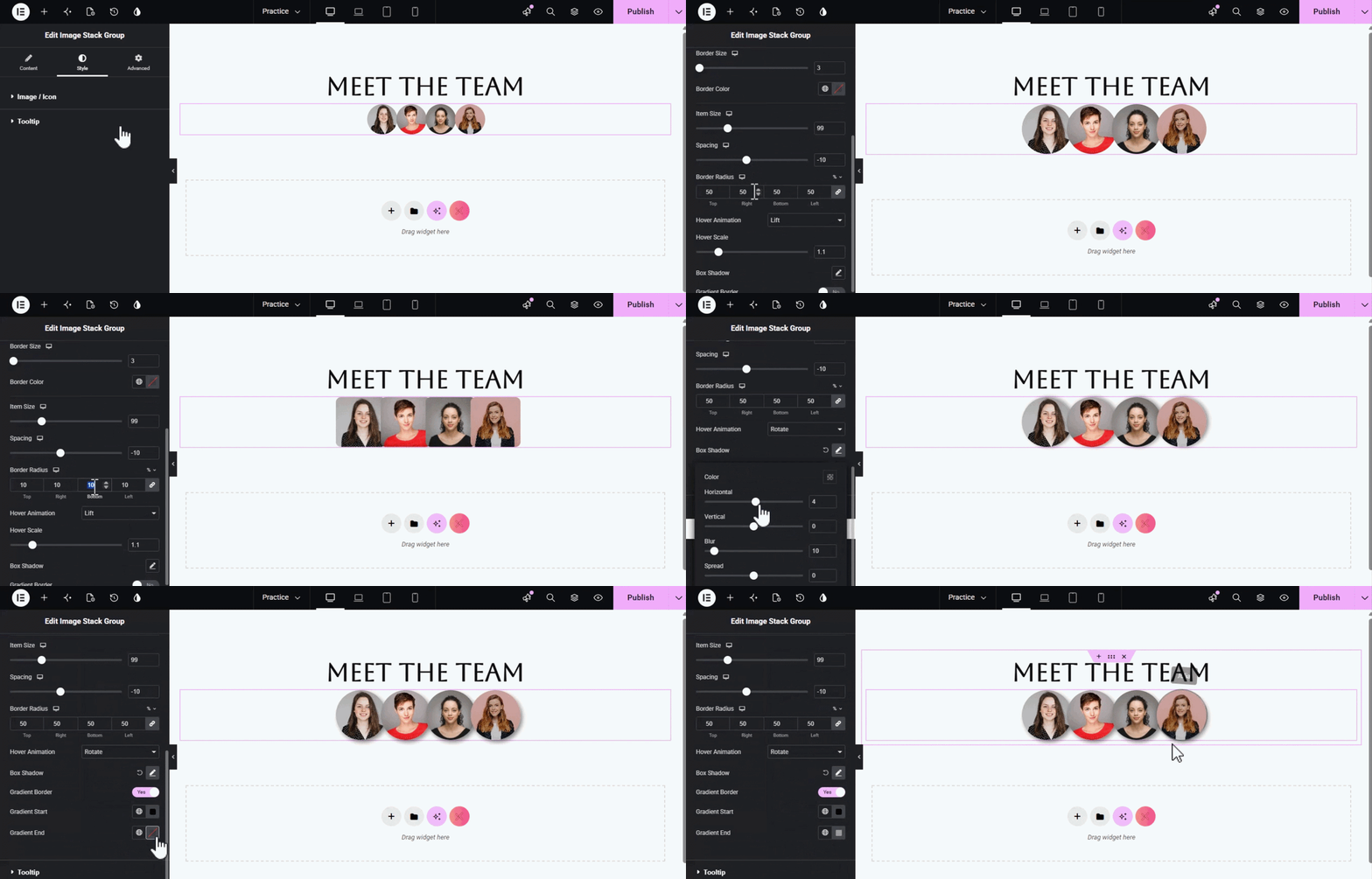
- Item & Icon Size: Adjust the global size of your images or the specific scale of your icons.
- Spacing: Increase or decrease the overlap gap between stacked items.
- Borders & Radius: Add standard or Gradient Borders, customize the border color and size, and adjust the Border Radius to create unique shapes like “Drop” or “Round”.
- Box Shadow: Add depth to your items with fully customizable shadows.
Hover Animations
Bring your stack to life with interactive effect:
- Hover Animation: Select effects like “Lift” to make items pop when hovered.
- Hover Scale: Set the exact magnification level for the hover state.
Tooltip Styling
Enhance user interaction with professional tooltips:
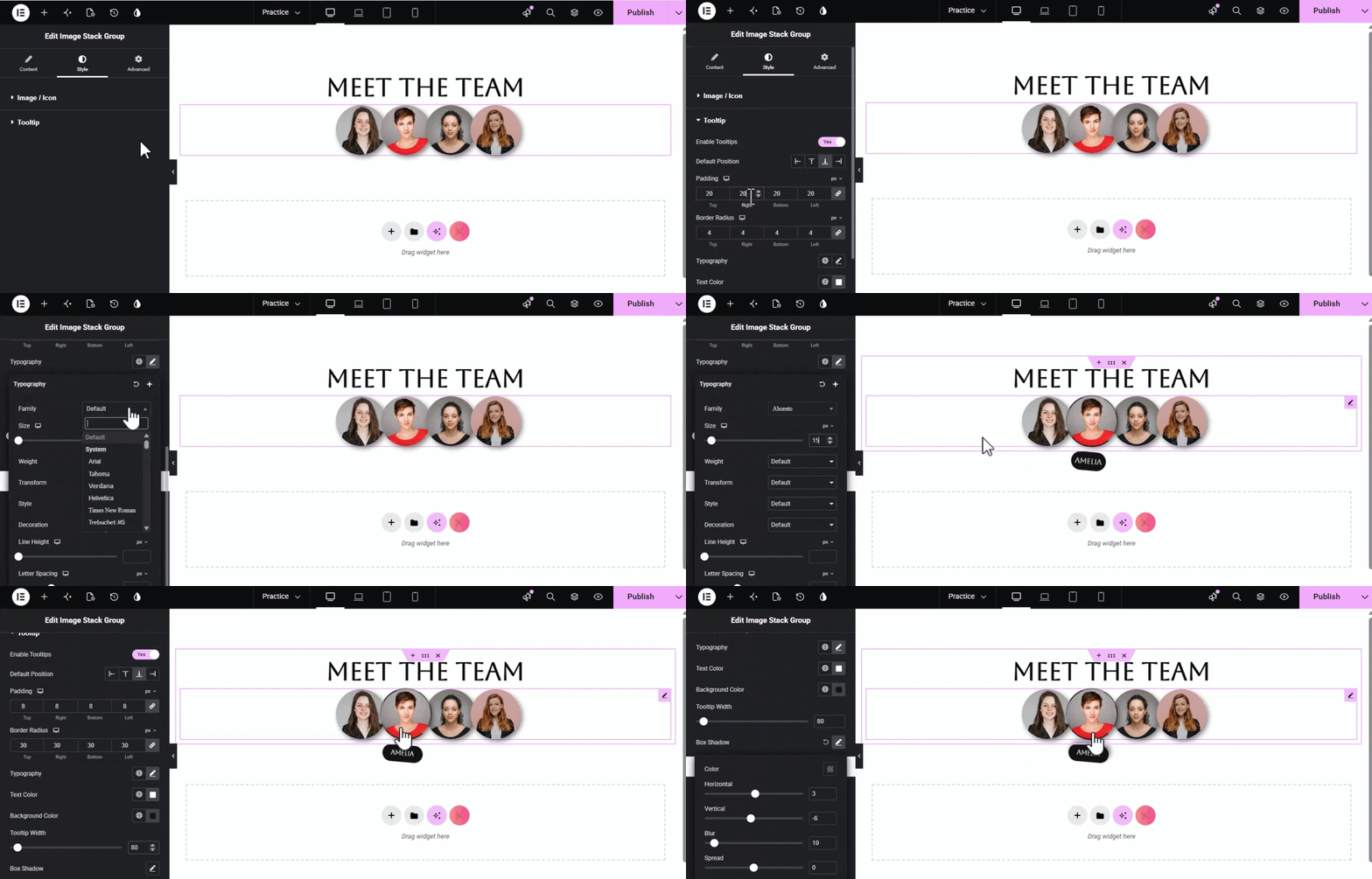
- Positioning: Set the Default Position (Top, Bottom, Left, Right) or define individual positions for specific items to avoid overlap.
- Typography & Color: Fully customize the font styles, text color, and background color of the tooltip bubble.
- Padding & Radius: Adjust the internal spacing and corner roundness of the tooltip for a clean look.
By incorporating the XPro Image Stack Group widget into your Elementor projects, you can transform ordinary layouts into visually captivating, interactive experiences that truly stand out. Whether you are showcasing a professional team, highlighting your social media presence, or building a creative portfolio, this tool provides the depth and modern flair needed to keep visitors engaged and drive conversions. Best of all, these high-end, layered designs are achievable without a single line of code.
We hope this guide has empowered you to push the boundaries of your web design; if you are ready to explore even more creative possibilities, be sure to check out our extensive library of over 140+ Elementor widgets to continue building the website of your dreams. Happy designing!