How to Install Elementor Circle Progress Bar Widget
Xpro Circle Progress Bar widget for Elementor is a perfect FREE Elementor widget that allows users to determine each value of a product visually with 2 different layouts of colorful progress bar style. Progress bars are great if you want to showcase statistics, comparisons, and a variety of number-based content. Elementor Circle Progress Bar Widget allows you to turn data into an amazingly presentable form.
You can create as many progress bars to present data you have and can also use customization features like adding a title, percentage value, animation duration, and much more. You will have full control over colors and chart size. So now it’s time to see how you can fully utilize this incredible free widget for your Elementor websites.
Requirement
You need to install and activate the free version of Xpro Elementor Addons. If you already have the plugin installed, just make sure the Progress Bar widget is ‘Enabled ’ so you can find it in the Elementor editor.
To enable the widget, simply follow these steps:
Step 1
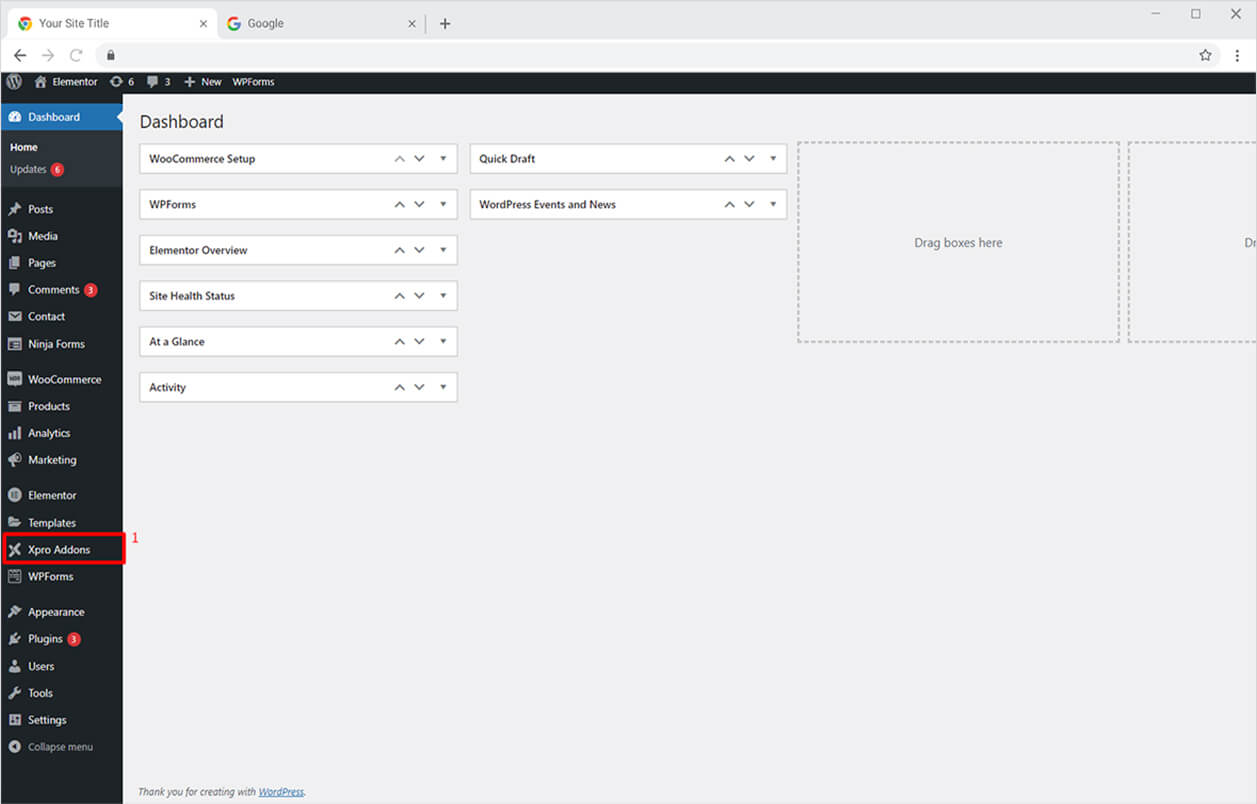
Click on the Xpro Addons option available on the WordPress Dashboard Menu.
Step 2
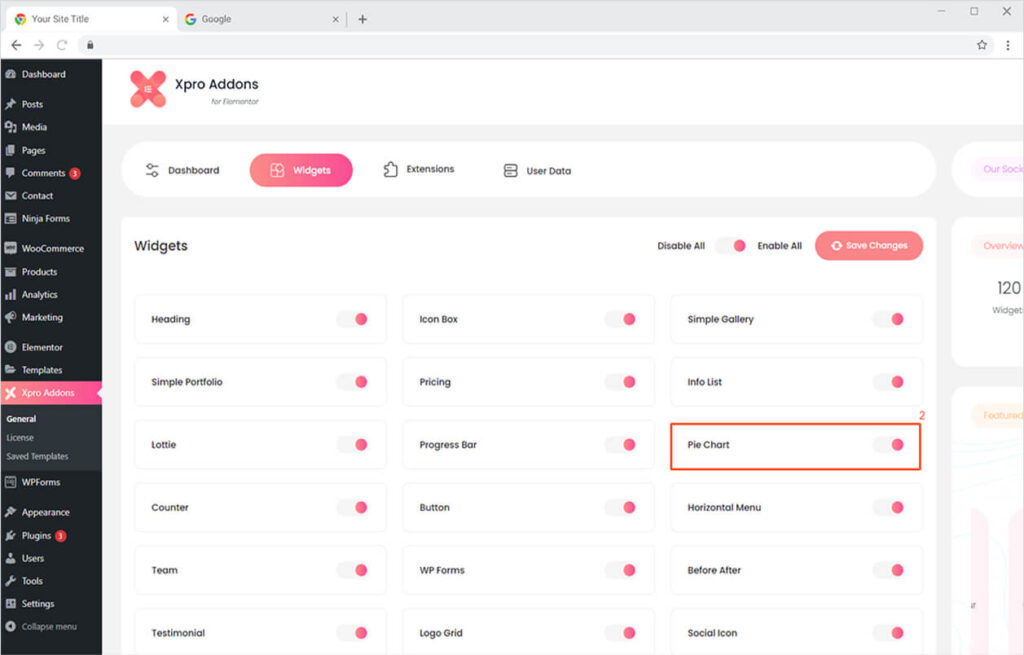
From the Xpro Addons Dashboard, click on the Widgets Tab, find the Circle Progress Bar widget, and finally, toggle the button ON to enable it.
How to Use Xpro Circle Progress Bar Widget for Elementor
Xpro Circle Progress Bar is the best widget to present your charts in a visually appealing way that will instantly grab your site visitor’s attention. Customize the progress bar in elementor the way you want and you can do multiple customizations like animation duration, title, description, and more.
It’s simple, FREE, fun, and time-saving! Here’s how to use this wonderful Elementor Circle Progress Bar widget.
Step 1
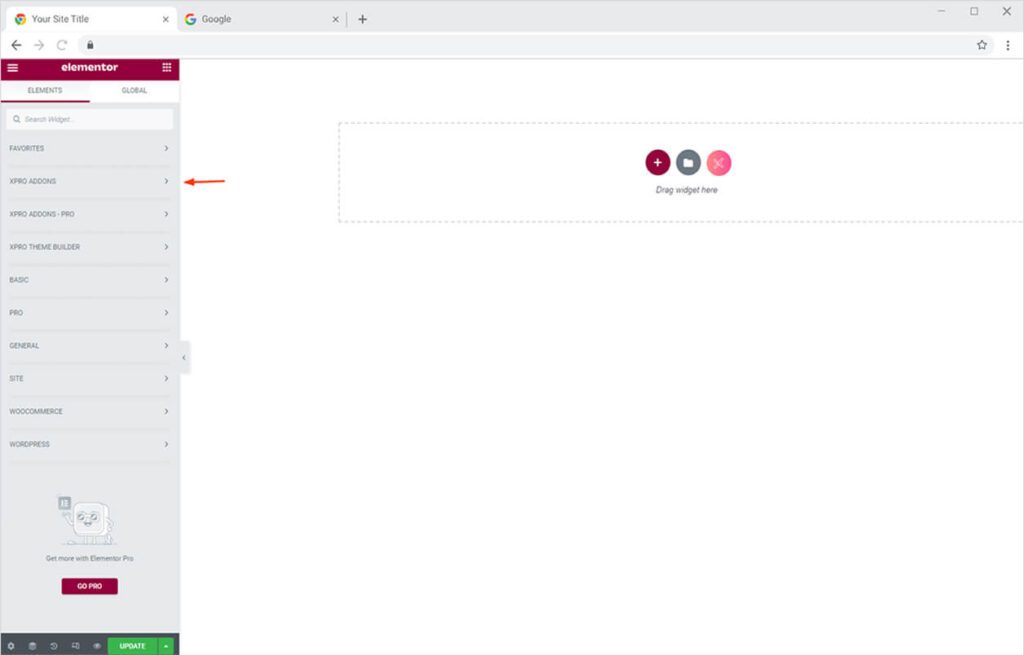
Click on the Xpro Addons section available in the Elementor Editor.
Step 2
From the Xpro Addons section, simply drag’n’drop the Circle Progress Bar widget on your desired page location.
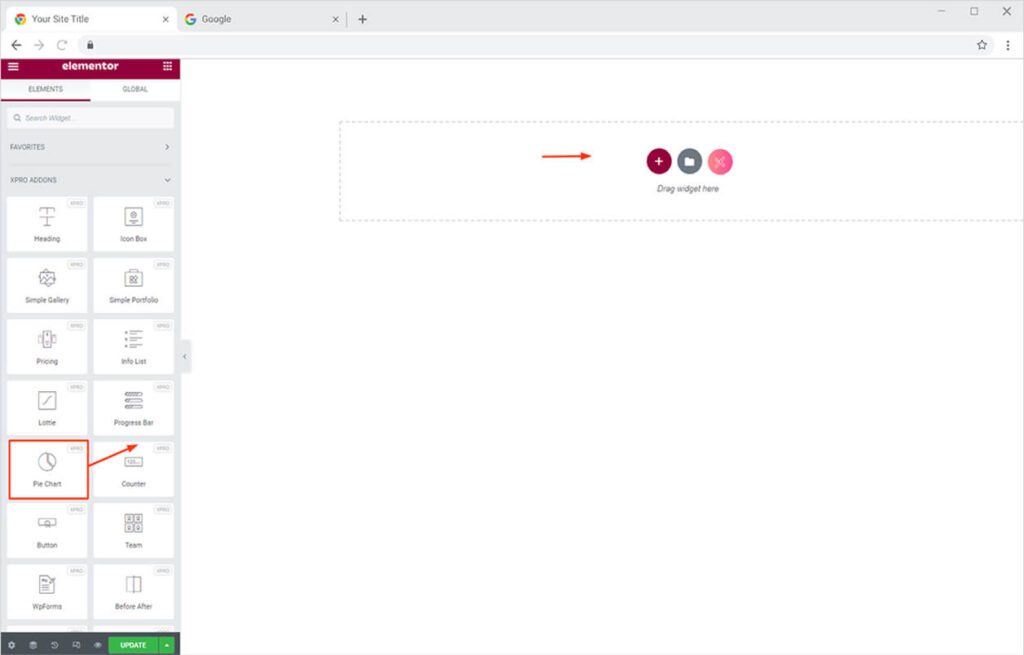
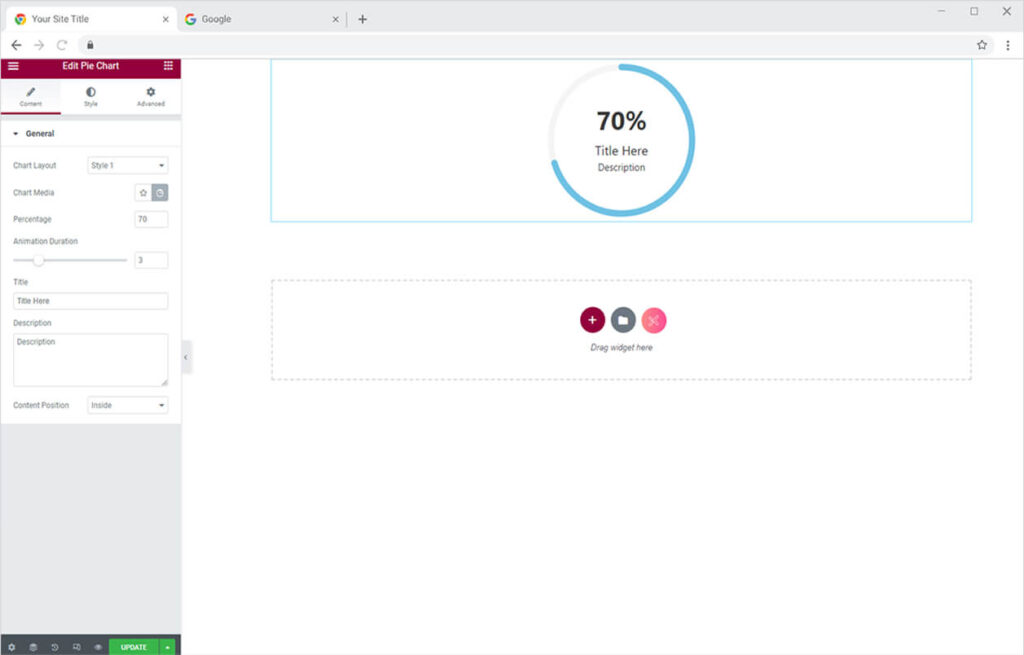
This is the default view of our Xpro Elementor progress bar widget.
How to Add & Style Content in Circle Progress Bar Widget for Elementor
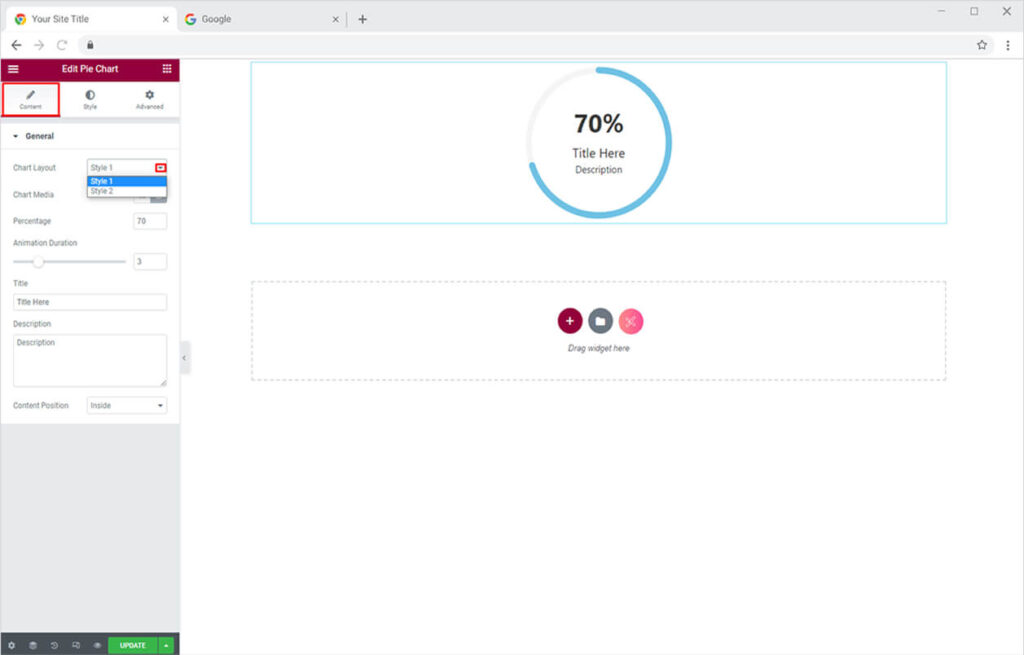
At first, from the default view in the Content Tab, you can select from 2 different layout options; one with round edges and the other with straight edges. Go for the one that goes well with the theme of your website design.
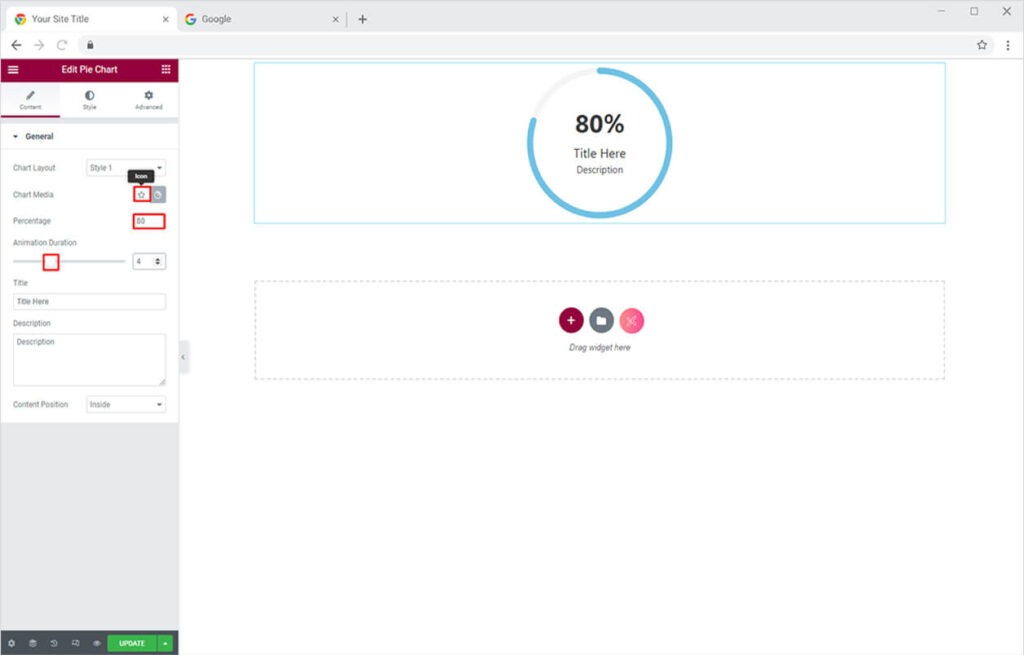
After that, you can also change the percentage value and animation duration that it will take to complete the bar on reloading. You can also use any icon of your choice instead of the percentage.
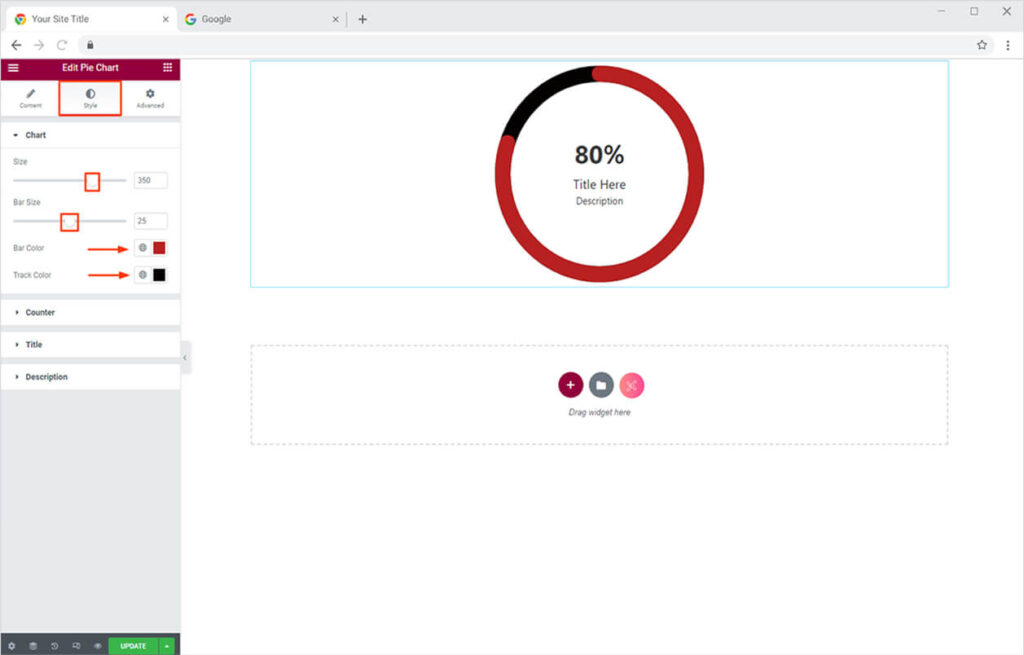
Now toggle towards the Style Tab. Here from the Chart Section, you can do your favorite part of customizations. Scroll the bar to adjust the size of the chart and bar from the bar & bar track option. After that, you can also change the color of the bar and its track.
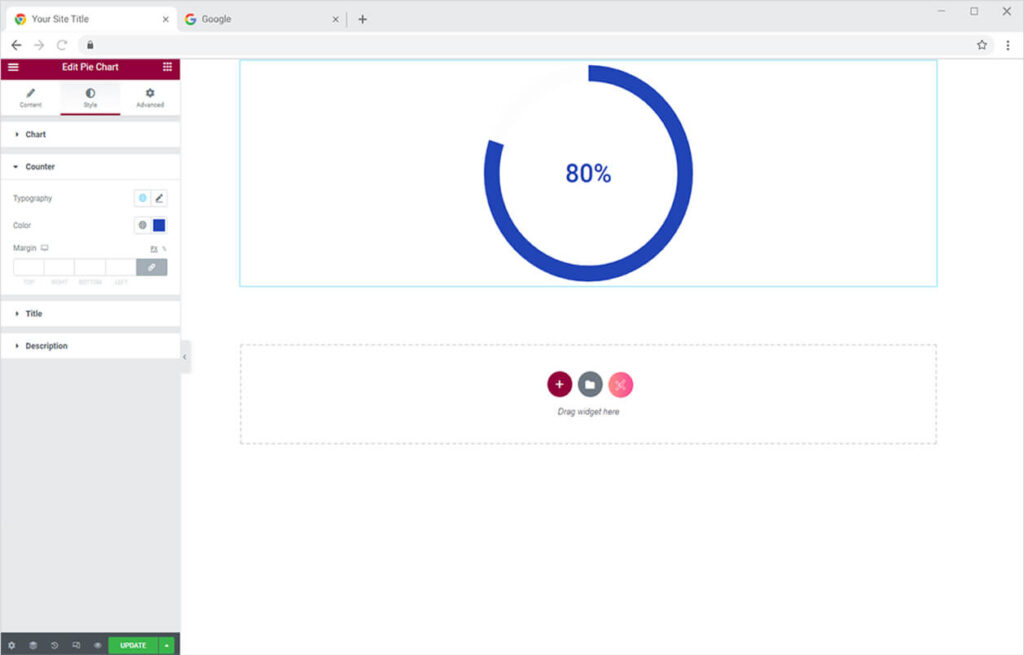
Below that from the Counter Section under the Style Tab. You can easily change the typography and color of the counter.
Use the best theme builder for Elementor and customize header, footer, single page/post, archives, and other default templates of your WordPress websites.
By Xpro Elementor Addons
How to Add & Style Title and Description in Circle Progress Bar Widget for Elementor
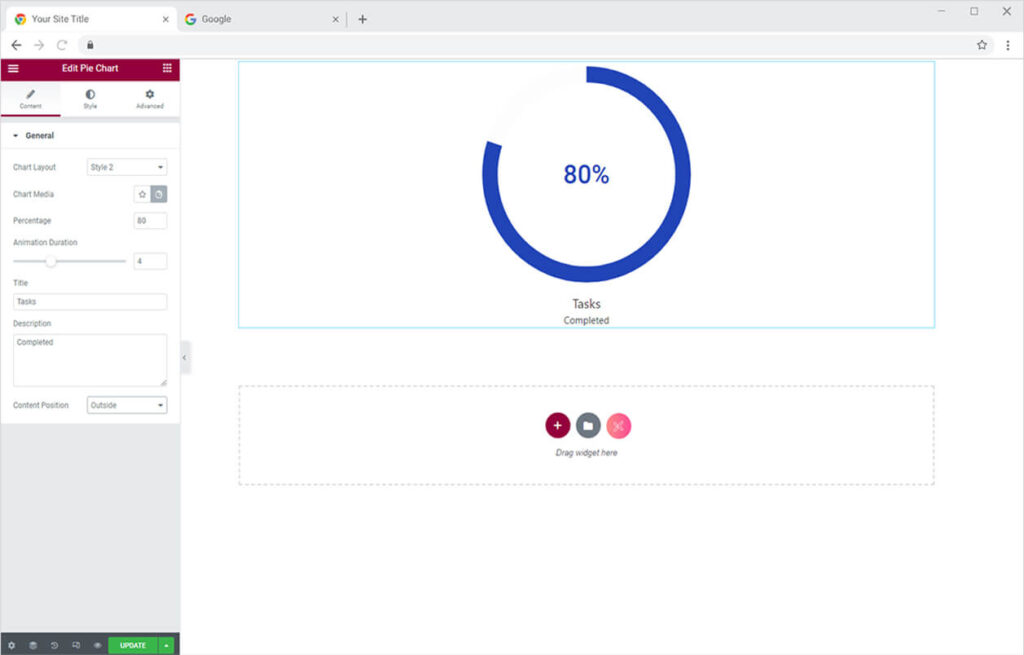
You can also add amazing titles and descriptions to your chart to give a brief overview of your chart to the visitors. For this once again head back towards the Content Tab. Below add the best suitable title and description for your chart in the tabs given below the Title & Description options. You can also change the position of content from inside to outside.
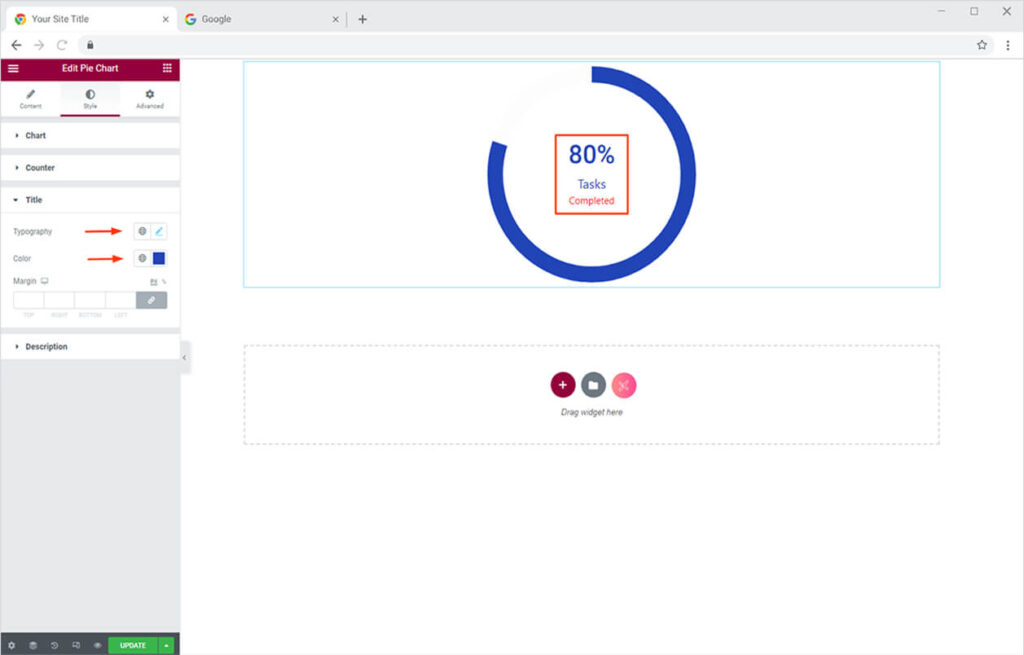
Now head once again towards the Style Tab. Here you can change the typography and color of your from the Title Section. Similarly, you can style your Descriptions from the description section.
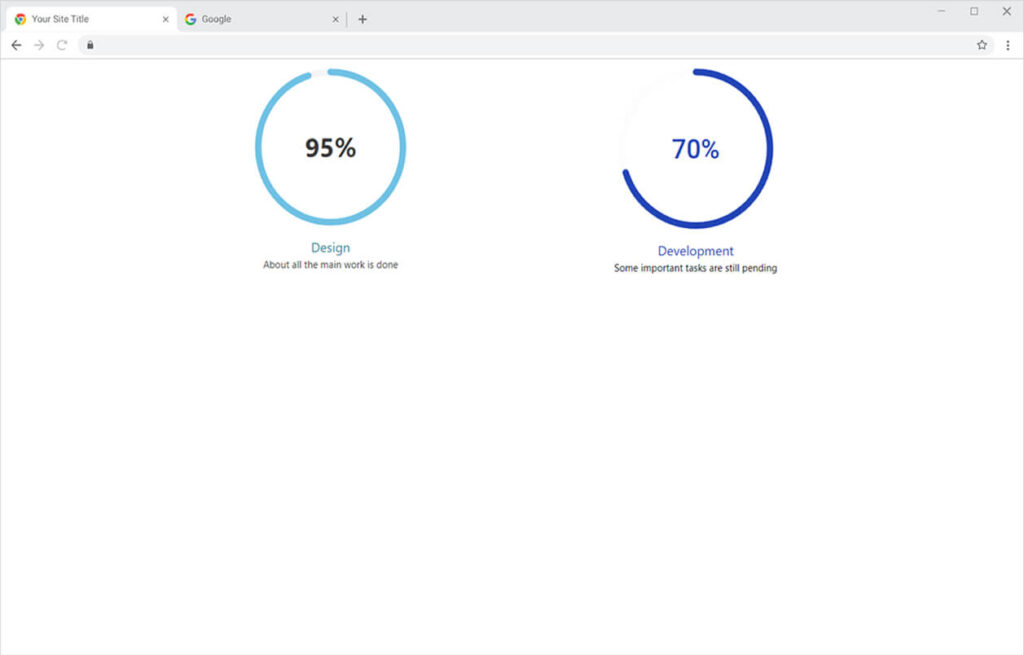
Moreover, you can add multiple charts to do statistics, and analyze workflow or progress. The end result will look something like this.
This is all from our Circle Progress Bar Widget for Elementor. I hope you now have a better understanding of how to fully utilize our easy-to-use progress bar widget and create astonishing charts for your websites. If you want to explore and add more attractive features then head over to our Xpro Elementor Progress Bar Widget documentation right away. Moreover, if you want to add more amazing and trending features to your websites. See the list of the best free Elementor widgets by Xpro.
If you want to explore and add more attractive Elementor widgets then check our complete list of Elementor widgets and download our free Elementor addons now. Moreover, check our other promising widgets like the 360 product view widget for Elementor, Step Flow Elementor, Hotspot widget for Elementor, and Elementor Featured Image. You will be surprised how easily you can customize Xpro Elementor Addons for your WordPress websites.