XPro Polar Area Chart Widget for Elementor
Are you struggling to present complex data engagingly on your Elementor website? Now you can transform static, bland statistics into interactive visual stories with the XPro Polar Area Chart widget for Elementor. This widget allows you to create highly attractive and user-friendly data visualizations that immerse your audience in a unique experience.
Unlike traditional pie charts, the Polar Area Chart uses sectors with equal angles while representing values through the radius of each segment. The widget offers a wide range of features, including curved or flat circular arcs, precision scale settings, interactive legends, and high-impact animations. There is no end to the creativity you can achieve—leave a lasting impact on your site visitors and stand out from the competition by showcasing your growth and metrics with professional, animated graphics.
Requirement
You need to install and activate the Pro version of XPro Elementor Addons to use this widget. If you already have the plugin installed, ensure the Polar Area Chart widget is enabled in your dashboard so you can find it in the Elementor editor.
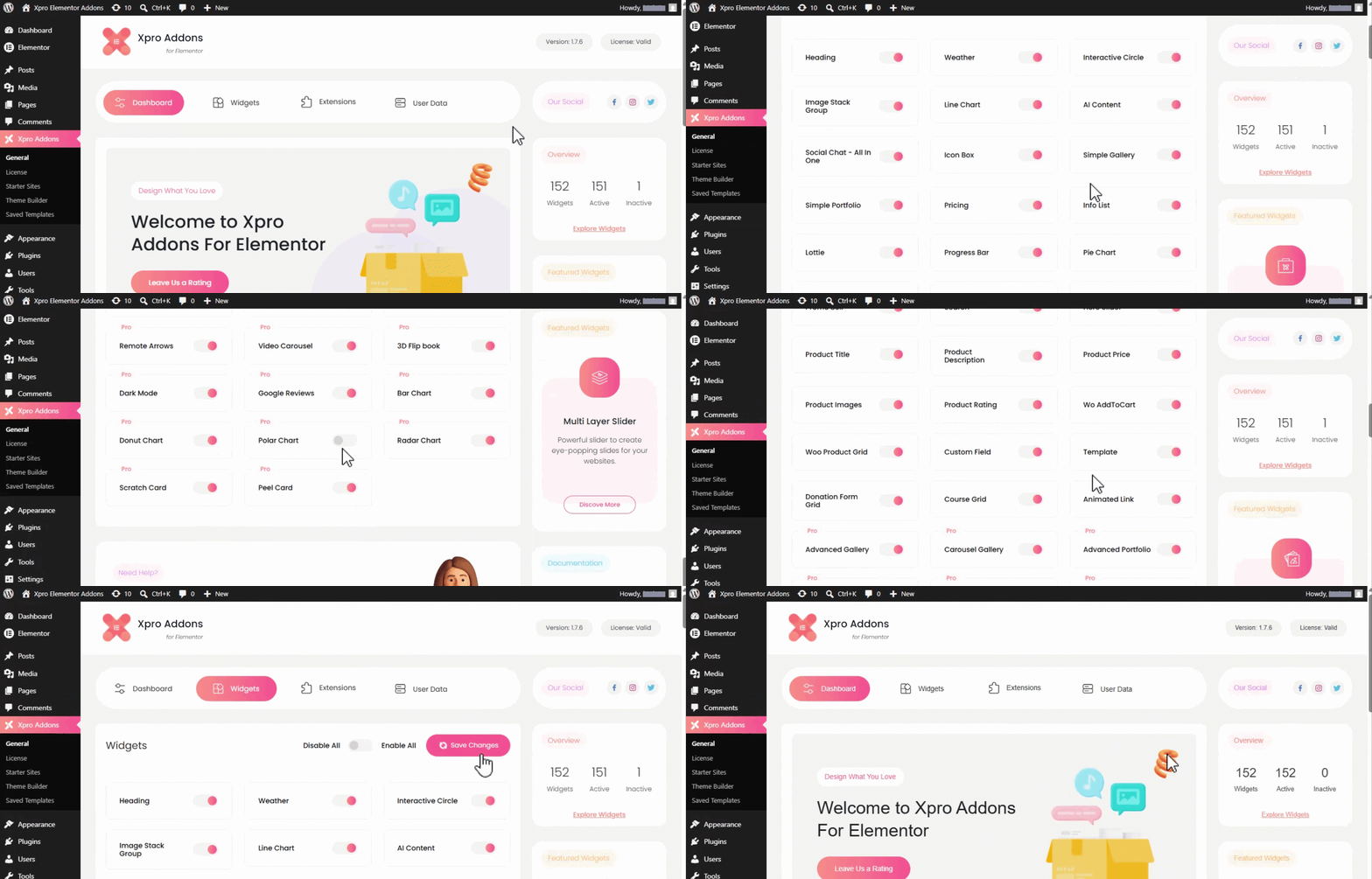
To enable the widget, follow these steps:
- Step 1: Click on the XPro Addons option in your WordPress Dashboard Menu.
- Step 2: From the XPro Addons Dashboard, click on the Widgets Tab, find the Polar Area Chart widget, and toggle the button ON to enable it.
How to Add Elementor Polar Area Chart Widget
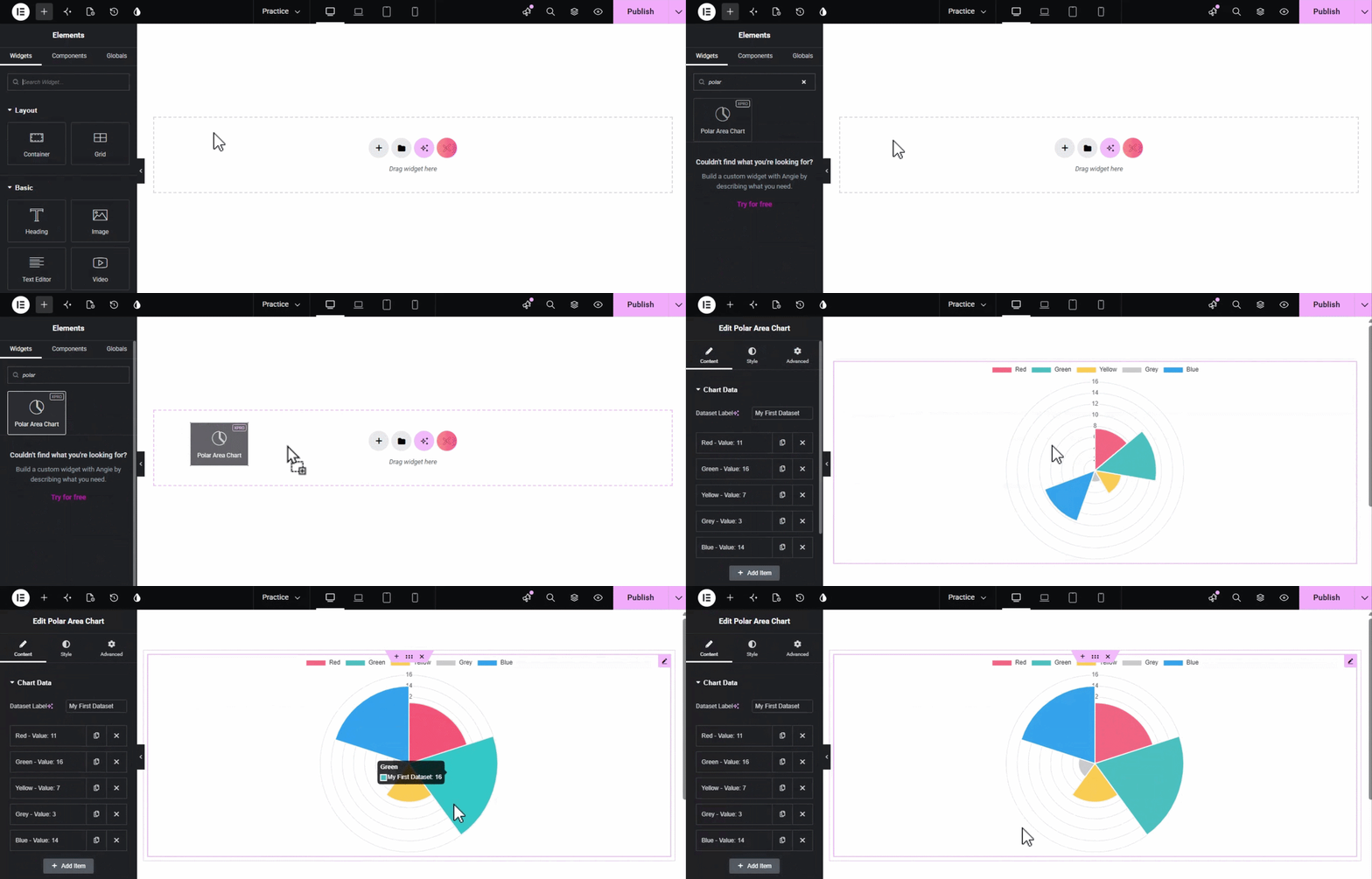
- Open your page in the Elementor Editor.
- Search for the Polar Area Chart widget in the XPro Addons category.
- Drag and drop the widget into your desired section.
Content Tab Settings
The Content tab is divided into five main sections that control your data and the chart’s core behavior.
1. Chart Data
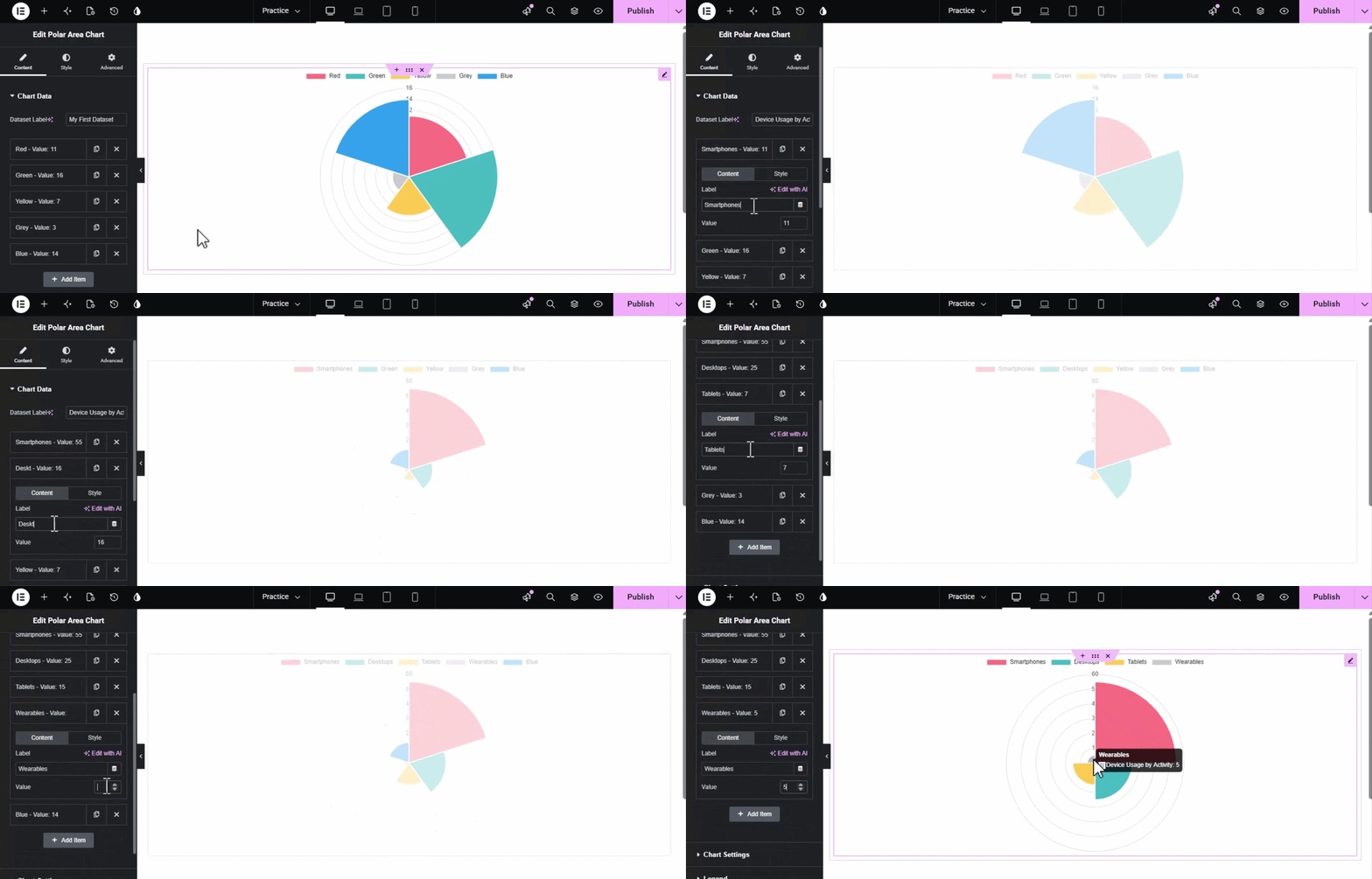
This section is where you define the information displayed in your chart.
- Dataset Label: Enter a primary name for your data group (e.g., “Annual Growth”).
- Data Items: Add individual data points. Each item allows you to set a specific Value and a corresponding Label (e.g., “Red – Value: 11”).
- Add Item: Click this button to add new segments to your chart.
2. Chart Settings
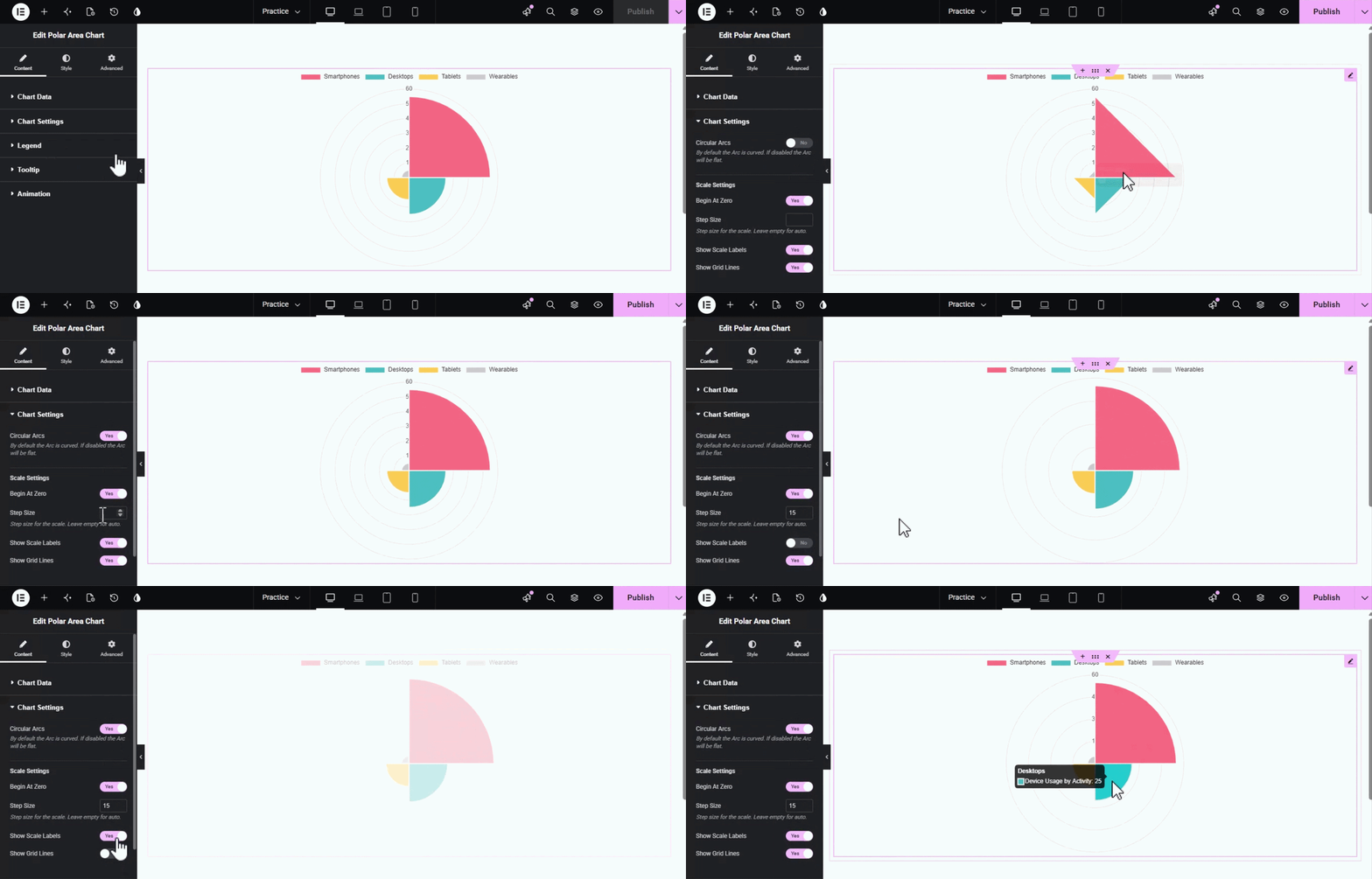
Control the geometry and scaling of your visualization.
- Circular Arcs: A toggle to choose between Curved (default) or Flat arcs for the outer edges of your segments.
- Begin At Zero: When enabled, the chart’s scale starts exactly from the center point.
- Step Size: Manually define the interval for the scale lines. Leave it empty for automatic calculation.
- Show Scale Labels: Toggle visibility for the numerical values along the axis.
- Show Grid Lines: Display or hide the circular grid lines that mark different values.
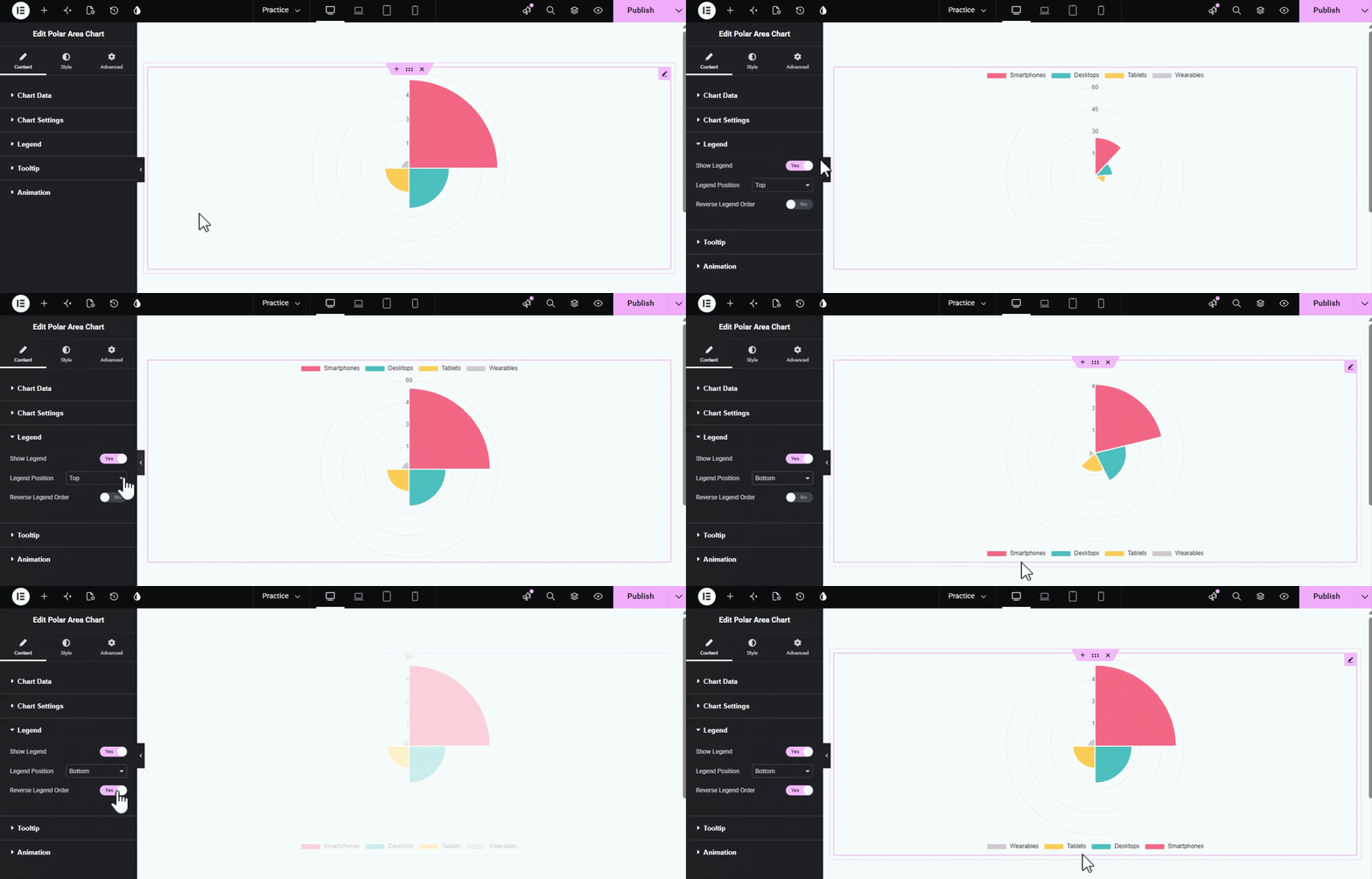
3. Legend
The legend helps visitors identify what each colored segment represents.
- Show Legend: Enable or disable the legend entirely.
- Legend Position: Use the dropdown to place the legend at the Top, Bottom, Left, or Right of the chart.
- Reverse Legend Order: Flip the order in which items appear in the legend.
4. Tooltip
Tooltips provide specific data insights when a user interacts with the chart.
- Show Tooltips: Enable hover-activated data popups.
- Tooltip Mode: Set the interaction trigger. The Nearest mode shows data for the segment closest to the cursor.
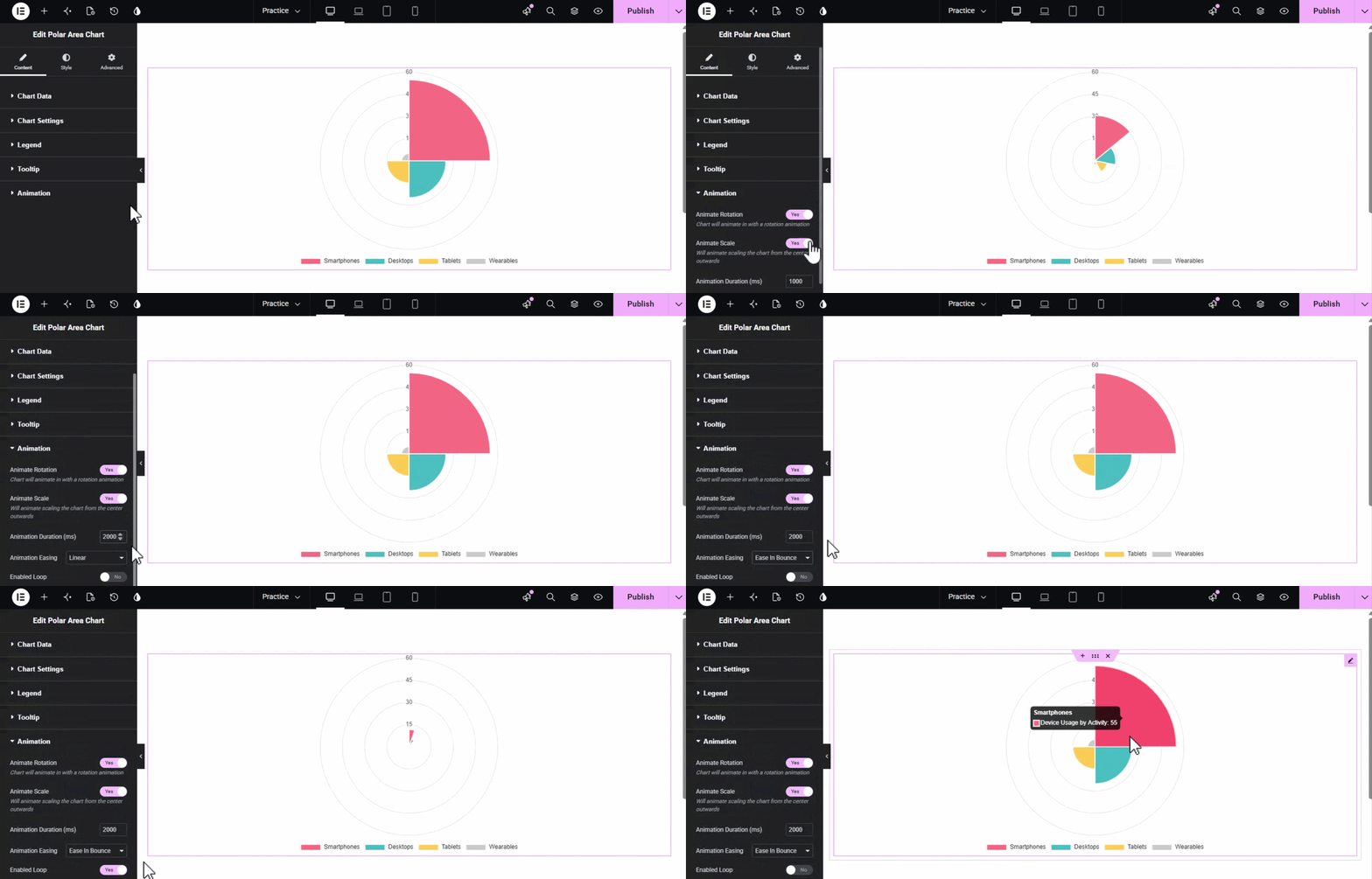
5. Animation
Add professional motion effects that trigger when the chart enters the viewport.
- Animate Rotation: The chart segments will spin into their final position.
- Animate Scale: The segments will grow outwards from the center of the chart.
- Animation Duration (ms): Define how long the entrance effect lasts (default is 1000ms).
- Animation Easing: Select the motion style, such as Linear, to control the acceleration of the animation.
- Enabled Loop: Toggle this to keep the animation repeating indefinitely for a dynamic page feel.
Style Tab Settings
The Style tab allows you to customize the visual aesthetics of your chart, from its dimensions to the typography of its labels and tooltips.
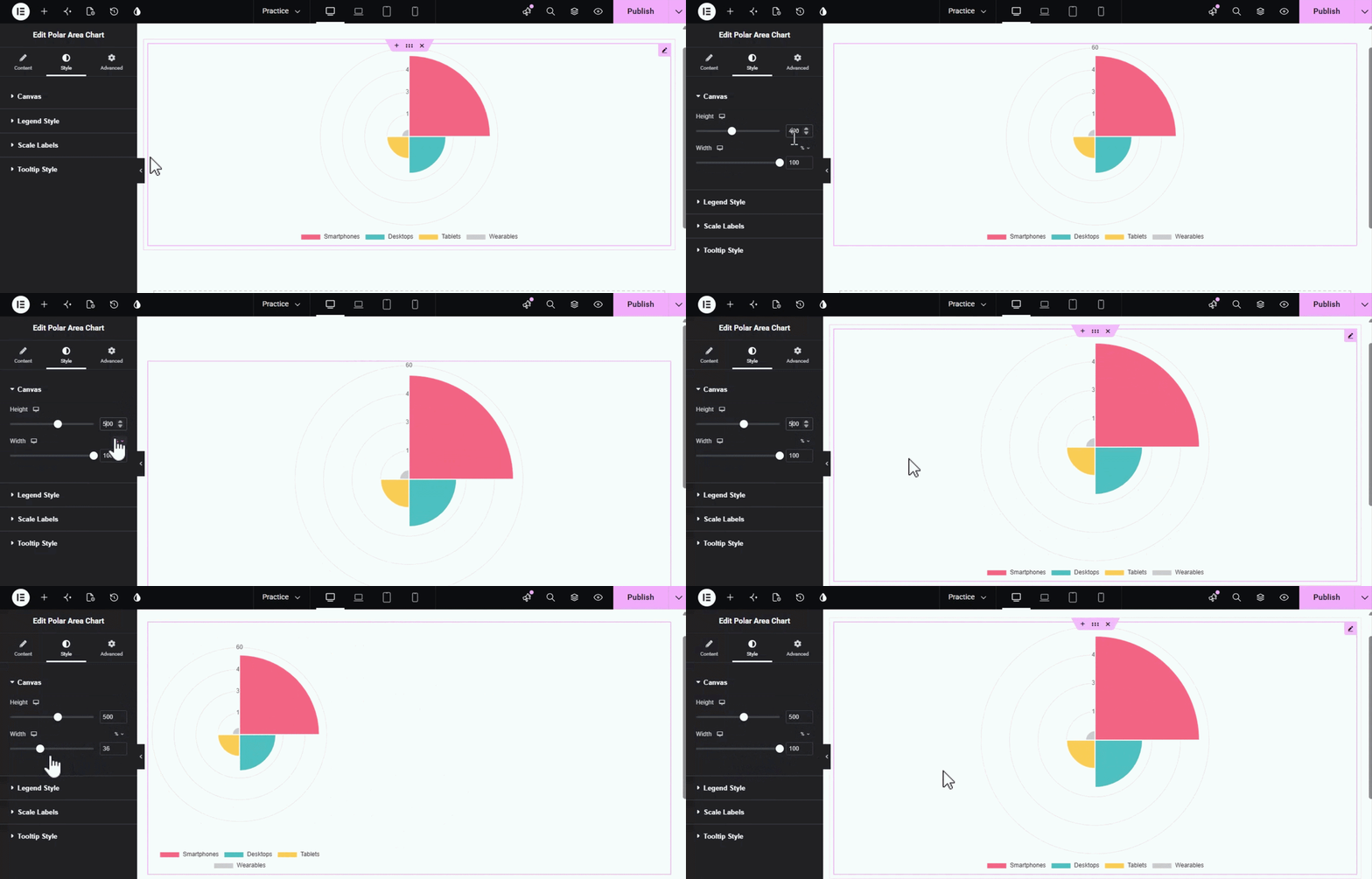
1. Canvas
This section controls the overall size and responsiveness of the chart area.
- Height: Adjust the height of the chart canvas in pixels. This is a responsive setting, allowing you to set different heights for Desktop, Tablet, and Mobile.
- Width: Set the width of the chart as a percentage of its container. Like height, this is also responsive to ensure the chart looks perfect on all devices.
2. Legend Style
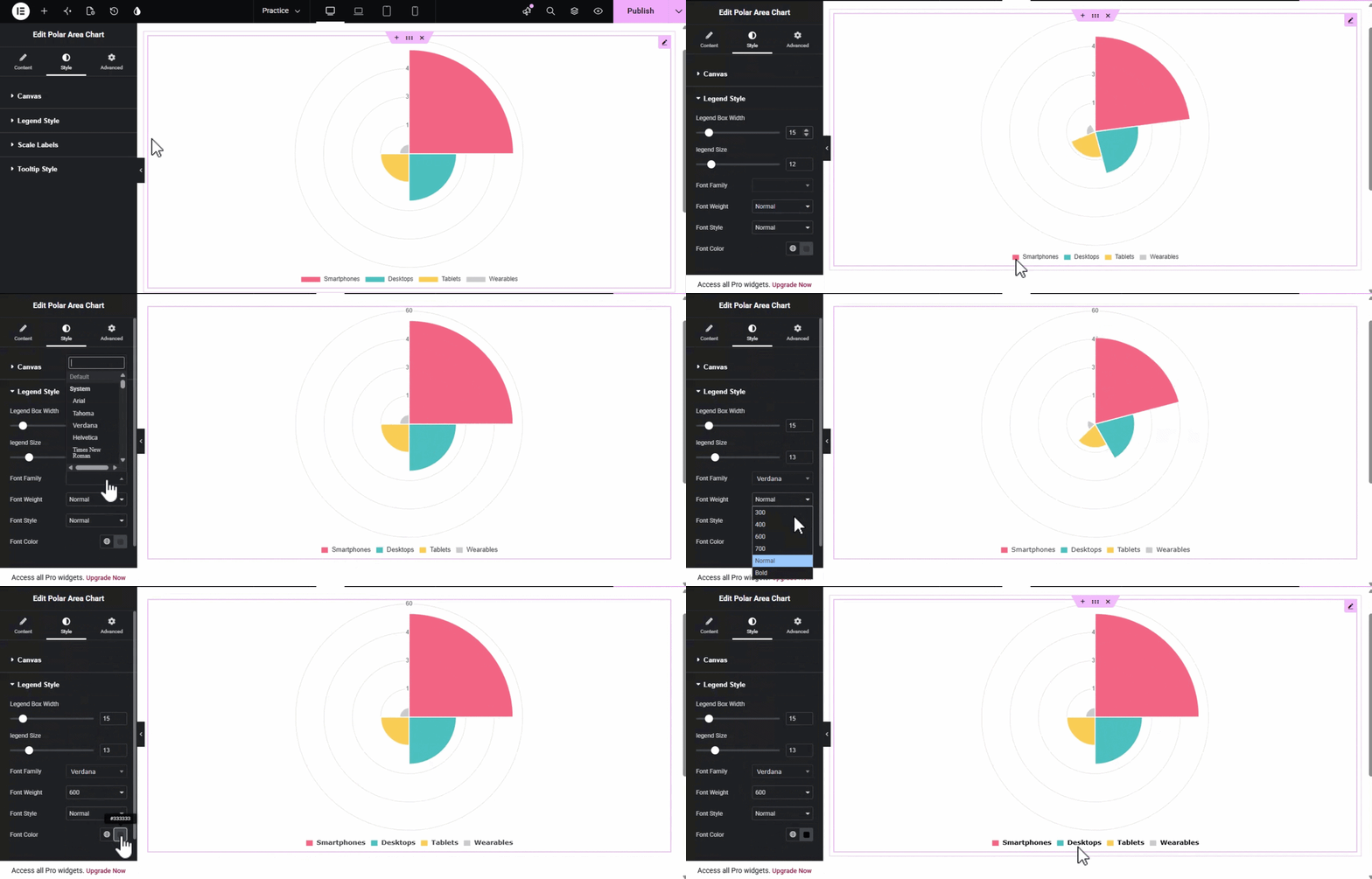
Fine-tune the appearance of the chart’s legend to match your site’s branding.
- Legend Box Width: Control the width of the colored boxes next to each legend item.
- Legend Size: Adjust the font size of the legend labels.
- Typography Controls: Customize the Font Family, Font Weight, and Font Style (Normal, Italic, etc.) for the legend text.
- Font Color: Use the color picker to set a specific color for the legend text.
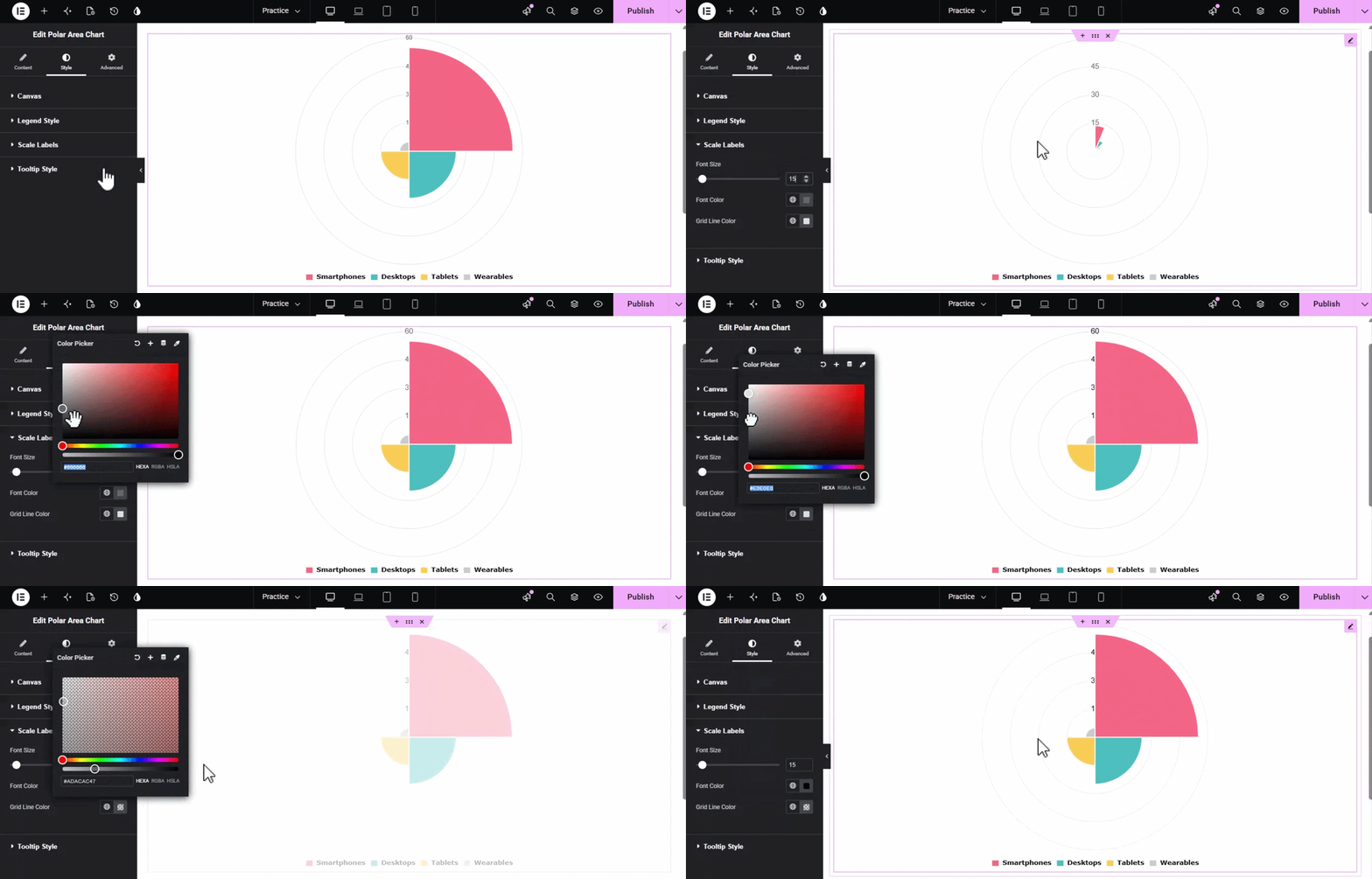
3. Scale Labels
Customize the look of the numerical values and grid lines that provide context to your data.
- Font Size: Set the size of the numerical labels displayed on the chart’s scale.
- Font Color: Choose a color for the scale numbers to ensure they are legible against your background.
- Grid Line Color: Change the color of the circular and radial grid lines that divide the chart segments.
4. Tooltip Style
Adjust the styling of the information box that appears when users hover over data segments.
- Colors: Separately define the Background Color and Border Color of the tooltip box.
- Border & Radius: Set the Border Width (thickness) and Border Radius to give the tooltip sharp or rounded corners.
- Padding: Adjust the internal spacing (Padding) between the tooltip content and its border.
- Body Typography: Control the Body Font Size and Body Color specifically for the text within the tooltip.
Best Elementor Polar Area Chart Widget
That’s it for the Polar Area Chart widget! You can now turn raw numbers into a visual masterpiece that captures user attention. If you want to explore more ways to visualize your data, head over to the Pie & Donut Chart widget or the Advanced Heading widget to further enhance your website’s typography and impact. Also, consider using our Elementor Portfolio widget to showcase your projects in stunning layouts.
XPro Elementor Addons offers a massive library of over 140+ widgets, theme templates, and blocks that help you build a fully functional, professional website without any need for coding. For complete control over your site’s design, try the best Elementor theme builder to customize your headers, footers, and archive templates with ease.
Get the best Elementor Addons for your WordPress website today!