
Table of Contents
Creating a WooCommerce store today is not just about adding products and enabling payments. Customers now expect a shopping experience that feels modern, clean, responsive, and trustworthy. And honestly, most default WooCommerce plugins simply do not provide that experience. In this guide, we will focus on how to optimize your WooCommerce Product Page.
If you are:
- a freelancer building e-commerce websites for clients,
- a store owner launching an online business,
- a designer wanting full creative freedom,
- or a developer looking for faster WooCommerce workflows,
Then this guide is for you.
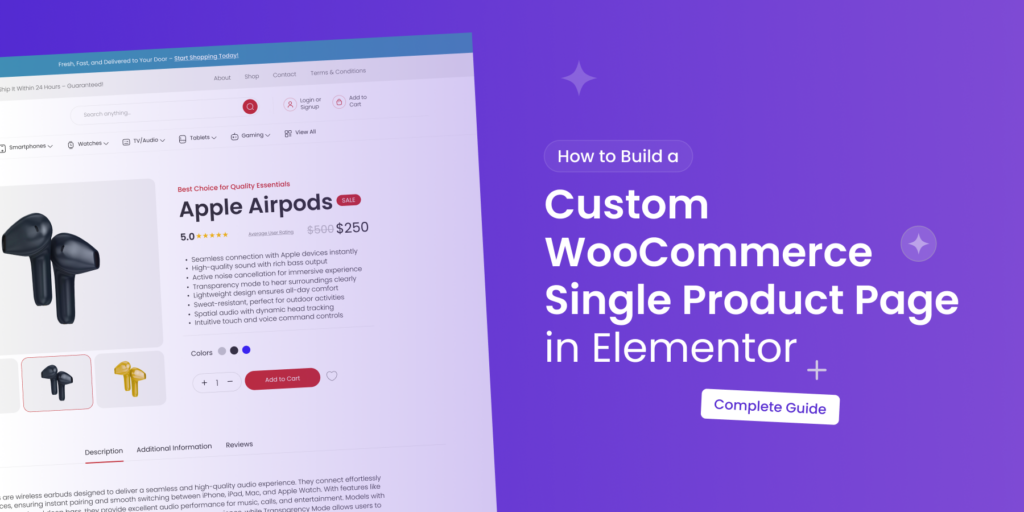
In this detailed tutorial, you will learn how to build a complete custom WooCommerce Single Product Page using XPro Addons for Elementor, without coding.
This is not just a widget tutorial, but a complete WooCommerce product page strategy guide.
Why Most WooCommerce Product Pages Fail?
Let’s be honest.
Most WooCommerce websites look identical.
Optimizing your WooCommerce Product Page is essential for improving visibility and attracting more customers. By enhancing the layout and content, you can significantly increase engagement and conversion rates on your site.
You install WooCommerce, upload products, and suddenly every product page follows the same boring layout:
- generic typography,
- weak CTA buttons,
- poor spacing,
- inconsistent image sizes,
- and no real branding.
This creates several problems.
Whether you run an online store, build websites for clients, or do anything, one thing is common for everyone, which is the default WooCommerce layouts with outdated features. A well-structured WooCommerce Product Page not only improves user experience but also increases engagement, builds customer trust, and boosts overall sales performance. This is where Elementor and XPro Addons completely change the experience. With our advanced WooCommerce widgets, powerful styling controls, and conversion-focused features, you can create highly optimized online stores without dealing with complex coding.
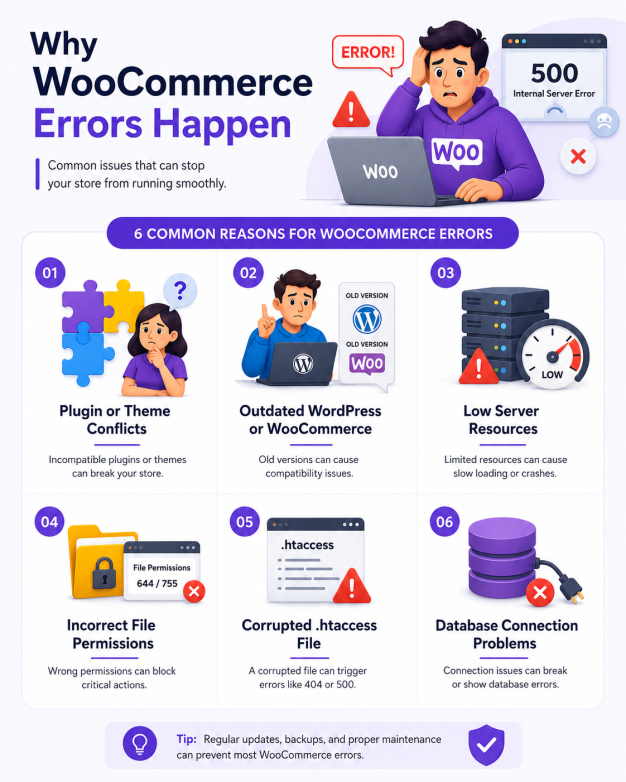
XPro Addons gives you dynamic WooCommerce widgets that help you create reusable product templates visually inside Elementor.
Why Use XPro Addons for WooCommerce?
If you are looking for the Best Free WooCommerce Themes, choosing a lightweight and responsive theme can significantly improve your store performance and user experience. Instead of designing every product page manually, you create ONE template, and the widgets dynamically pull the correct WooCommerce data automatically.
That means:
- Product titles update automatically
- Prices update automatically
- Product images update automatically
- Reviews update automatically
- Variations update automatically
And the best part?
You maintain consistent branding across your entire store.
This is especially important for:
- scalable ecommerce stores design,
- client projects,
- dropshipping stores,
- fashion stores,
- digital product stores,
- and marketplaces.
What Do You Need to Build a Professional WooCommerce Store?
Creating a successful WooCommerce store is not only about adding products. A modern online store should offer a smooth shopping experience, professional layouts, fast navigation, and visually engaging product pages that encourage customers to make purchases. With Elementor and XPro Addons WooCommerce widgets, you can easily customize every part of your store without relying on complex coding.
Here are some of the essential elements every WooCommerce website should include:
- Professionally designed shop and product pages
- Clear product titles and descriptions
- High-quality product images and galleries
- Product category and filter systems
- Responsive mobile-friendly layouts
- Optimized cart and checkout pages
- Product carousels and featured product sections
- Customer reviews and rating displays
- Sticky add to cart and conversion-focused buttons
- Fast loading and user-friendly navigation
Using WooCommerce widgets in Elementor allows you to design these sections visually while maintaining full control over the appearance and functionality of your store. From product grids and category layouts to checkout customization and dynamic WooCommerce templates, XPro Addons helps streamline the entire store-building process.
A well-structured WooCommerce store not only improves user experience but also increases engagement, builds customer trust, and boosts overall sales performance.
Need More Help?
There are many ways to get help while building your WooCommerce store with Elementor website builder and XPro Addons. Whether you need step-by-step tutorials, advanced customization guidance, or professional support for larger projects, here are some helpful resources to get started.
XPro Documentation
Explore detailed tutorials, WooCommerce guides, widget documentation, and Elementor resources to help you customize every part of your online store.
WooCommerce Tutorials
Learn how to create product pages, shop layouts, category sections, carts, and checkout experiences using XPro Addons WooCommerce widgets.
XPro Support Team
Get assistance with WooCommerce customization, responsive layouts, widget styling, performance optimization, and advanced Elementor functionality.
Professional WooCommerce Services
Need help with larger projects? Work with WooCommerce and Elementor experts for redesigns, custom store development, and advanced eCommerce solutions.
Woo Community Discussions
Download Woo Theme
Find our Best Theme for an e-commerce website in WordPress for creating a fast, professional, and conversion-focused online store today.
What We Will Cover in This Guide
In this tutorial series, we will create a fully customized WooCommerce Single Product Page using XPro Addons widgets. Utilizing the right tools and strategies will help you build a compelling WooCommerce Product Page that resonates with your audience.
Before creating your WooCommerce template, make sure you already have:
- WordPress installed
- Elementor installed
- WooCommerce installed
- XPro Addons installed
- At least one WooCommerce product added
Or check out our detailed guide to begin with here.
Starting Your WooCommerce Store Using Widgets
Before we start designing the template, it’s important to understand how dynamic WooCommerce widgets work.
Step 1: Get ready with your basic Store Needs
After installing WooCommerce, you can configure important store settings such as:
- Store name and business details
- Currency and payment methods
- Shipping zones and delivery options
- Product categories and collections
- Basic shop and checkout pages
- Customer account settings
Once the initial setup is complete, you can start customizing your store visually using Elementor and XPro Addons WooCommerce widgets. This allows you to design professional shop layouts, product grids, category sections, product pages, carts, and checkout experiences without relying on complex coding.
Step 2: Add Products to Your WooCommerce Store
After setting up WooCommerce, the next step is adding products to your online store. Products are the core of every eCommerce website, and WooCommerce gives you the flexibility to sell physical items, digital downloads, services, subscriptions, and much more.
With Elementor and XPro Addons WooCommerce widgets, you can not only add products but also create visually engaging product layouts that improve the overall shopping experience.
Different Product Types in WooCommerce
WooCommerce supports multiple product types depending on what you want to sell in your store.
Simple Product
Single physical products without variations, ideal for clothing, accessories, furniture, or home decor items.
Variable Product
Products with multiple options such as size, color, material, or style variations for customers to choose from.
Grouped Product
Multiple related products displayed together on one page to encourage bundled purchases and improve shopping convenience.
Virtual Product
Non-physical products or services that do not require shipping, such as memberships, consultations, or online services.
Downloadable Product
Digital files customers can download after purchase, including ebooks, templates, software, or online resources.
Affiliate Product
External products linked from third-party websites or marketplaces where purchases are completed externally.
How to Add a Product in WooCommerce
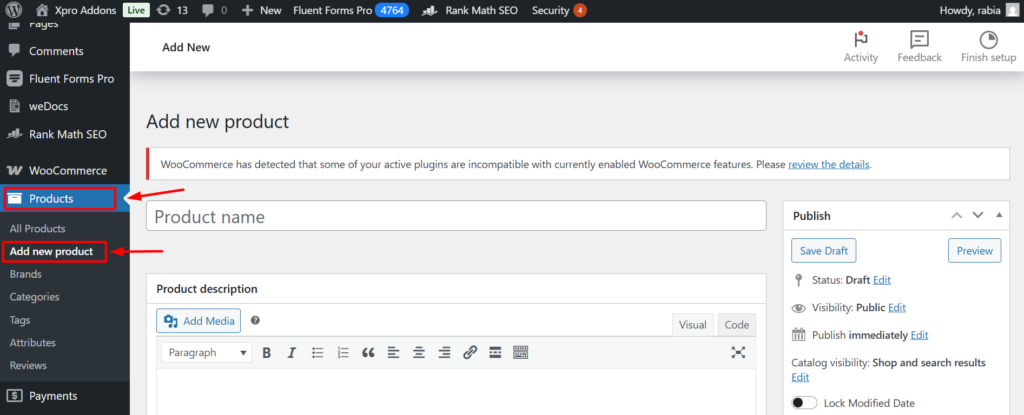
With just a few simple clicks from your WordPress dashboard:
- Go to Products
- Click Add New Product
Customize Product Layouts with XPro Addons
Once products are added, you can design fully customized WooCommerce product pages using Elementor and XPro Addons widgets.
Popular WooCommerce widgets include:
- XPro Woo Product Title
- XPro Woo Product Images
- XPro Woo Product Price
- XPro Woo Add To Cart
- XPro Woo Product Rating
- XPro Woo Related Products
- XPro Woo Product Tabs
- XPro Woo Product Meta
These widgets allow you to create professional and conversion-focused product layouts without custom coding.
Step 3: Add the Product Title
The product title is one of the most important elements in your WooCommerce store. It helps customers quickly understand what you’re selling and improves SEO visibility in search results. Keep it clear, relevant, and keyword-focused. A strong title increases click-through rates and builds instant product recognition, helping boost overall store conversions.
For detailed formatting steps, structure, and writing guidelines, check out our documentation here: WooCommerce Single: Product Title.
In summary, investing time in creating the perfect WooCommerce Product Page can yield significant returns.
Step 4: Add the Product Description
Now let’s create the product description section. A strong product description in your WooCommerce store clearly explains features, benefits, and use cases. It helps customers understand the value before buying, improving trust and conversions. Well-written, keyword-rich descriptions also boost SEO rankings, making your product pages more discoverable in search engines and increasing organic traffic to your store.
For detailed formatting steps, structure, and writing guidelines, check out our documentation here: WooCommerce Single: Product Description.
Step 5: Create a Product Gallery
A product gallery enhances visual appeal by showing multiple images of your product from different angles. In WooCommerce, this builds customer confidence and reduces uncertainty. High-quality visuals improve engagement, increase time on page, and help boost conversions by giving shoppers a clear, realistic view of what they are purchasing.
For detailed formatting steps, structure, and writing guidelines, check out our documentation here: WooCommerce Single: Product Gallery.
Step 6: Add Dynamic Product Pricing
Pricing is one of the most important aspects for dynamic product layouts. Dynamic pricing in WooCommerce helps display real-time or customized prices based on variations, discounts, or user selections. It creates transparency and urgency, encouraging faster buying decisions. This feature improves user experience, supports promotional strategies, and increases conversions by making pricing flexible, clear, and more attractive to different customer segments.
For detailed formatting steps, structure, and writing guidelines, check out our documentation here: WooCommerce Single: Product Pricing.
Step 7: Create an Add to Cart Section with Swatches
Everything on the page leads to this action: Add to Cart. Swatches improve the “Add to Cart” experience by letting users select colors, sizes, or styles visually. This reduces confusion and enhances usability in WooCommerce stores. A smooth selection process leads to fewer drop-offs, better engagement, and higher conversion rates by making product customization simple and intuitive for customers.
For detailed formatting steps, structure, and writing guidelines, check out our documentation here: WooCommerce Single: Product Cart.
Step 8: Add Product Ratings
Reviews are trust signals. Product ratings build trust by showing real customer feedback on WooCommerce products. Positive reviews act as social proof, influencing buying decisions and increasing conversions. Ratings also improve credibility, reduce hesitation, and boost SEO performance by adding fresh, user-generated content that search engines favor for ranking product pages higher.
For detailed formatting steps, structure, and writing guidelines, check out our documentation here: WooCommerce Single: Product rating.
Step 9: Publish Your Website
If you have completed all the previous steps, congratulations, your WooCommerce product page is now ready to go live. Launching your website is a big milestone and marks the beginning of your online business journey with WooCommerce and Elementor.
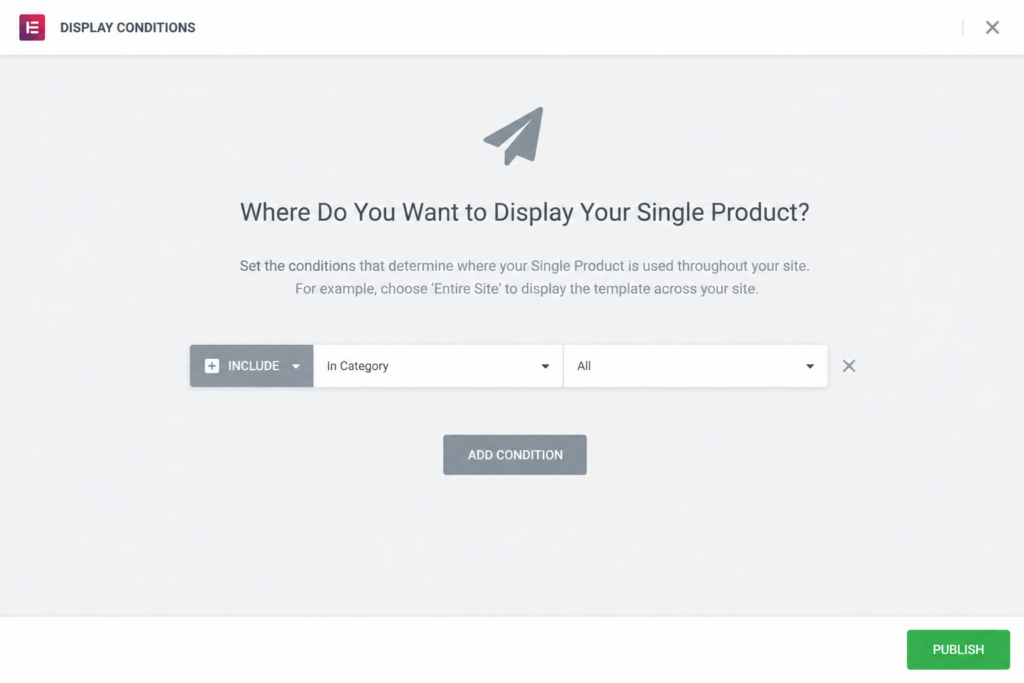
Before publishing, make sure to review your store carefully, including product pages, shop layout, cart, and checkout experience. This ensures everything looks professional, works smoothly, and delivers a great user experience for your customers.
Even after your website is live, support does not end here. As your business grows, you may need help with customization, optimization, or adding new features. You can always refer to documentation or reach out to the support team for guidance whenever needed.
If you ever have questions that are not covered in the guides or resources, our team is always ready to help you build and improve your WooCommerce store with confidence.
Final Thoughts
With XPro Addons for Elementor, you can create professional WooCommerce Product Pages visually, without coding. By following these steps, you can create a WooCommerce store that feels more professional, visually engaging, and fully aligned with your brand identity. From product pages and category layouts to cart, checkout, and shop sections, every design improvement plays an important role in enhancing the customer experience and increasing conversions.
With Elementor and XPro Addons, customizing your WooCommerce website becomes faster, easier, and far more flexible. Advanced WooCommerce widgets, powerful styling options, and dynamic layout controls allow you to design modern online stores without relying on complicated coding or restrictive default templates. To unlock advanced ecommerce features, many users prefer to Download Elementor Pro for complete WooCommerce customization and dynamic website building capabilities.
Before publishing your changes, always preview your WooCommerce store on desktop, tablet, and mobile devices to ensure every section looks clean, responsive, and user friendly. Small visual refinements and better user experience decisions can have a major impact on customer satisfaction and sales performance.
Remember, your WooCommerce Product Page is often the first impression customers get of your brand, so make it count.
FAQs
1. How do I display the sidebar on the WooCommerce product page?
It is very simple to display a sidebar on the WooCommerce product page, you need to create a new area button and animate it to the sidebar by drag and drop builder. Or simply, you need to customize your own theme to add sidebar functionality.
2. How do I add a widget to my WooCommerce product page?
Open your page with elementor page builder and you easily add any widget to your WooCommerce product page by drag-drop.
3. How do I import Woocommerce Elementor templates?
Method 1: Using the Elementor Template Library
1. Go to your page or post and click Edit with Elementor.
2. Click the Add Template from Library icon.
3. If this is your first time using templates, you’ll need to connect a free Elementor account. You can sign up directly from the editor.
4. Preview & Select a Template
Find a design you like and click INSERT.
Method 2: Uploading a Downloaded Template (JSON or ZIP File)
1. Open any page or post with Elementor.
2. In the Template Library, click the arrow in the top right corner.
Upload your .json or .zip template file.
3. Once uploaded, your template will appear in your library, ready to be inserted into your design.
For a detailed step-by-step guide, check out this documentation.
4. Can I use these woocommerce product templates for client projects?
Most of our free elementor templates come with no restrictions, but it’s always a good idea to check the license. Many allow unlimited personal and client use.

