
Table of Contents
Transform flat, static pages into high-end, immersive web experiences using the raw power of the GSAP animation library and Elementor AI. Whether you need quick native Motion Effects or full custom GSAP scripts generated on the fly, let’s dive into how you can start dropping site experiences that actually hit.
This guide is your ultimate guide to captivating visitors with interactive visual creation with motion effects, GSAP, and Elementor AI using custom CSS that used to take weeks of hand-coding.
Why Animation Matters in 2026?
In 2026, web animation has evolved from a luxury aesthetic to a fundamental driver of user experience. Static pages no longer suffice in a market that demands interactivity and visual narrative. The data is clear:
- Websites with animations get 37% more engagement than static sites
- Animated CTAs see 18-25% higher click rates
- Scroll-triggered animations increase time-on-page by 30-50%
Despite these advantages, many creators remain hesitant, anchored to a legacy mindset where sophisticated motion requires prohibitive budgets and specialized engineering talent.
| The Old Way (2023-2024) Hire a developer ($3,000-$5,000) Wait 2-3 weeks for delivery Client changes = expensive revisions Stuck with limited preset effects | The New Way (2026) Describe what you want in plain English AI generates the code (1 hour) Make changes instantly Professional-grade animations, freelancer prices |
The shift from the “Old Way” to the “New Way” isn’t just about speed, it’s a strategic democratization of high-end design. By leveraging recent breakthroughs in generative AI and platform integrations, the barrier between a creative vision and its technical execution has effectively vanished.
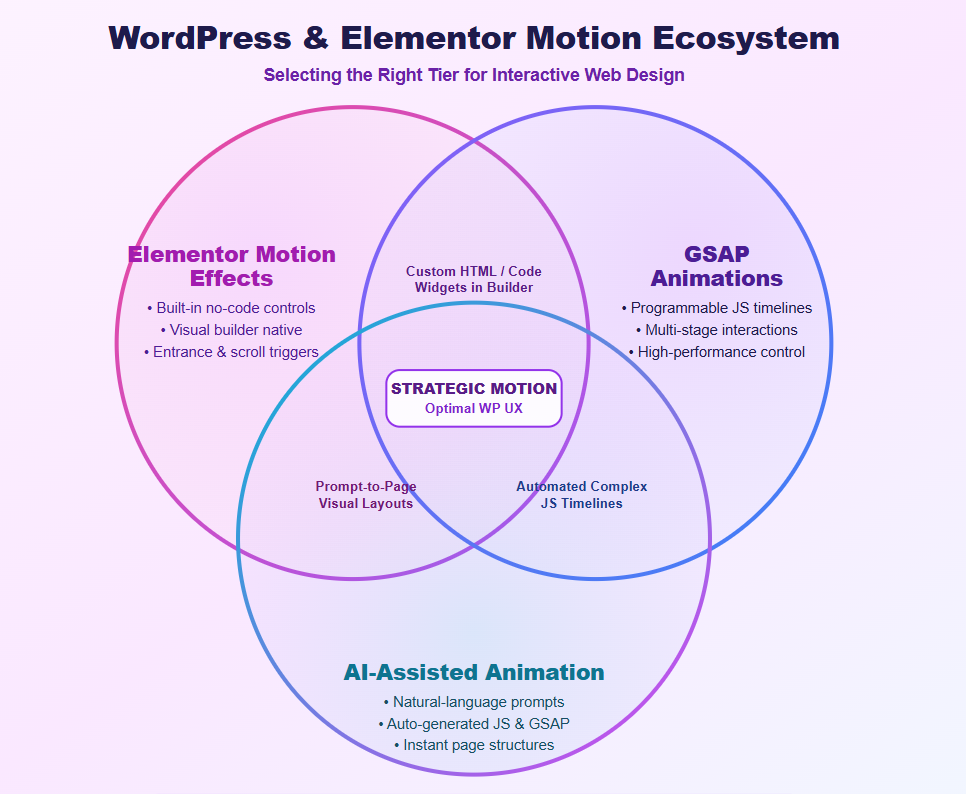
For WordPress professionals using Elementor, this evolution has culminated in a tiered approach to motion. You can now choose the right tool based on the complexity of the interaction and the strategic goal of the page:
- Elementor Motion Effects: Built-in, no-code controls inside the visual page builder.
- GSAP (GreenSock Animation Platform): Programmable JavaScript timelines for complex, multi-stage interactions.
- AI-Assisted Animation: Natural-language prompting to generate GSAP scripts or build entire page structures.
Why Does Web Animation Matters?
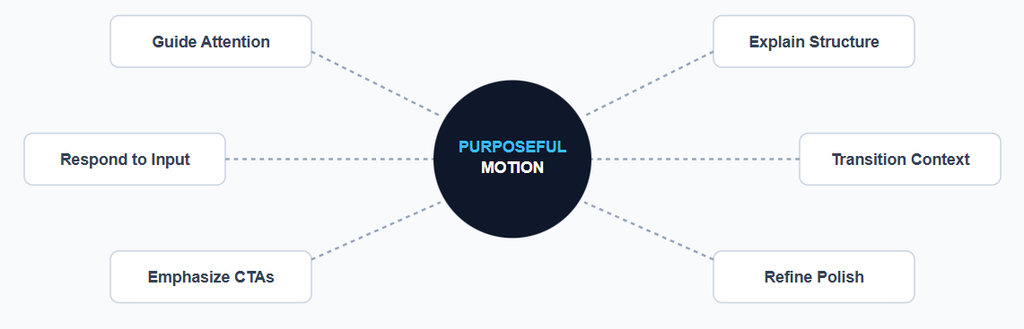
Before executing a single frame, one must define the functional utility of the motion. Effective web animation is rooted in established UX principles that transform static layouts into living, responsive environments.
- Guide Attention: Moves the visitor’s eye toward key actions or visual elements.
- Explain Structure: Shows how off-screen elements or nested sections fit into the overall layout.
- Respond to Input: Confirms button clicks, form submissions, and hover states instantly.
- Transition Context: Keeps users oriented as they navigate between tabs, popups, or pages.
- Emphasize CTAs: Highlights primary conversion buttons when they enter the active viewport.
- Refine Polish: Provides subtle visual feedback that makes web applications feel complete.
Comparative Methodology: Selecting the Right Tool
Use this breakdown to choose the right approach for your project requirements:
| Comparison Dimension | Elementor Motion Effects | Custom GSAP Timelines | AI Site Builder Generation |
| Primary Focus | Simple, no-code element adjustments. | Precise, code-driven animation sequences. | Automated generation of entire page structures. |
| Technical Skill Needed | Basic (Page builder interface). | Intermediate (CSS classes & JS execution). | Basic (Prompt writing). |
| Design Flexibility | Limited to built-in effect parameters. | Unlimited control over dynamic sequences. | Constrained by generator layout templates. |
| Workflow Efficiency | Very fast for basic single-element effects. | Requires initial setup and testing time. | Rapid generation of complete initial layouts. |
| Ideal User Profile | Designers and non-technical site managers. | Front-end developers and design agencies. | Creators launching new client builds quickly. |
Introducing Elementor Motion Effects
Elementor’s native toolset is ideal for “quick wins”, animations that require minimal configuration but provide significant visual polish. These effects are handled via the browser’s compositor thread when possible, ensuring smooth performance for straightforward transformations like entrance reveals and basic parallax scroll effects.
When to Use Elementor Motion Effects
- You want a simple entrance or scroll-based movement without writing code.
- Non-technical team members need to update or adjust settings later.
- The animation applies to isolated elements rather than complex multi-step sequences.
- You are working with standard Elementor containers, column parallax, or image zooms.
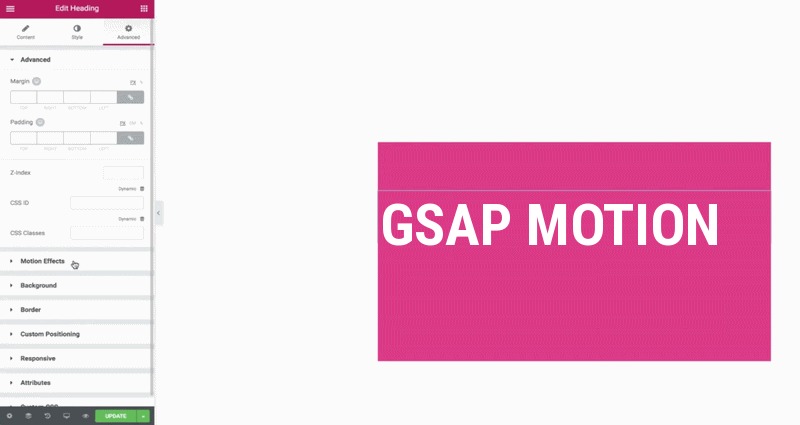
The efficacy of an animation depends on its trigger. To maintain a professional feel, motion must be predictable. Entrance reveals should coincide with the user’s scroll position, ensuring the narrative of the page unfolds logically as the visitor progresses through the content.
Why use GSAP animation instead of motion effects in elementor?
Before we know the basics of GSAP, let’s understand why GSAP animation is better than basic motion effects in elementor. Below is a clear difference given for your understanding.
Mastering Advanced Sequencing with GSAP
While native tools excel at isolated movement, complex storytelling requires the GreenSock Animation Platform (GSAP). GSAP allows for decoupled animation logic, meaning you can orchestrate elaborate, multi-stage sequences that are independent of Elementor’s visual builder constraints, providing unparalleled precision in timing and easing.
Key GSAP Concepts
- Tween: A single property transformation over time (e.g., animating opacity from 0 to 1).
- Timeline: A flexible container used to chain, overlap, and sequence multiple Tweens together.
- ScrollTrigger: An extension plugin that maps timeline progress directly to scroll position or viewport triggers.
- Easing: Mathematical curves (power2.out, back.inOut) that determine how motion accelerates and decelerates.
- Stagger: Automatically offsets start times across a group of matching elements.
How to Create GSAP Page Motion Effects Using Xpro Elementor Addons
Integrating GreenSock Animation Platform (GSAP) capabilities into your WordPress workflow with Xpro Elementor Addons lets you transform static landing pages into high-converting, interactive web experiences. By leveraging GSAP-powered motion triggers, you can build seamless visual transitions, like swings, horizontal glides, and dynamic zooms, directly within the Elementor editor without writing custom JavaScript code.
Step-by-Step Guide to Building GSAP Page Motion
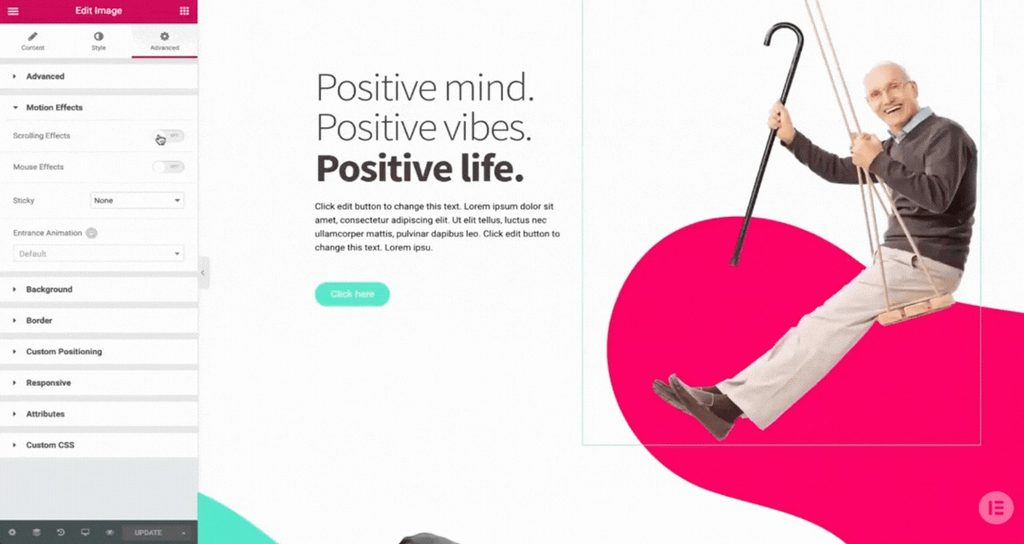
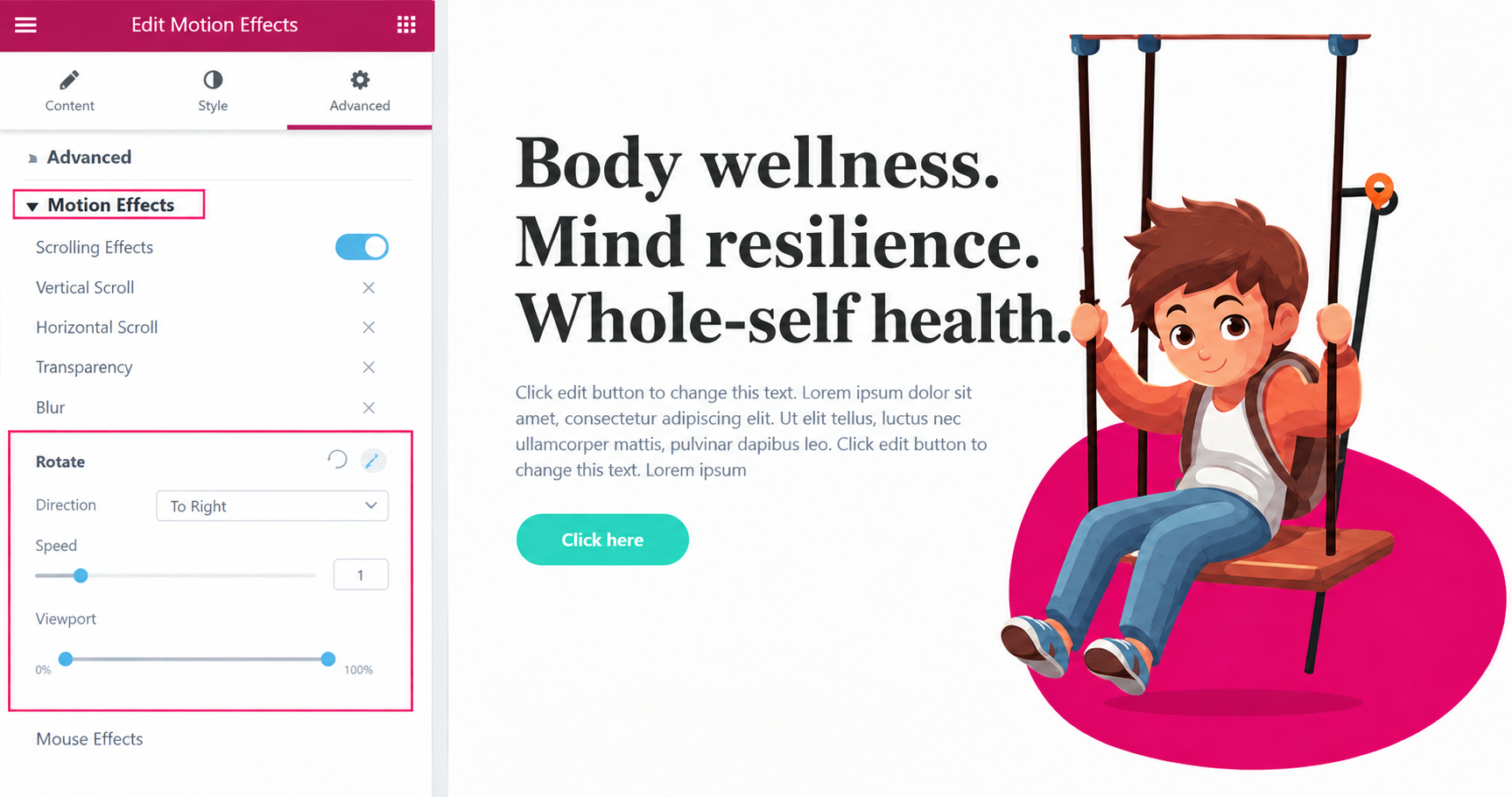
1. Swing Motion (Rotational GSAP Axis)
Create an attention-grabbing header or hero image that swings like a hanging board as the page scrolls:
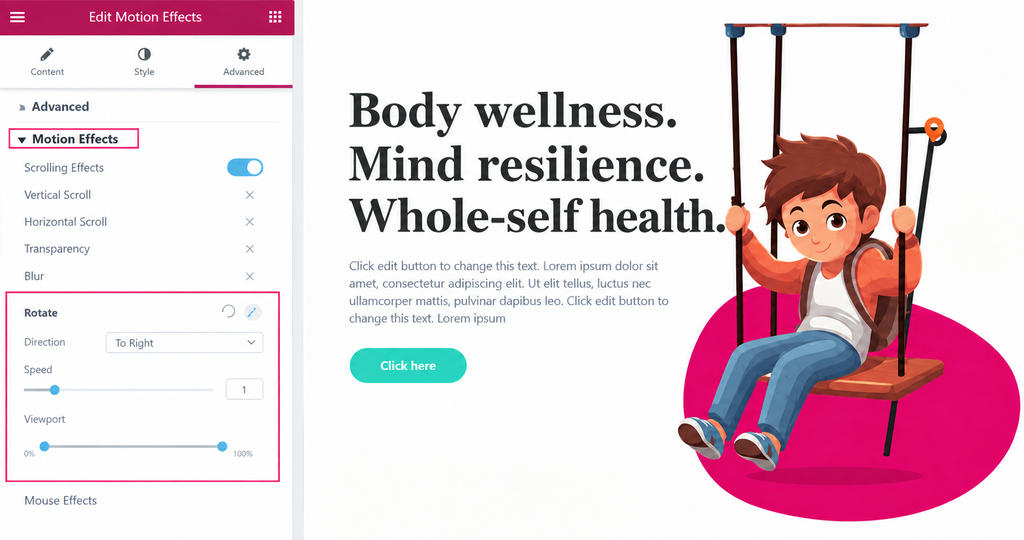
- Access Elementor Panel: Click your target image or widget and navigate to Advanced > Xpro Motion Effects.
- Enable GSAP Engine: Toggle Scrolling Effects to ON.
- Configure Rotation: Select the Rotate module and set the direction to To Right.
- Set Motion Speed: Set the Speed slider to 1 for a smooth, natural flow. Leave the Viewport range at default (0% to 100%).
- Define GSAP Pivot Point: Set the Y Anchor Point to Top. This shifts the transformation axis to the top edge, causing the graphic to swing from an overhead hinge.
2. Horizontal Glide (X-Axis GSAP Translation)
Guide the user’s focus down the sales funnel by sliding elements across the screen on scroll:
- Activate Motion: Enable Scrolling Effects inside the Xpro Motion panel.
- Select Horizontal Control: Click Horizontal Scroll and set your entry trajectory (To Left or To Right).
- Adjust Trajectory Speed: Boost the Speed multiplier to 10 to trigger a responsive slide across the horizontal plane as the user traverses the page.
3. Floating Parallax Depth (Y-Axis GSAP Translation)
Add subtle, weightless depth to background cards or icon elements:
- Enable Vertical Motion: Turn on Scrolling Effects and enable Vertical Scroll.
- Set Direction: Select Down as the primary trajectory.
- Maintain Default Viewports: Keep speed and viewport defaults active. The element will gently float along the vertical grid at a different rate than the surrounding content, creating an organic parallax depth.
4. Interactive Scale & Zoom (GSAP Viewport Traversal)
Draw attention to key product highlights or CTA buttons as they scroll into view:
- Combine Motion Vectors: Enable Scrolling Effects and activate Vertical Scroll set to Down.
- Set Entry Viewport: Restrict the Vertical Scroll Viewport range from 0% to 40%.
- Apply Scale Modifier: Click Scale, set the Speed to 6, and constrain the Scale Viewport parameters between 20% (bottom) and 80% (top).
This dual-trigger setup causes the element to smoothly zoom forward toward the reader, creating an immersive depth transition as it centers on the device screen.
Here is a full page scroll with GSAP animation.
Optimizing Logic with AI Collaboration
AI tools are not just for generating code; they are strategic partners in optimizing animation performance. By providing detailed prompts that specify transform-only properties (like translate and scale), you can leverage AI to write efficient code that avoids expensive layout recalculations (reflows).
To get accurate code from AI tools, include these core details in your prompt:
How to Open Elementor AI Step-by-Step
Method 1: Direct CSS Animation on Your Image Widget
- Click the Image Widget containing your masked car.
- At the top of the left panel, click the Advanced tab (the 3rd tab next to Content and Style).
- Scroll down and click to expand Custom CSS.
- Click the purple ✨ Write with AI button positioned in the top-right corner above the code field.
Method 2: Adding GSAP JavaScript Code (HTML Widget)
- From the left widget panel, search for HTML and drag the HTML Widget onto your canvas (place it right below your image).
- Look at the left sidebar under Content > HTML Code.
- Click the ✨ Write with AI button in the header toolbar of the code box.
What to Type in the AI Window
Once the Elementor AI popup appears, paste this prompt directly:
“Write GSAP 3 JavaScript to animate the class .car-blob. Make the element scale up from 0.9 to 1.05 and float up and down by 15px in an infinite smooth loop with yoyo: true.”
Xpro Future of AI-Integrated Layout Workflows
The next evolution in WordPress design is the integration of AI builders that generate functional layouts. These tools allow designers to skip the repetitive “wireframing” phase and jump directly into the refinement of interaction design and high-level UX strategy.
Tools like Xpro AI Builder 0.1.0 focus on generating structural layouts directly from prompts. The workflow integrates AI generation into WordPress site creation:
- Site Generation: Generates multi-section layouts using native Elementor containers and compatible add-on widgets.
- Content Placement: Fills in contextual headers, body text, and images tailored to your specific prompt.
- Layout Editing: Generates fully editable containers that remain customizable in the standard Elementor panel.
Final Thoughts – Any Animation Sequence in your Mind?
Elementor gives you that quick plug-and-play fix with its native Motion Effects. It’s super solid for quick fades, sleek entrances, and subtle hover vibes when you don’t feel like wrestling with code.
But when you want to make something that actually stops people from scrolling past? That’s where you step up the stack:
- Native Motion Effects: Your go-to for low-effort, high-reward polish. Perfect for simple header reveals or quick element fades.
- Xpro AI Builder: The absolute cheat code for scaffolding your page layouts in seconds so you can spend your energy on the fun stuff.
- Elementor AI + GSAP: The ultimate power move. When you need buttery-smooth scroll sequences, insane staggered grids, or high-end interactive storytelling, prompting Elementor AI to pump out custom GSAP code gives you agency-level sauce without the headache.
At the end of the day, motion isn’t just eye candy; it’s how your brand website speaks. Stop building static pages and start thinking about providing experiences that actually hit.
Got a specific animation sequence in mind for your next project, or are you ready to start cooking with GSAP prompts?
Before adding animation to your site, ask yourself:
“How does this motion help the visitor understand or navigate the page?”
Once you clarify the UX purpose, choosing the right combination of Elementor controls, GSAP logic, and AI tools becomes straightforward.

