

Table of Contents
Cyber Monday is one of the busiest days of the year for online shoppers. As a marketer or store owner at an E-commerce brand, you know standing out takes more than a basic discount code. At Xpro Elementor Addons, we’ve seen how standout brands like Popflex, Shinola, and Marine Layer crush their Cyber Monday targets, and how WordPress stores can capture that same momentum using high-impact countdowns, stacked pricing tables, and promo alerts.
In this guide, you’ll build a Cyber Monday sales page section by section with Xpro Addons for Elementor: the countdown, the offer bar, the pricing, and the urgency. Each one goes live in minutes and works on mobile.
In this guide
- What you’ll build
- Why Cyber Monday Needs Its Own Design
- 1. Open Every Page with a Cyber Monday Countdown Timer
- 2. Put Your Discount Code in the Headline, Not the Footer
- 3. Build a Headline That Gives Your Hero the “Cyber” Look
- 4. Show Every Deal on One Clear Pricing Table
- 5. Turn Your Cyber Monday Products into a Live Grid
- 6. Handle the Two Cyber Monday Objections Before They’re Asked
- 7. Capture the “Not Yet” Crowd with a Reminder Popup
- Your Cyber Monday Landing Page Checklist
- Week-by-Week: When to Build What
- Cyber Monday Sales FAQ
What you’ll build
Seven sections, seven widgets. Use this as your map for the rest of the guide.
| # | Section | Xpro widget | Job it does |
| 1 | Countdown | Countdown | Makes the deadline visible |
| 2 | Announcement bar | Text Marquee | Puts the code where eyes land |
| 3 | Hero headline | Advanced Heading | Gives the page the “cyber” look |
| 4 | Offers | Pricing Table | Shows stacked deals clearly |
| 5 | Products | Woo Product Grid | Lists live sale items |
| 6 | Objections | Alert Box + Testimonial | Answers doubts early |
| 7 | List capture | Modal Popup | Catches the “not yet” crowd |
| Good to know: Some of these widgets are in Xpro Elementor Addons Pro (Countdown, Text Marquee, Alert Box and Modal Popup are listed there). Check the widget list in your plan before you start. |
Why Cyber Monday Needs Its Own Design (Not Black Friday Again)
Shoppers arrive at Cyber Monday already tired of Black Friday visuals: the same black backgrounds and red tags they have scrolled past for four days. Campaigns that stand out on the Monday look new, with cooler palettes, chrome and glow effects, gradient headlines and a different mood on the same layout.
The practical move is to keep your Black Friday page structure, because shoppers already know how to buy from it, and reskin the moment. Make three swaps:
- Colors: gold and red become electric blue, violet and a cyan glow.
- Headline effect: a solid title becomes a chrome gradient.
- Copy: “doors open” energy becomes “last call online” energy.
One section refresh gives you a second sale moment from the same page.
Global Style Colors Comparison
| Element | Black Friday (“Doors open” energy) | Cyber Monday (“Last call online” energy) |
| Background | #0E0E12 | #070B1F |
| Primary Accent | Gold accent (#F5B301) | Electric blue (#2F7BFF) |
| Secondary Accent | Sale red (#E63946) | Violet (#8A4DFF) |
| Highlight / Text | Text (#FFFFFF) | Cyan glow (#22D3EE) |
| Pro tip: Reskin once in Elementor’s Global Style colors and every widget follows. Set both palettes in Global Colors and switch the accent colors on the day. You won’t have to edit each widget one by one. |
1. Open Every Page with a Cyber Monday Countdown Timer
Nothing says “this ends soon” like a live timer. The Xpro Countdown widget gives you digit boxes and an end-date target, plus control over what visitors see when time runs out.
HOW TO BUILD IT
- Drag Countdown into your top section.
- Content tab → End Date = Nov 30, 23:59. Use your own timezone and check it matches Settings → General in WordPress.
- Style tab → enlarge the digits for mobile readability and center-align them.
- Pro move: set the expiry behavior to swap in a “Sale ended – join the list” message instead of dead zeros.
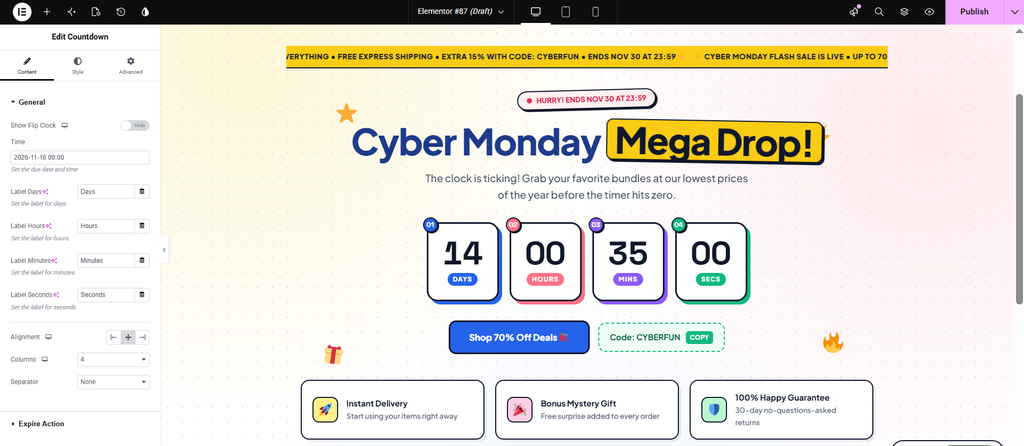
Why it works: A deadline you can see gives shoppers a reason to decide now instead of later. Put it above the fold so it is in view the moment the page loads.
2. Put Your Discount Code in the Headline, Not the Footer
Online shoppers hunt for codes before they trust a price. Surface yours at the very top. The Text Marquee widget runs a scrolling announcement bar, so “EXTRA 20% OFF – CODE: CYBER20” sits right under the logo where eyes land first.
HOW TO BUILD IT
- Drag Text Marquee above your header or directly under the logo.
- Add repeating items: “CYBER MONDAY”, “✦”, “CODE: CYBER20”.
- Choose a bright gradient or accent background so the bar stands out from the page.
- Set a slow, steady speed so the message stays readable.
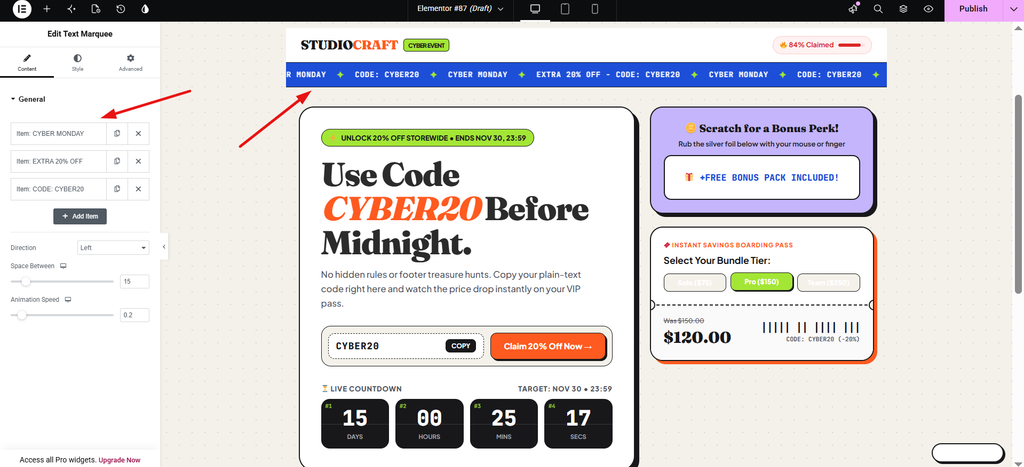
Why it works: Moving text is hard to copy, so also show the code as plain text near your button or at checkout.
3. Build a Headline That Gives Your Hero the “Cyber” Look
The Advanced Heading widget stacks a pre-title, a main title and a sub-title, each styled on its own. It is the fastest way to a “Cyber Deals” hero: a pre-title reading “ONLINE ONLY NOV 30”, a chrome-gradient main heading and your offer as the sub-title.
HOW TO BUILD IT
- Drag Advanced Heading into your hero section.
- Fill all three parts: pre-title, main title and sub-title.
- Pick a gradient for the main title (silver to ice blue gives the chrome effect).
- Make the pre-title small and spaced out, and the sub-title a calmer color.
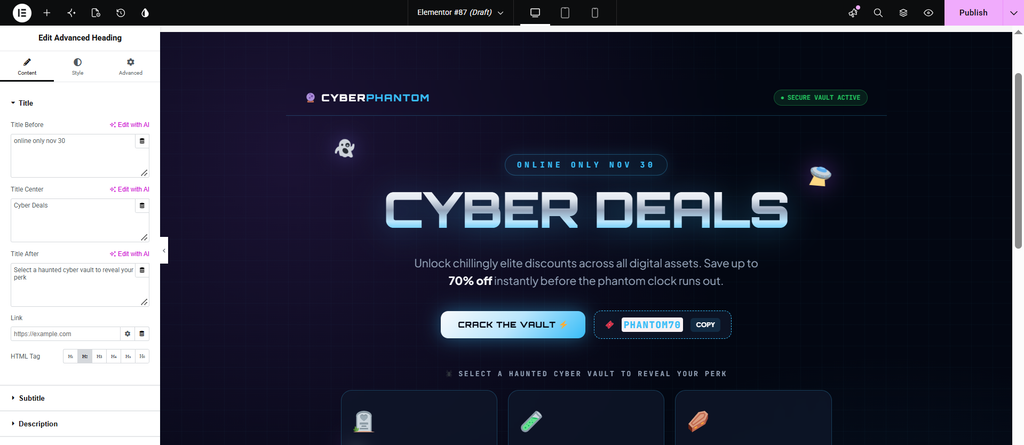
Why it works: Keep the main title to two or three words. The shorter it is, the bigger it can go on a phone screen.
4. Show Every Deal on One Clear Pricing Table
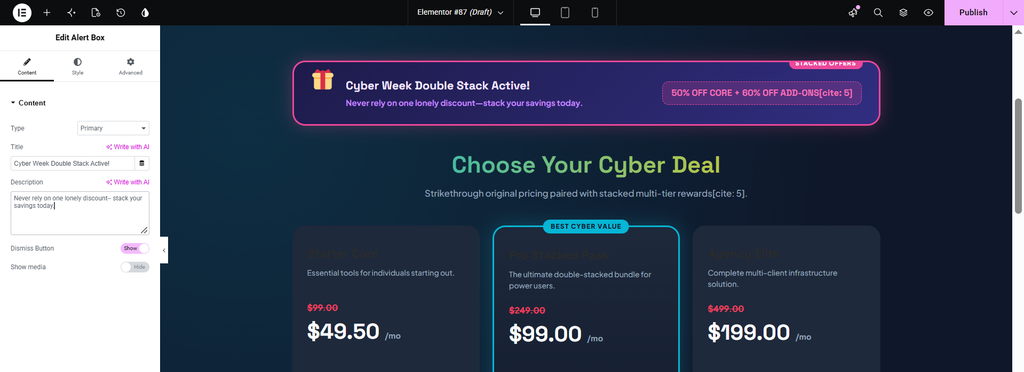
Cyber Week winners stack two offers, such as “50% off core + 60% off add-ons”, or use tiered “spend more, save more” pricing. They never rely on one lonely discount. The Pricing Table widget handles both, with strikethrough original prices, a highlighted best-value plan and a per-plan call to action.
HOW TO BUILD IT
- Use three columns for your plan names.
- Show the old price struck through next to the new price.
- Add a short feature list to each plan.
- Put the “Claim the Cyber Deal” button on the highlighted tier only.
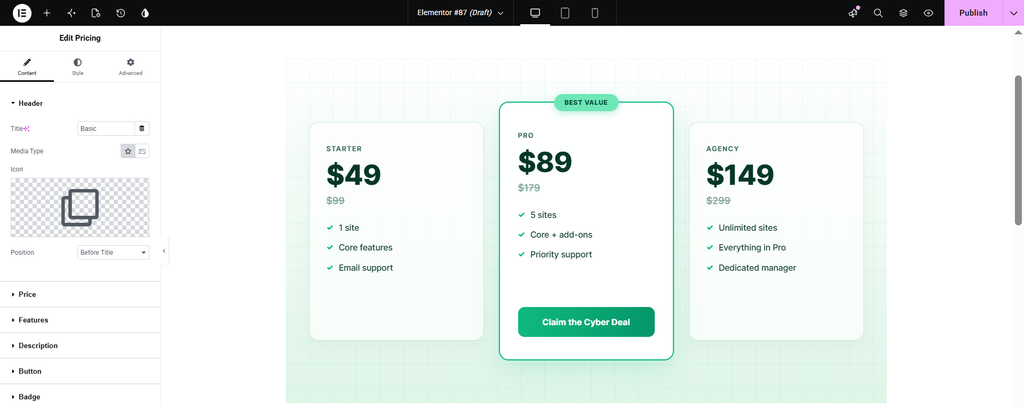
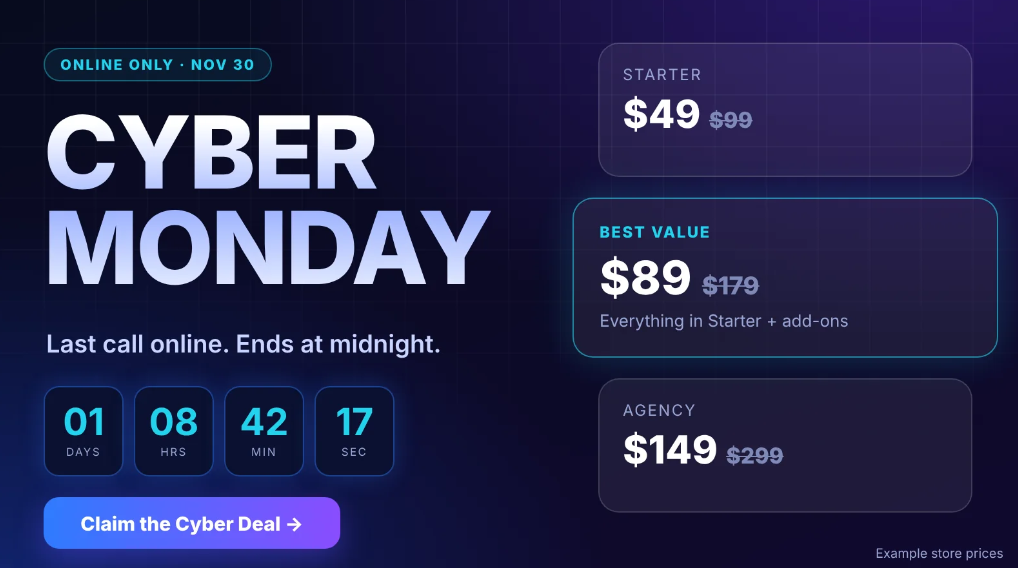
Example plans. CTA sits on the highlighted tier only. The middle plan is raised, badged and the only one with a button.
Why it works: One highlighted plan makes the choice easier. When every plan shouts, shoppers freeze.
5. Turn Your Cyber Monday Products into a Live Grid
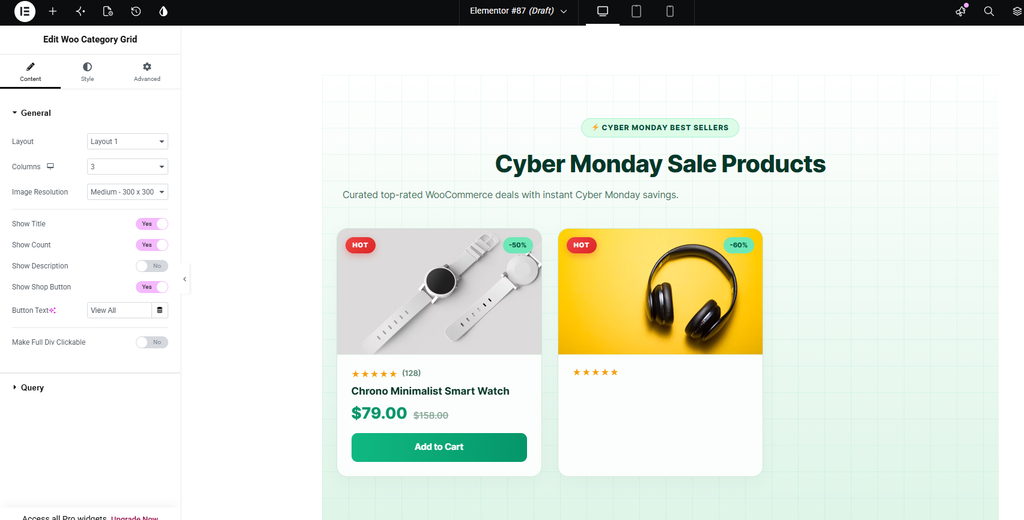
Skip static product images. The Woo Product Grid widget pulls items straight from your WooCommerce catalog, with sale badges, ratings and add-to-cart, so your grid follows your store instead of a screenshot.
HOW TO BUILD IT
- Set the source to Sale products.
- Turn on the “HOT” badge, ratings and add-to-cart.
- Choose a 3-column layout (1 or 2 columns on mobile).
- Limit the grid to six to nine products so choices stay easy.
Why it works: Fewer, better products convert more than a wall of everything. Lead with your best sellers.
6. Handle the Two Cyber Monday Objections Before They’re Asked
Two doubts stop most Cyber Monday purchases: “Will it ship in time?” and “Is this brand legit?” Answer both on the page.
HOW TO BUILD IT
- Shipping: an Alert Box with the honest deadline, such as “Order by Dec 4 for delivery before the holidays.” Use your real cut-off date.
- Trust: a Testimonial strip with three short, real quotes, names and photos.
- Place both below the offer and above the footer.
Why it works: Objection handling is a conversion boost in its own right, because it removes reasons to leave.
7. Capture the “Not Yet” Crowd with a Reminder Popup
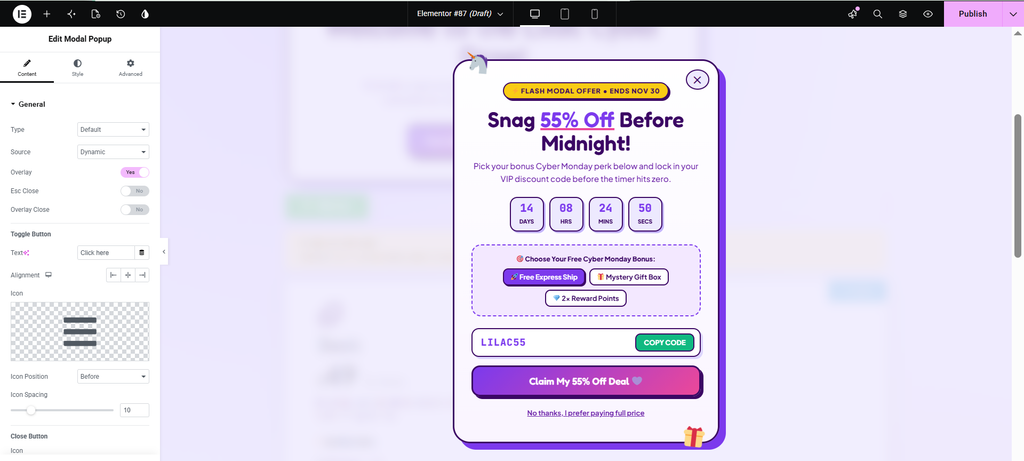
Plenty of Monday’s visitors aren’t ready to buy on Monday. A Modal Popup triggered on scroll, saying “Get the Cyber Monday deal link by email”, turns bounce traffic into a list you own. It is one of the most valuable sections on a Cyber Monday landing page, because the list keeps paying off next November even if this sale doesn’t.
HOW TO BUILD IT
- Drag Modal Popup onto the page and design the popup content.
- Choose the trigger. Xpro lists page load, exit intent, inactive time, scroll progress and click.
- Pick scroll progress around 50% so visitors have seen the offer first.
- Add an email field and a clear success message.
Why it works: On mobile, avoid popups on first load. Let people see the page, then ask.
Your Cyber Monday Landing Page Checklist
- Above the fold: countdown, offer headline with code, primary CTA
- Second screen: stacked pricing, product grid
- Third: testimonials and the shipping deadline
- Footer: reminder popup, terms link
- Mobile: timer digits large, sticky CTA, no popups on first load
Week-by-Week: When to Build What
Five dates, one clean launch plan.
| When | Do |
| Now | Publish the page. It needs about 2 weeks to index before the day itself. |
| Nov 25 | Swap live prices; test the discount code end to end. |
| Nov 29 | Hero copy → “Tomorrow: Cyber Monday”. |
| Nov 30 | Morning: live copy. Evening: “Last hours” countdown color swap. |
| Dec 1 | Expiry message and list capture stay up. |
Cyber Monday Sales FAQ
What should a Cyber Monday sales page include?
A countdown, a visible discount code, a tiered or stacked offer, a live product grid, social proof, a shipping deadline and a reminder capture.
Is Cyber Monday different from Black Friday for websites?
Yes. It is an online-only sales day, and after four days of deal fatigue, fresh visuals (a cyber palette, glow and gradients) tend to stand out against reused Black Friday banners.
How do I add a Cyber Monday countdown timer in Elementor?
Drag Xpro’s Countdown widget onto the page, set the end date and time to Nov 30 in your timezone, enlarge the digits for mobile and set an expiry message.
Do I need a separate page or can I reuse my Black Friday one?
Reuse structure, reskin look, re-date deadlines — one URL, two sale moments. (→ BF widget guide · banner examples) .
When should I publish my Cyber Monday landing page?
At least two weeks ahead so it can be indexed. Publish now and activate it later.
| Prefer ready-made? The Templates Library has sale-ready sections — every widget above works with one plugin → /premium/. |
