
Table of Contents
For every WordPress website, it is crucial to address the issue of the form not sending email. There are many reasons that cause this problem in your elementor form builder. But one of the main reasons is that your WordPress website has marked your emails as spam.
Building a high-converting contact form in Elementor only works if the messages actually reach your inbox. When visitors hit Send and either nothing arrives or a Server_error message pops up, the bottleneck almost always sits between WordPress’s default mailing path and how receiving email servers verify your domain. This step-by-step guide walks through how to diagnose whether your form is broken or your email delivery is blocked, and how to fix both permanently.
Quick Troubleshooting Summary
- Check Form Submissions first: Open Elementor > Submissions in your WordPress dashboard. If the test entry appears there, your form works and the issue is email delivery.
- Replace wp_mail() with SMTP: Route outgoing messages through an authenticated SMTP service instead of your web host’s default PHP mail function.
- Verify field IDs and actions: Make sure every form field has a unique ID and that Email is active under Actions After Submit.
- Authenticate your domain: Configure SPF, DKIM, and DMARC records in your DNS so Gmail, Yahoo, and Outlook do not block or spam-filter your leads.
Why an Elementor Form Not Sending Email?
By default, Elementor sends form notifications using WordPress’s built-in wp_mail() function, which relies on your hosting server’s PHP send_mail configuration. Many shared web hosts restrict or disable PHP mail to prevent spam abuse. Even when your host allows it, emails sent directly from a web server lack cryptographic authentication, causing strict inbox providers to drop them silently or route them straight to spam.
Symptoms and Where to Start
| What You See | Most Likely Cause | Jump To |
|---|---|---|
| Server_error or An error occurred | PHP mail disabled by host, missing field ID, or script conflict | Fix 1, Fix 4, Fix 7 |
| Success message shown, no email arrives | Blocked by host or rejected by recipient spam filters | Fix 4, Fix 5 |
| Notifications land in Spam/Junk | Missing SPF/DKIM/DMARC or mismatched From email domain | Fix 2, Fix 5 |
| Email arrives with blank fields | Missing or duplicate field IDs breaking [all-fields] shortcodes | Fix 1 |
| Page refreshes with no submission saved | Caching plugin minification or theme/plugin JS conflict | Fix 8 |
Fix 1: Check Form Field IDs and Shortcodes
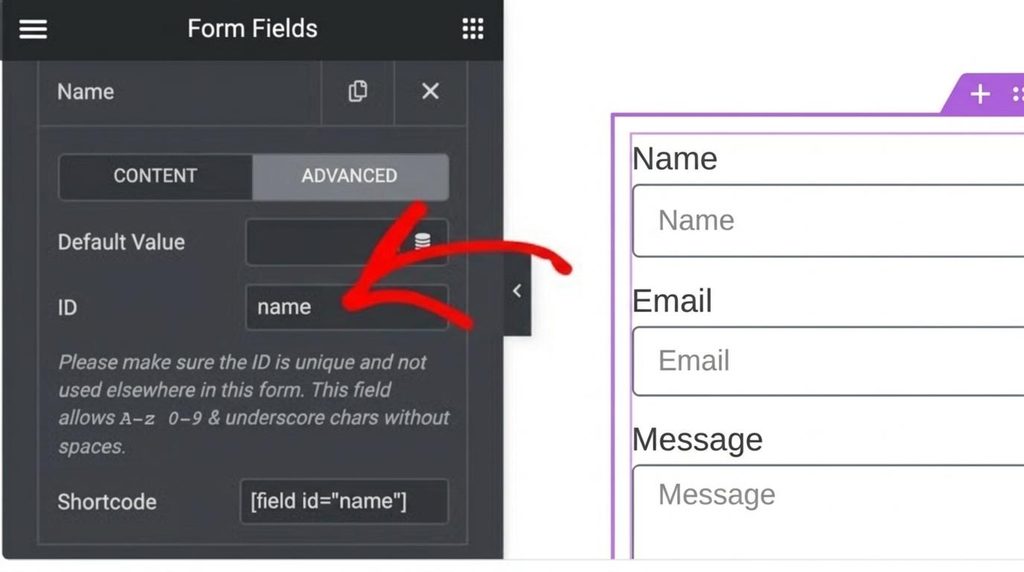
A missing or duplicate field ID frequently triggers Server_error messages or causes submitted values to disappear when using the [all-fields] shortcode.
1. Open your page in the Elementor editor and click the Form widget.
2. Under Form Fields, click each field (such as Name, Email, and Message) and switch to the Advanced tab.
3. Confirm that the ID field is populated with a unique value using only letters, numbers, and underscores (for example, name), and verify its matching shortcode ([field id="name"]).
Fix 2: Verify Actions After Submit and "From" Email Settings
If your form saves entries in the database but never triggers an email, check your form's notification routing inside the Elementor sidebar.
1. Select the Form widget and open Actions After Submit in the left panel.
2. Confirm that Email is added to the active actions list.
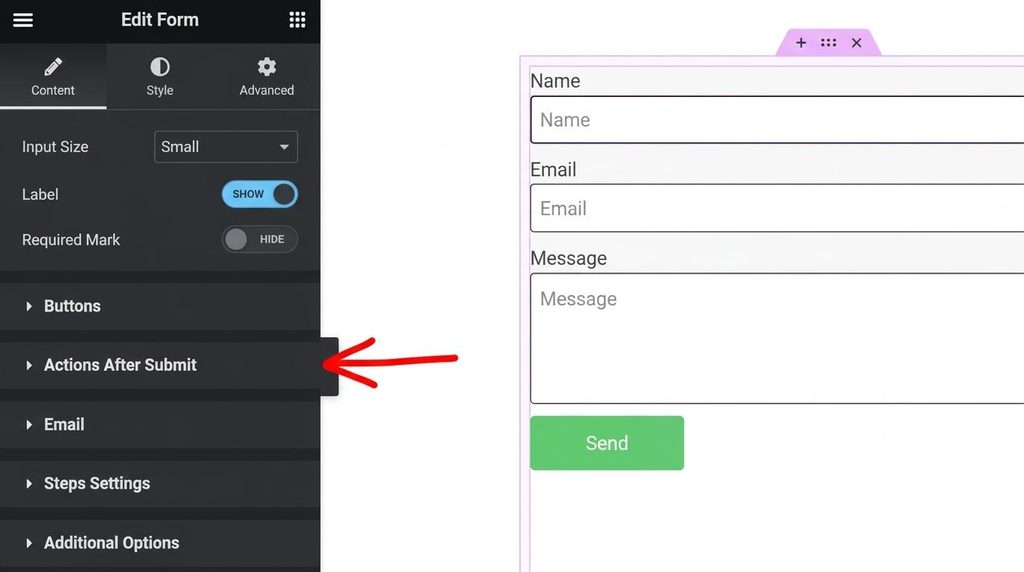
3. Expand the Email section right below it and verify these three fields:
• To: Your destination inbox address.
• From Email: Must use your website's own domain (for example, [email protected]). Using a visitor's @gmail.com or @yahoo.com address here triggers spoofing filters.
• Reply-To: Set this to the visitor's email field so you can reply directly from your inbox.
Fix 3: Confirm Submissions in WordPress Admin
Before changing server settings, verify that Elementor is capturing entries properly:
1. Ensure Collect Submissions is active under Actions After Submit.
2. Submit a test entry on your live page.
3. Navigate to Elementor > Submissions in your WordPress admin bar. If your test entry is listed, your form front end is healthy and you only need to fix email transport.
Fix 4: Switch from PHP Mail to an Authenticated SMTP Provider
Installing an SMTP plugin bypasses your host's unreliable PHP mail handler and routes form notifications through a dedicated email infrastructure.
1. Install and activate an SMTP plugin such as WP Mail SMTP, FluentSMTP, or Post SMTP.
2. Launch the setup wizard and select a reliable transactional mailer—such as SendLayer, Brevo, Amazon SES, Postmark, SendGrid, Mailgun, or Google / Gmail (via OAuth).
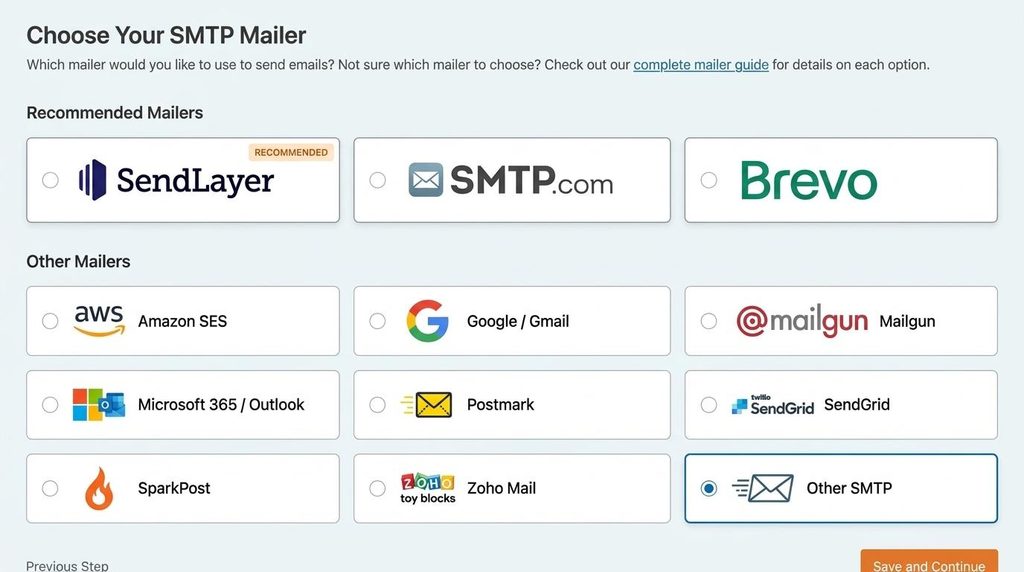
3. Enter the API key or SMTP credentials provided by your chosen mailer and save your settings.
Fix 5: Authenticate Your Domain with SPF, DKIM, and DMARC
Major inbox providers require domain-level authentication to verify that your SMTP service is authorized to send mail on your domain's behalf. Add these three TXT records in your domain registrar's DNS settings using the exact values provided by your mailer:
| DNS Record | Purpose | Example Value |
|---|---|---|
| SPF | Lists authorized sending servers for your domain | v=spf1 include:spf.yourmailer.com ~all |
| DKIM | Attaches a cryptographic signature to verify message integrity | Provider-specific selector TXT record |
| DMARC | Defines how receivers handle unauthenticated mail and sends reports | v=DMARC1; p=none; rua=mailto:[email protected] |
Important: Keep only one SPF record per domain—if you already have one, merge the new include: mechanism into your existing record.
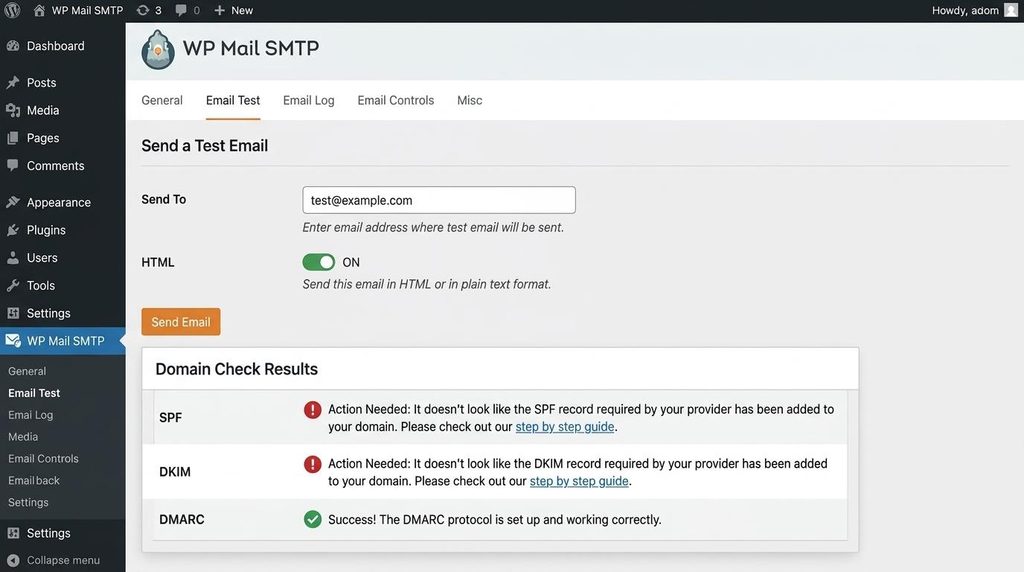
Fix 6: Run an Email Test and Domain Check
Once your SMTP mailer and DNS records are configured, verify delivery before testing the live form:
1. Open your SMTP plugin's Email Test tab.
2. Enter an external email address you can check immediately and click Send Email.
3. Review the Domain Check Results to confirm that SPF, DKIM, and DMARC pass without errors.
Fix 7: Ask Your Web Host About Blocked SMTP Ports
If your SMTP plugin returns connection timeouts even with valid credentials, your hosting provider may be blocking outbound SMTP ports (25, 465, or 587) at the firewall level. Contact support with the exact timestamp of your failed test email and ask them to verify outbound SMTP access or check your server's PHP error logs.
Fix 8: Rule Out Caching, JavaScript, and Integration Conflicts
If clicking Send refreshes the page without saving a submission or showing a confirmation message, check these three areas:
• Exclude form scripts from caching/minification: Aggressive JS minification in caching plugins can break Elementor's AJAX form submission handler. Clear your cache and test again.
• Temporarily disable third-party actions: If you connected Mailchimp, ActiveCampaign, or webhooks under Actions After Submit, disable them temporarily to see if an API mapping error is blocking the form.
• Check for plugin/theme conflicts: Temporarily deactivate non-essential plugins or switch to a default theme on a staging site to isolate JavaScript errors.
Fix 9: Export System Info for Support Escalation
If none of the steps above resolve the issue, gather diagnostic data before opening a support ticket:
1. Go to Elementor > System Info in WordPress and click Download System Info.
2. Pair that file with your hosting account's PHP error log and the exact time of your latest form submission so support engineers can trace the failure immediately.
Styling and Scaling Your WordPress Forms with Xpro Elementor Addons
While email delivery happens at the WordPress, SMTP, and DNS layers, the design and usability of your forms directly impact how many visitors complete them. Once your notifications are flowing reliably, you can use Xpro Elementor Addons to customize third-party form plugins—including Contact Form 7, Ninja Forms, and Gravity Forms—visually inside Elementor without writing custom CSS. Because all of those plugins also rely on wp_mail(), every SMTP and DNS fix in this guide protects their deliverability too.
Frequently Asked Questions
Why does my Elementor form say "Server error" when I click Send?
A Server_error typically means your web host disabled PHP mail(), a form field is missing a unique ID under its Advanced tab, or a third-party integration (like an email marketing API) rejected the submission payload.
Will installing an Elementor addon fix form email delivery?
No. Design addons control layout, styling, and form widgets, whereas email delivery is handled by WordPress, your SMTP plugin, and your domain's DNS records.
Do I need to configure SMTP if I use Contact Form 7 or Ninja Forms inside Elementor?
Yes. Nearly all WordPress form builders send through wp_mail() by default, so routing your site through an SMTP plugin with SPF, DKIM, and DMARC ensures reliable inbox placement across every form on your site.
