
Table of Contents
Let’s be real for a second and think about what the entire need is to keep visitors on your site. Yes, your navigation menu is a “front-line” tool to engage visitors and get high search rankings. However, as websites get bigger and way more complex, traditional menus are just not enough to handle massive menus.
But you know what, big players handle this chaos by leveling up to an advanced navigational elementor mega menu plugin. As we head into 2026, web design is all about flexibility and well-designed layouts to avoid frustrating your users. In this blog, we will break down how old-school menu dropdowns are a UX nightmare, why your website needs top-tier navigation to glow up, and how to build an elite mega menu using XPRO Addons.
Time to get into it!
What is Wrong with Traditional Menu Navigation?
Traditional nested dropdowns can ruin the user experience due to their cluttered design. Even though building them inside WordPress feels easy, what actually demonstrates on your website is a total mess. Basic dropdown menu fails for three main reasons: hover tunnel trap, hide-and-seek UX, and zero visual context.
According to the research, a classic mechanical flaw is that when a user moves their cursor, the dropdown panel collapses instantly. The user is forced to mouse back to the parent window and start their search over, seeing such a frustrating loop.
When we talk about zero visual context, it implies treating every single link identically. You cannot add typography contrast, small icons, or an image, or any impact for seasonal promotion. This creates fatigue for the user with the same monotone block of text.
Advanced Shift: Why do we need premium Mega Menus for a website?
Optimizing a wordpress menu for conversion and performance is about how you see data on the website. You can shift your navigation from a passive list of links into active user engagement. To bypass standard dropdown limitations, it relies on flexible frameworks for a mega menu. Structured layouts and visual cues significantly faster than standard vertical lists.
Users can scan dozens of choices in a fraction of a second by visualizing the icons, images, and bold section headings. Modern setups allow you to pull dynamic WordPress assets directly into the navigating layout itself. You can drop live login forms with interactive buttons or dynamic WooCommerce grids directly into your header.
Get responsive layout containers with automatic transition into smooth, user-friendly on mobile screens. The traditional menu hides the content, while mega menus expose it in a cool visual appearance.
Here are the basics: what an Elementor mega menu can fix:
- Quick Scan: Users don’t have to chase nested hover frequently; they get related links instantly.
- Drive Engagement: Visitors can feel user-friendly and stay on the website for long that helps increase conversion rates.
- Efficient Use of Space: No more cluttered representation that highlights what matters most for the users.
Find the Right Mega Menu Style for Your Brand
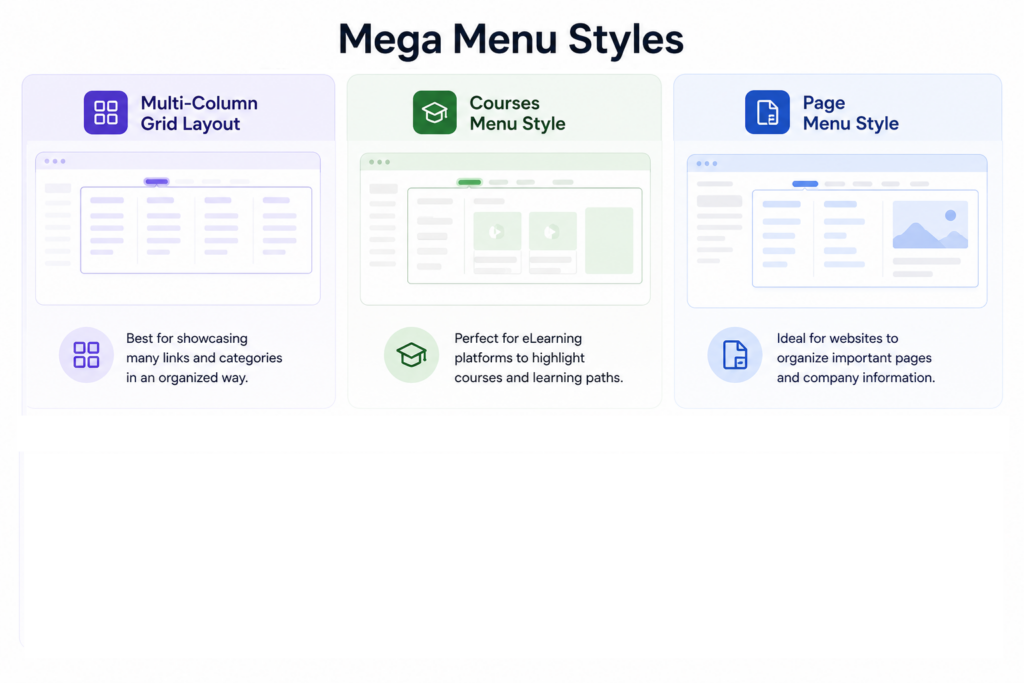
Depending on your business niche, you need to choose a specific layout from a variety of menu types that actually makes sense for your content. Here are the core styles you can build to keep your architecture looking flawless.
- Multi-Column Grid Layout
The ultimate baseline is to look for your big online stores and corporate websites. Your links are cleanly spaced out across horizontal columns (usually 3 to 6 columns wide) under a main category heading. This is that classic eBay- style vibe that turns a massive checklist of links into clean, predictable blocks.
- Courses Menu Style
Check out the vertical sidebar on the left for mega menu accessibility. When a user hovers over a category, the right side of the panel instantly. This can be configured to display a rich preview of courses, with no reload on pages required.
- Page Menu Style
This style blends standard website links with active media blocks. It is perfect for creating visual anchors. Put your main links on the left side of the panel and use the right side to flex a beautiful promotional banner image or a trending blog thumbnail. In this way, you can turn massive blocks into clean vertical accordions so everything stays easy to click.
How to Build a WordPress Mega Menu for advanced navigation?
No need for a massive budget or coding skills when you work with WordPress menu plugins. Just drag and drop using a plugin is a total cheat for page builders. Our Xpro Elementor add-on gives you a powerful wordpress mega menu widget to visually build responsive navigation panels. Check out our detailed guide to mega menu installation that turns your website header into a modern view.
Here are the quick checklist steps to create a mega menu in wordpress fast. Time to lock in:
Step 1: Enable WordPress
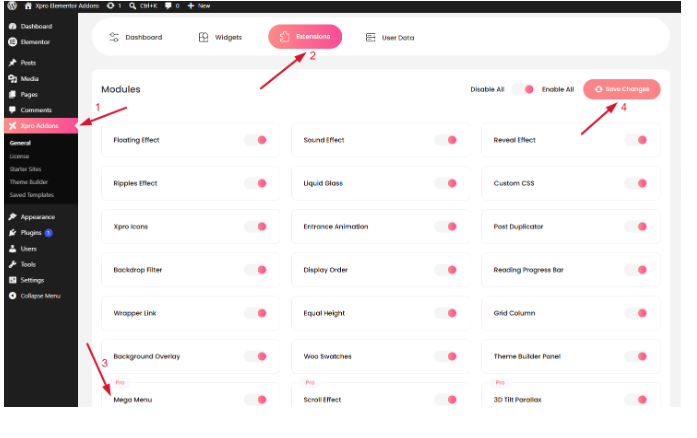
Head to your WordPress Dashboard > Xpro Addons. Hit the Extensions tab, enable mega menu after finding it, toggle it to Enabled, and save.
Step 2: Select Elementor Addon
In order to create a mega menu, you need to download the Elementor Addon. There are many Addons for Elementor on the market that provide some of the best widgets, features, and theme templates. But for the best mega menu for elementor to elevate your website. We recommend you purchase the premium version of the Xpro Elementor Addon that comes with the Mega Menu Feature and more than 130+ widgets, 20+ extensions, and 500 template sections to upgrade your mega menu display. It is extremely easy to create a professional Mega Menu as there is no coding involved. Look at how you can create an amazing Mega Menu for your WordPress website.
Step 3: Download Elementor Theme Builder
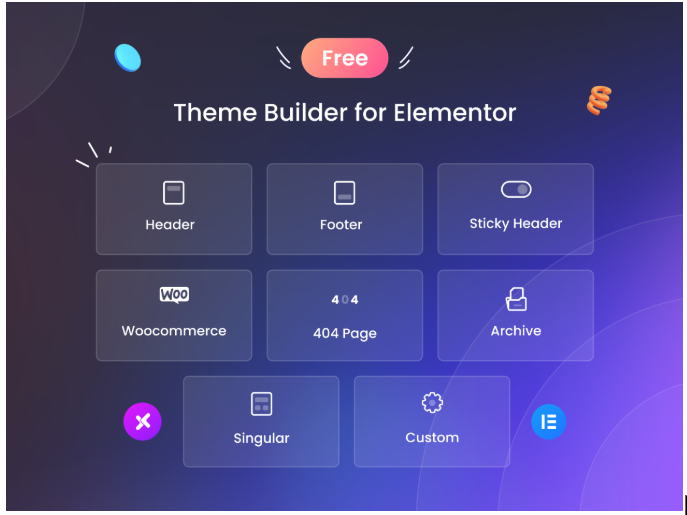
Also, download our Theme Builder for Elementor, which is absolutely FREE and allows you to customize each part of your website theme with front-end editing and no coding. You can use this tool to showcase the Mega Menu header on your entire website. The Free Xpro Elementor Theme Builder also allows you to create amazing layouts for post types, blog archives, WooCommerce products & categories, search pages, and 404 pages in minutes.
We have also prepared a list of the best Mega Menu plugins for Elementor. Look over the list and select the Addon you believe would provide your website with the best Mega Menu feature. Additionally, since you’ll be adding them to your mega menu display, we suggest you look at their widgets and features.
Step 4: Create a Menu
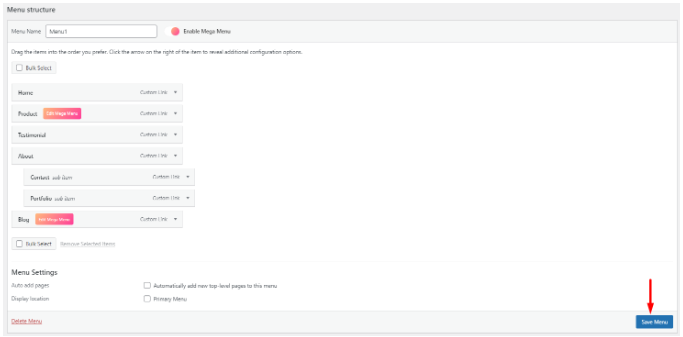
After you download Elementor and the Elementor Addon which include the Mega Menu feature, activate the feature from the Addon menu in WordPress. Create a menu from the Appearance tab in the WordPress dashboard. Select and enter the Menu tab under the Appearance. Enable Mega Menu and select the option where you want to add Mega Menu.
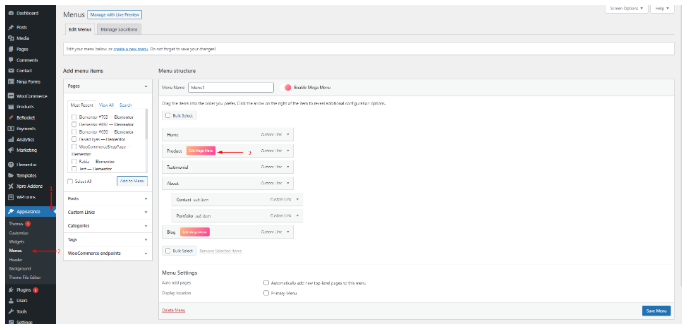
Step 5: Creating a Mega Menu
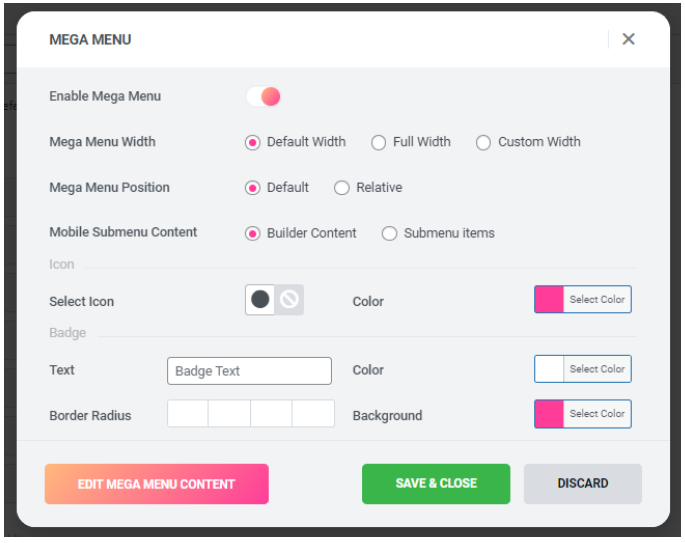
Further, enable Mega Menu for that particular option. You will have a customization option to make the menu according to your requirement. Xpro Addons allows you to perform the following customizations
- Mega Menu Width: Select Mega Menu width to default, full width, and custom modification.
- Mega Menu Position: Adjust menu Position to default or Relative.
- Mobile Submenu Content: Choose what to show on mobile; content builder or submenu item.
- Select Icon & Color: Add any icon with the menu and color it from the color box.
- Badge Text & Color: Add a badge by writing text in the badge field and coloring it as well.
- Border Radius: Adjust the radius for the mega menu box.
- Background: You can even add a background color to your Mega Menu display.
After you complete all the customization above, click on the “Edit Mega Menu Content” button and open up the Elementor Page Builder. Here, simply drag and drop any widget and create a beautiful layout for your menu drop-down.
After you complete all the customization above, click on the “Edit Mega Menu Content” button and open up the Elementor Page Builder. Here, simply drag and drop any widget and create a beautiful layout for your menu drop-down.
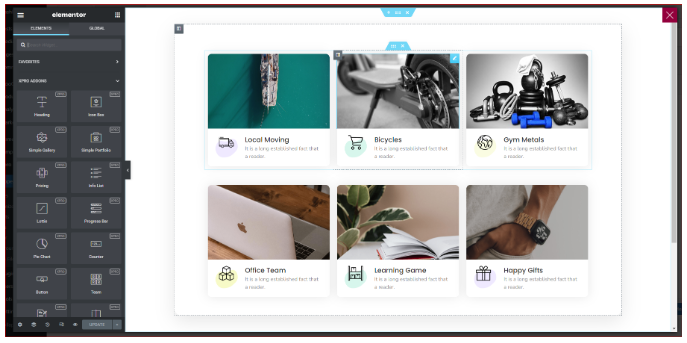
After the Elementor Page Builder opens, create a content display with widgets and features. Save the menu or any changes you made by clicking on the Save Menu button.
Step 6: Add Mega Menu to Your Website
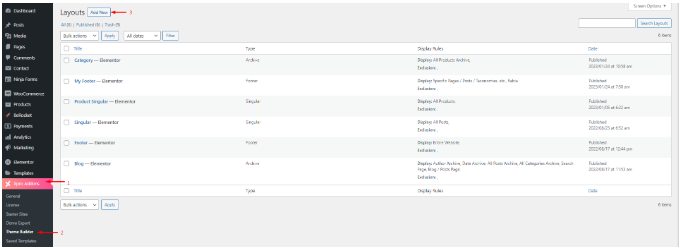
After you create a mega menu, you need to display it on your WordPress site. Here you will use the Xpro free Elementor Theme Builder. Go to the Theme Builder Tab under the Xpro Addons in your WordPress dashboard. Create a new layout for the header.
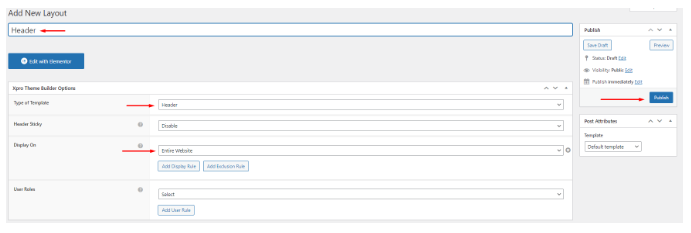
Add a title for your New Layout and select a type of template for the header. After that, select the option to display it on the entire website. Further, if you want to make any more adjustments like enabling a sticky header and template width adjustment, you can do it from the available options. After completing all the fields, publish the layout.
After publishing the layout, open the Elementor Page Builder by clicking on the “Edit with Elementor” button. Search for the Mega Menu widget in the search bar on the left side of the page builder dashboard. Drag and drop the widget to the desired location on your webpage. Further, you can perform any customization provided by the add-on, like Xpro Elementor allows developers to customize menu alignment, layout, mobile display, and so much more.
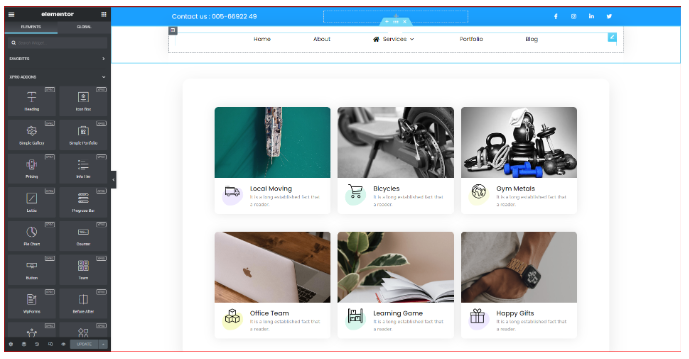
Preview the webpage and check if the widget is working properly or if there is anything missing. If everything is well, then you have successfully created a beautiful display of the mega menu.
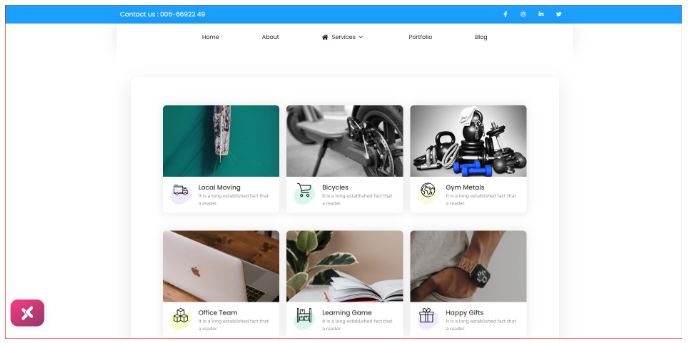
Check out the Examples to Elevate Your Website
You can find the inspiration for mega menu for elementor styling from this section of the blog and create a unique one for your business website. Here we will discuss the mega menu examples and show you the website that uses them adequately.
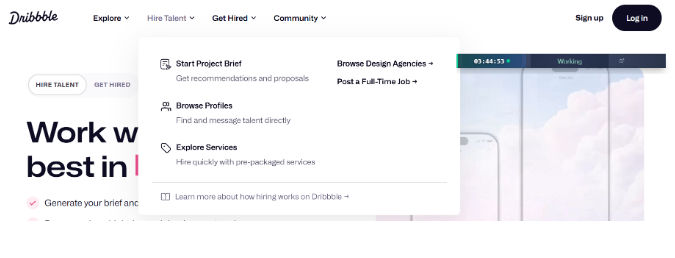
1. Dribble
The dribble style mega menu is designed to inspire users through visual navigation. Instead of relying solely on text links, it combines categories with images, featured content, and highlighted sections. This approach helps users discover content more naturally and encourages exploration. Creative agencies, portfolio websites, and design-focused platforms often employ these styles. You can use your website niche as one of them and engage users for a good experience.
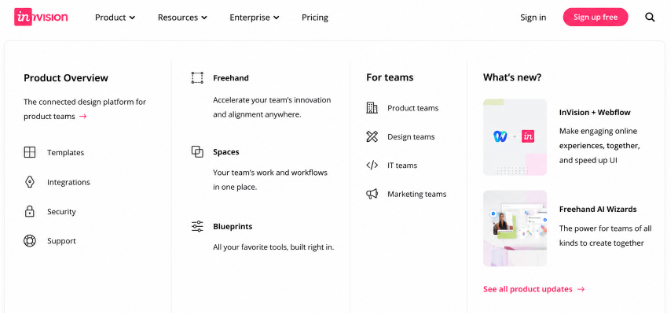
2. InVision
The InVision sticky header mega menu style combines an icon, a short description, and category navigation to present an entire product ecosystem in a structured format. It helps your visitors understand the link between product service while keeping the interface organized. Mostly software companies offer multiple tools for solutions; this style can be useful for this. As this provides the content alongside navigation, it improves user understanding and encourages deeper engagement.
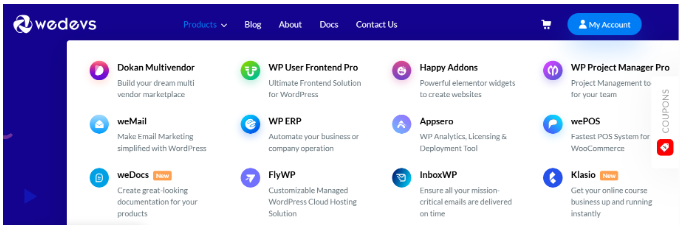
3. weDevs
Both a navigation and a marketing asset for mega menu functions with concise descriptions. It helps visitors quickly understand their benefits and use cases. This format is particularly effective for businesses with multiple software services or products. Instead of forcing users to click through several pages, the menu provides essential information upfront, improving navigation efficiency and increasing the likelihood of user interaction.
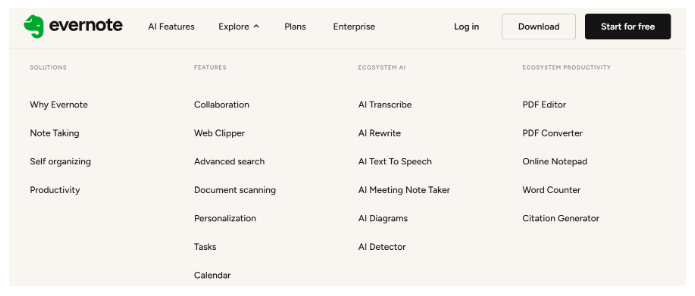
4. Evernote
The Evernote-style mega menu prioritises product education alongside navigation. Rather than displaying simple menu links, it includes brief descriptions that explain the purpose and value of each feature or section. This additional context helps users understand over hover before clicking what they are searching for. For example, SaaS companies and technology businesses often use this technique because it supports product finding, reduces confusion, and guides users toward the most relevant solutions.
Frequently Asked Questions
- What is the difference between mega menu and normal menu?
A traditional menu is just a drop-down list of the items with links for simple navigation. However, a mega menu is used for a complex website.
- What does mega menu mean?
A mega menu is an advanced navigational dropdown panel with icons, images, hover categories, and more to display your massive website pages or links at once.
- What are the benefits of a mega menu?
Divide your website content into sections and make them neat for your user to avoid a cluttered experience for their search.
Summary
Don’t you think you just got a fancy navigation feature after reading this blog? Like a game-changer for your visitors to omit the struggle. After a long description about why you need a mega menu for a complex website structure to keep a visitor engaged. But what if they do more on your website, such as boosting conversion, improving SEO indirectly when you organize your links, reducing bounce rate, and creating trendy seasonal content?
Yeah, it can give your website a boost from user-focused and search-intent content. You can prioritize the most important category, avoid overcrowding, and ensure seamless structure.
Now you can easily create an advanced navigational menu if you are an Elementor user. Also, you can use the Xpro elementor addon widget to enhance your users’ overall search experience.

