
Table of Contents
Imagine this: a potential customer lands on your website, interested in your products or services. What if they have a quick question before making a decision? What they need is a quick answer. Instead of filling out a lengthy contact form and waiting hours for a response.
This is exactly where an Elementor Social Chat Widget transforms the customer experience. Everybody wants instant communication through social messaging platforms over traditional support methods.
By integrating a social chat widget directly into your Elementor-powered website, you can bridge the communication gap, improve customer satisfaction, generate more leads, and increase conversions.
In this guide, we will explore everything you need to know about XPro’s Social Chat Widget for Elementor, its features, use cases, customization options, and why it’s becoming an essential tool for businesses that prioritize customer engagement.
Let’s begin!
What Is an Elementor Social Chat Widget?
An Elementor Social Chat Widget is a floating communication tool that allows website visitors to connect with your business through their preferred messaging platforms.
Rather than limiting users to one communication method, a social chat widget gives them the freedom to choose their preferred channel. Such as:
- Facebook Messenger
- Telegram
- Phone
- SMS
- Discord
- Line
- Viber
- And more
The result?
Your visitors choose the communication method they’re most comfortable with, leading to faster responses and higher engagement.
Why Businesses Prefer a Social Chat Widget?
For years, contact forms were the default communication method. However, users require quick attention from businesses with just one click. Nobody wants to stay in a queue to start a conversation.
Therefore, social platforms encourage more trustworthy and engaging conversations. Enable these widgets on your website and increase traction to your business. Below is a quick review of what customers prefer for query resolution.
According to SuperOffice’s research roundup on live chat, businesses see real gains from offering it:
- Comm100 found 82% of customers were satisfied with their live chat experience, compared to 61% for email and 44% for phone.
- eMarketer reported that 63% of customers are more likely to return to a website that offers live chat.
- And CrazyEgg found 38% of consumers are more likely to buy from a company that offers live chat support.
Businesses using social chat website plugins receive 85% more prospective clients than those without.
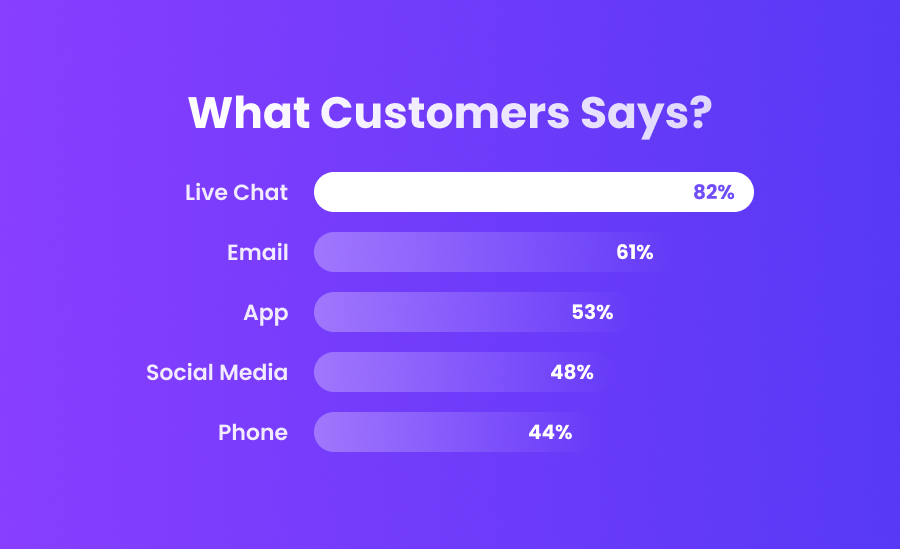
A quick overview why social chat widget is crucial instead of traditional chat.
| Traditional Chat | Social Chat Widgets |
| Delayed responses | Instant communication |
| High abandonment rates | Higher engagement |
| One communication channel | Multiple platforms |
| Lower conversion rates | Increased lead generation |
Modern customers prefer convenience. Businesses that adapt gain a significant competitive advantage.

Meet XPro Social Chat Widget for Elementor
The XPro Social Chat Widget for Elementor is a powerful, free, all-in-one communication tool designed to help you connect visitors instantly across multiple messaging platforms. Instead of juggling different contact methods or losing potential leads. Centralize all customer interactions into an easy-to-manage chat experience.
With support for 14+ popular messaging platforms, this widget ensures that your users can reach you through their preferred communication channel, whether it’s WhatsApp, Messenger, Telegram, Instagram, Skype, or others.
By combining convenience, flexibility, and performance, the XPro Social Chat Widget helps businesses:
- Increase customer engagement
- Reduce response delays
- Improve lead conversions
- Offer a better, more accessible communication experience
Whether you’re running an eCommerce store, agency website, or service-based business, this widget ensures your visitors are never more than one click away from reaching you.
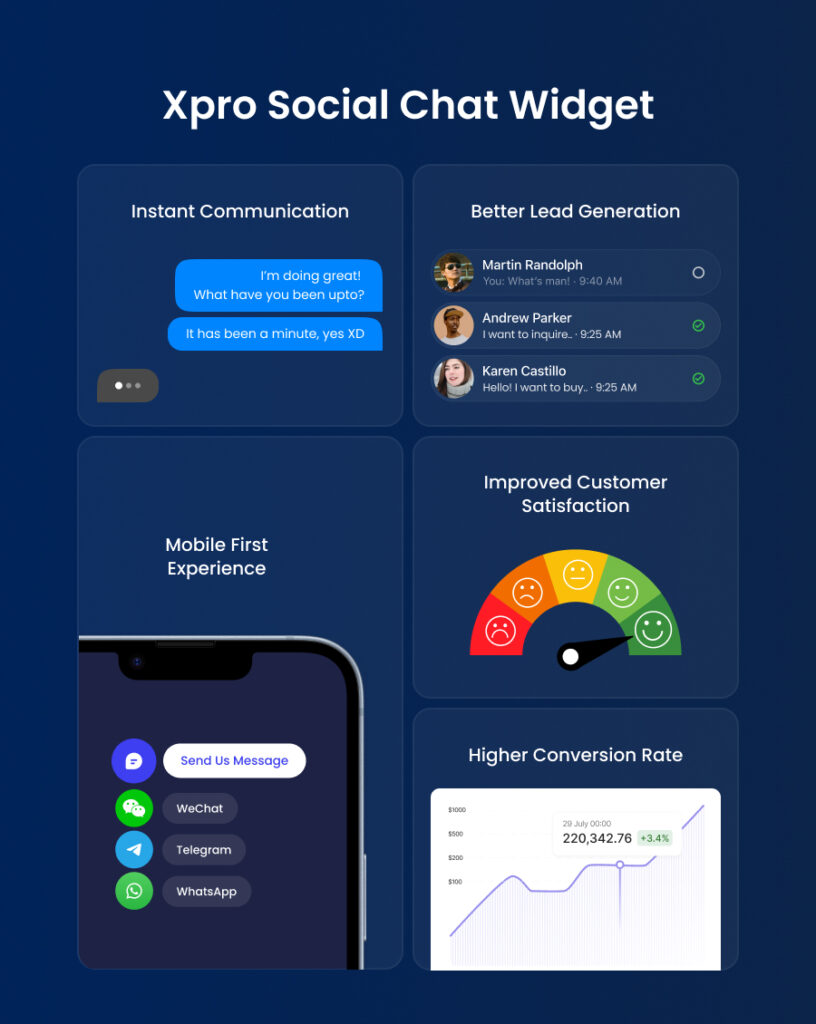
How do I add the Xpro Free Social Chat to my website?
Adding a social chat widget to your website is one of the easiest ways to improve customer communication and increase conversions. Whether visitors want to ask a quick question, request support, or connect through their preferred messaging app, our social chat widget removes friction and helps them reach you instantly.
The good news? You don’t need advanced technical skills to set one up. Modern social chat solutions can be embedded in just a few minutes using plugins, page builders like Elementor, or simple no-code configurations.
Let’s explore the most effective ways to embed a social chat widget on your website.
How to Add a Floating Social Chat Widget in Elementor
Elementor users can take customization a step further by integrating the chat widget directly into their page designs.
Using Elementor allows you to control not only the functionality but also the visual experience.
Here’s how the process generally works:
Step 1: Open Your Page in Elementor
Navigate to the page where you want the widget to appear and click Edit with Elementor.
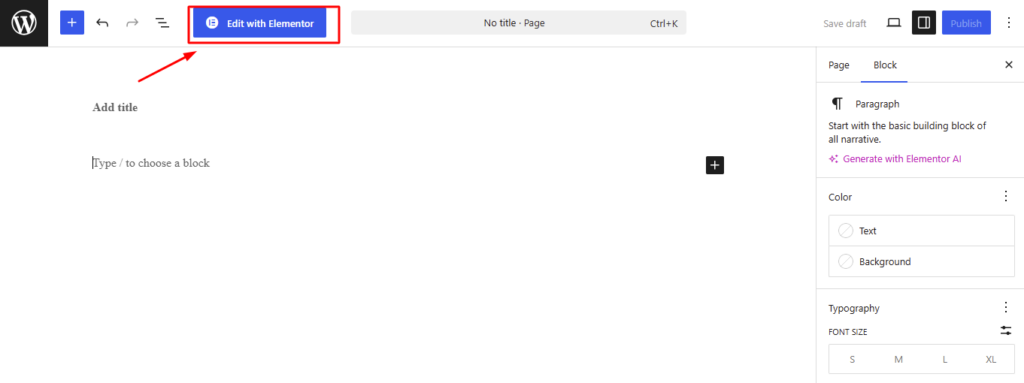
Step 2: Drag the Social Chat Widget
Locate the Social Chat Widget within your Elementor widgets panel and drag it onto the canvas. It will appear in a floating position by default.
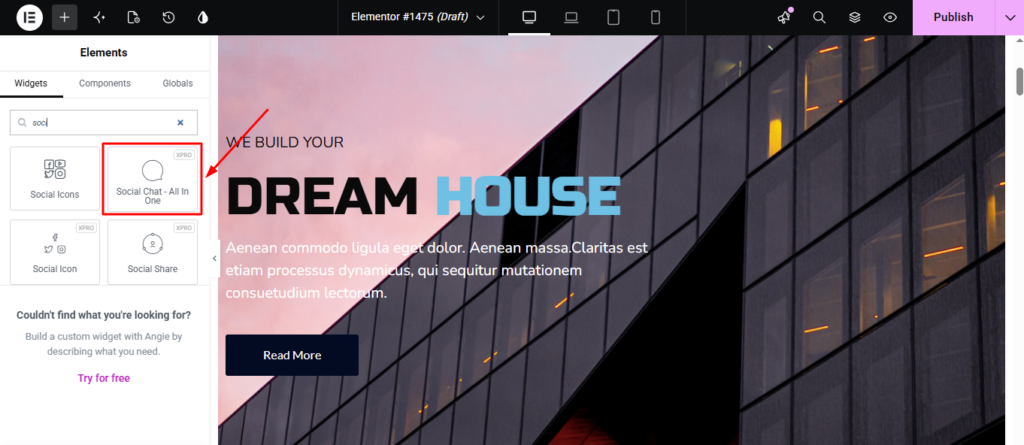
Step 3: Social Chat configuration
This is the step where you need to link your channel to connect with your customers directly. Use Xpro Elementor add-ons to keep your website visitors engaged. Here is why configuring social chat using Xpro works well:
- Get easy no-coding templates that manage everything effectively.
- Lightweight to load essential icon assets more quickly to reduce your website’s loading speed.
- Get multi-channel flexibility into a cohesive floating action button where you link all communication platforms.
Let’s set up the social chat widget first by choosing the right layout that fits your workflow.
How to Add WhatsApp Chat to WordPress
WhatsApp remains one of the most widely used communication channels worldwide, making it a powerful addition to your website.
To add WhatsApp chat:
- Enable WhatsApp from your chat widget settings.
- Enter your WhatsApp Business number.
- Customize the default greeting message.
- Choose whether conversations open in WhatsApp Web or the mobile app.
- Save your settings.
A personalized greeting can significantly improve engagement. Instead of a generic message, try something more inviting, such as:
“Hi! Have questions about our services? Send us a message, and we’ll be happy to help.”
This simple touch encourages visitors to start conversations more naturally.
Similarly, you can add any other communication channels you want visitors to use. For example:
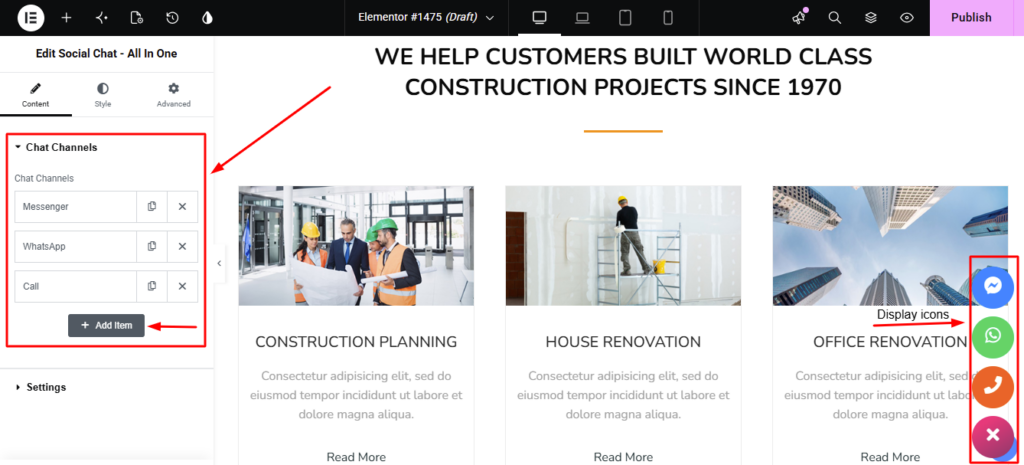
- Facebook Messenger
- Telegram
- Phone
You can enable one channel or multiple channels depending on your audience preferences. Once it is done, choose your preferred communication platform from the pop-up modal to begin setup.
Let’s add a Proper Link to Your Primary Channel
Enter your platform details to link them instantly and provide effective customer support.
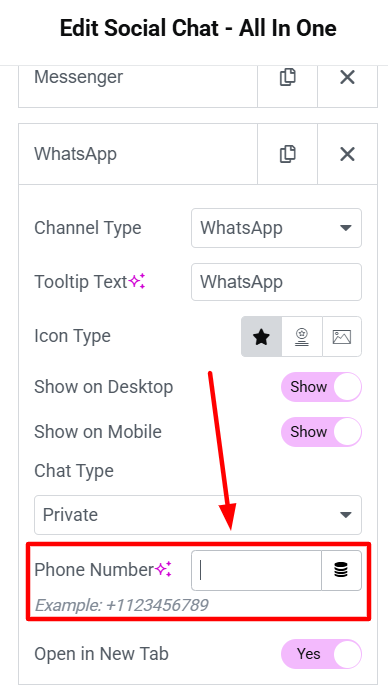
It helps businesses reach better. Insert your WhatsApp contact details into the empty box and enable your visitors with easy access to your chat box. If you want to clarify the purpose of WhatsApp for users, add tooltip text that appears on hover.
When visitors click on the icon, they will be redirected to a WhatsApp chat with you, that increase trust level.
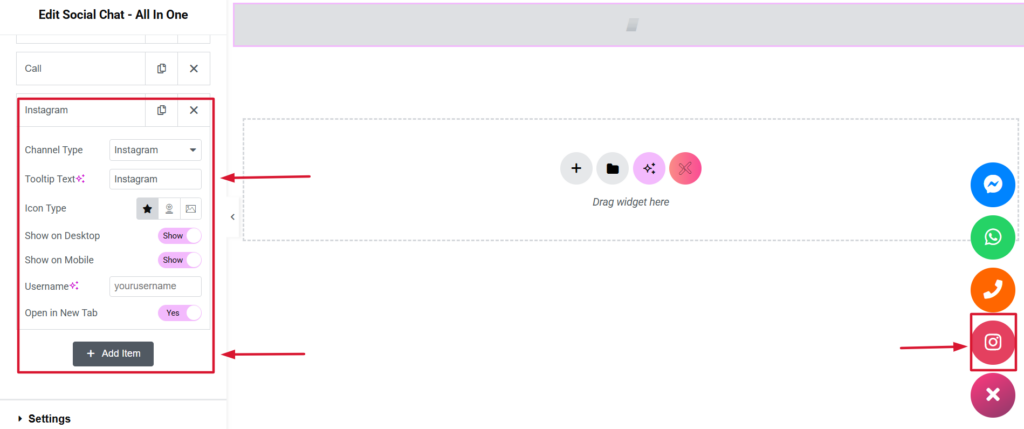
Add an Instagram item to your chat widget, allowing visitors to connect with you on the popular platform. Click “Add Item” and select the “Instagram” channel on your website. Similarly to WhatsApp, enter your preferred tooltip text if you want to customize its name. After this, add your Instagram username or link in the input field to configure your channel for visitors’ use. You can edit or delete it any time by clicking the edit or delete icon.
Likewise, add your Messenger chat ID to chat on Facebook. Grab your Facebook visitors for secure and seamless communication. Integrate your popular chat platform with a few clicks and improve your customer engagement.
Go to the Facebook page and copy your profile URL. Now paste it into the field in the XPro Chat widget editor. Add your preferred label name in the tooltip text. Once all editing and styling are done, your messenger chat widget will appear successfully.
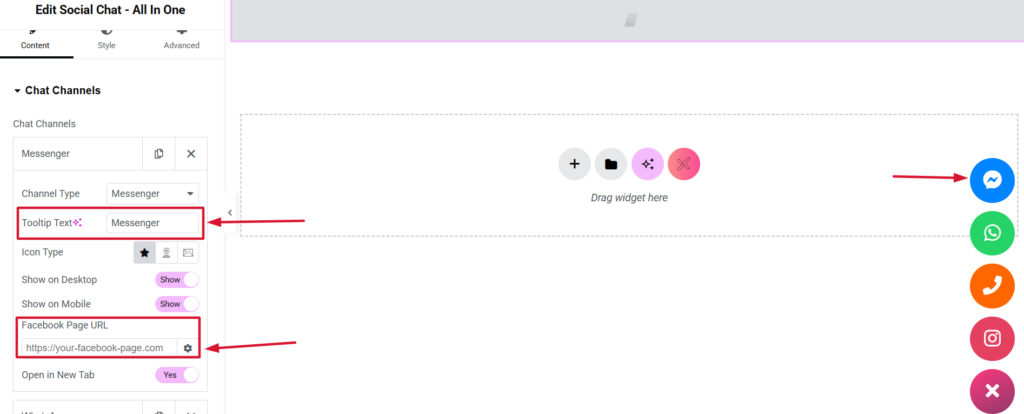
Here you go. Our Xpro Social Chat widget solves your direct chat problem by letting you add an all-in-one to your website. You can add 14+ platforms of your choice to streamline your communication.
Step 4: Customize the Design
Elementor makes it easy to match the widget with your website branding. You can adjust:
- Icon styles
- Colors
- Typography
- Button size
- Widget position
- Entrance animations
- Hover effects
Step 5: Publish and Test
After saving your changes, test the widget on desktop and mobile devices to ensure everything works correctly.
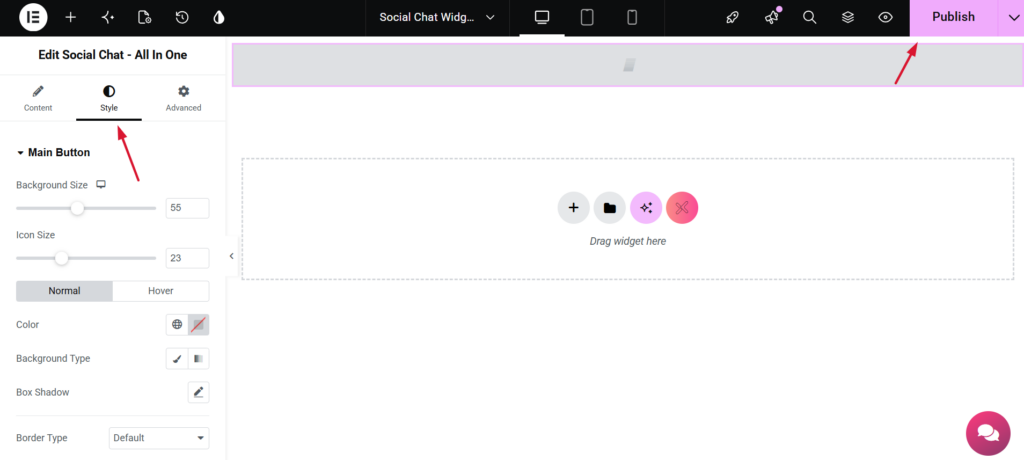
One of the biggest advantages of Elementor integration is flexibility. You can create a chat experience that feels like a natural extension of your website rather than a generic third-party addition.
No-Code Setup for Non-Technical Users
Not everyone is comfortable editing website code, and that’s perfectly fine.
Most modern social chat solutions are designed with no-code users in mind.
A typical no-code setup involves:
- Installing the plugin.
- Selecting communication channels.
- Entering contact details.
- Adjusting design preferences.
- Publishing the widget.
The entire process often takes less than ten minutes.
This accessibility allows business owners, marketers, and freelancers to enhance customer communication without relying on developers.
Multi-Channel Setup: Meet Customers Where They Are
Your visitors don’t all communicate the same way.
Some prefer WhatsApp, while others may be more comfortable using Messenger, Telegram, email, or phone calls.
A multi-channel chat widget allows you to accommodate these preferences from a single floating button.
Benefits of offering multiple channels include:
- Better customer experience.
- Increased response opportunities.
- Higher engagement rates.
- Reduced communication barriers.
- Improved lead generation.
However, avoid the temptation to enable every available platform.
Instead, analyze your audience and select the channels they actually use. In most cases, two to four options are enough to provide flexibility without overwhelming visitors.
Best Placement for Maximum Visibility
Where you place your social chat widget can have a direct impact on its effectiveness.
The most common and effective location is the bottom-right corner of the screen because users naturally expect support options there.
Here are a few placement best practices:
Avoid Blocking Important Content
Ensure the widget doesn’t overlap with menus, cookie notices, or call-to-action buttons.
Optimize for Mobile Devices
Mobile users account for a significant share of website traffic. Test your widget thoroughly to confirm it doesn’t obstruct navigation or cover essential elements.
Trigger the Widget Strategically
Instead of displaying the widget immediately, consider behavior-based triggers such as:
- Showing it after a visitor spends 30 seconds on a page.
- Activating it when a user scrolls halfway through the content.
- Displaying it on high-intent pages like pricing or checkout.
Embedding a social chat widget is no longer just a convenience; it’s an essential part of delivering fast, accessible customer communication.
Whether you choose a simple plugin setup, leverage Elementor’s design flexibility, or rely on a no-code approach, the goal remains the same: make it effortless for visitors to reach you through the channels they trust most.
When implemented thoughtfully, a social chat widget can enhance user experience, increase engagement, and create more opportunities to convert visitors into customers.
Improve Your Website Performance with Social Chat Widget
Businesses worry about adding a chat widget to their website, as it slows down the site. However, our xpro chat widget is designed to minimize the load impact and prevent rendering issues. It initializes only when needed and loads asynchronously in the background.
Visitors leave within 2- 3 seconds, and slow webpage speed is the most crucial reason for this. In other words, if your website loading speed is slow, users never reach your chat widget. Therefore, a social chat widget can impact loading speed if it is not optimized properly.
Also, the size of the widget file on slower networks can impact the loading speed. Because heavy UI components, scripts, and external requests overall impact website performance. Here, you need to load webpage content when needed or user interacts. This optimization technique is used to load content on demand and is known as lazy loading.
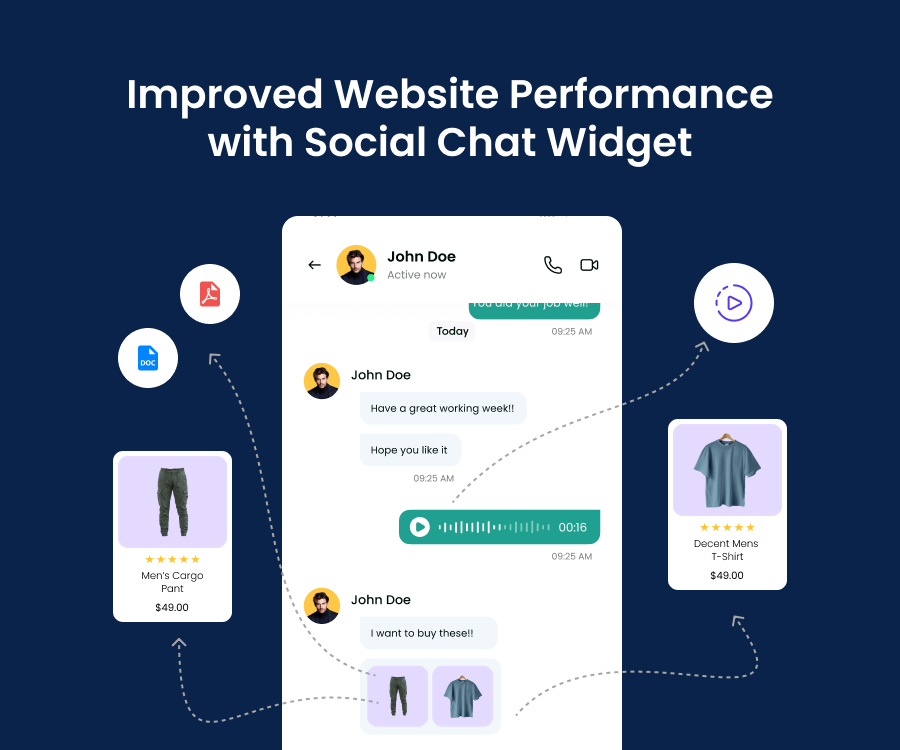
When you love to make your website more user-friendly, you consider speed and load time your first priority to increase user engagement.
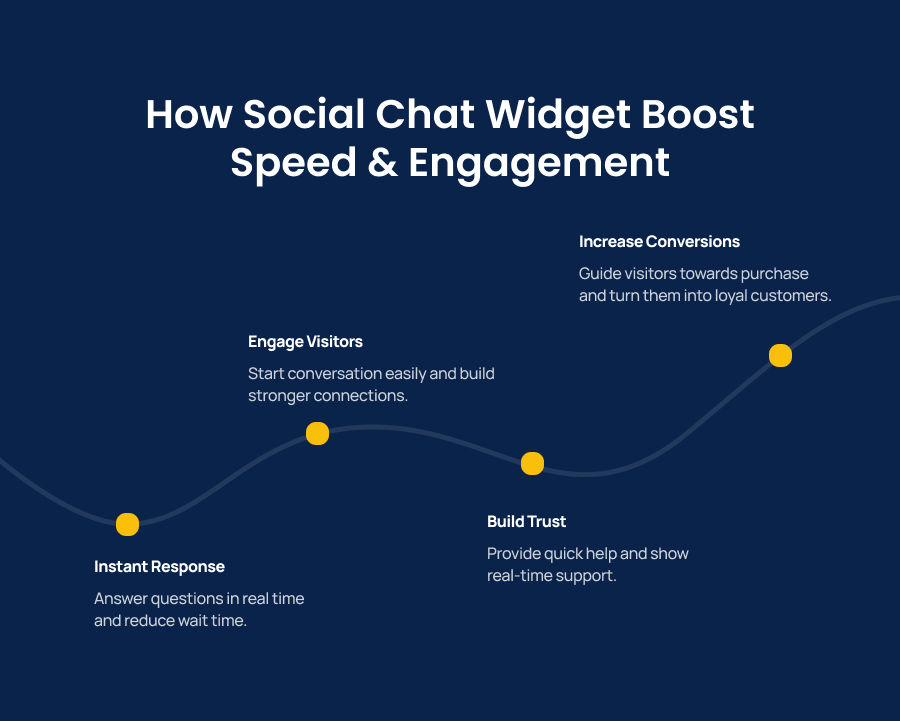
How Does Social Chat Widget Boost Speed and Engagement?
All is matter for visitor is speed, which you enhance by using our modern social chat widget. If you maintain your website performance, there is a high chance of converting your visitors into customers.
Moreover, when a visitor gets instant help, they feel more confident about your business. This can help reduce hesitation and encourage users to take action.
Final Thoughts
So, it ends here with my detailed explanation of the social chat widget, but the start of real magic on your website. This is not just about making your website look fancy; it is more about removing every single friction between you and your visitors.
Use our widget today and make it effortless for your users to reach out and increase your conversion rates. From embedding to speed and conversion, all you get in one solution with the xpro social chat widget.
Think about it: when you make it completely effortless for visitors to reach out and say “Hello”, your conversion rate increases naturally.
Finally, after using our widget, you will say it,
Voila…! I get an ultimate combination of speed, easy embedding setup, and conversion-focused design in one place.
It is just super easy to get started, and it might be the exact tool your business website has been waiting for. Go ahead, download our Elementor addon and give it a try today; your visitors will say thank you!

